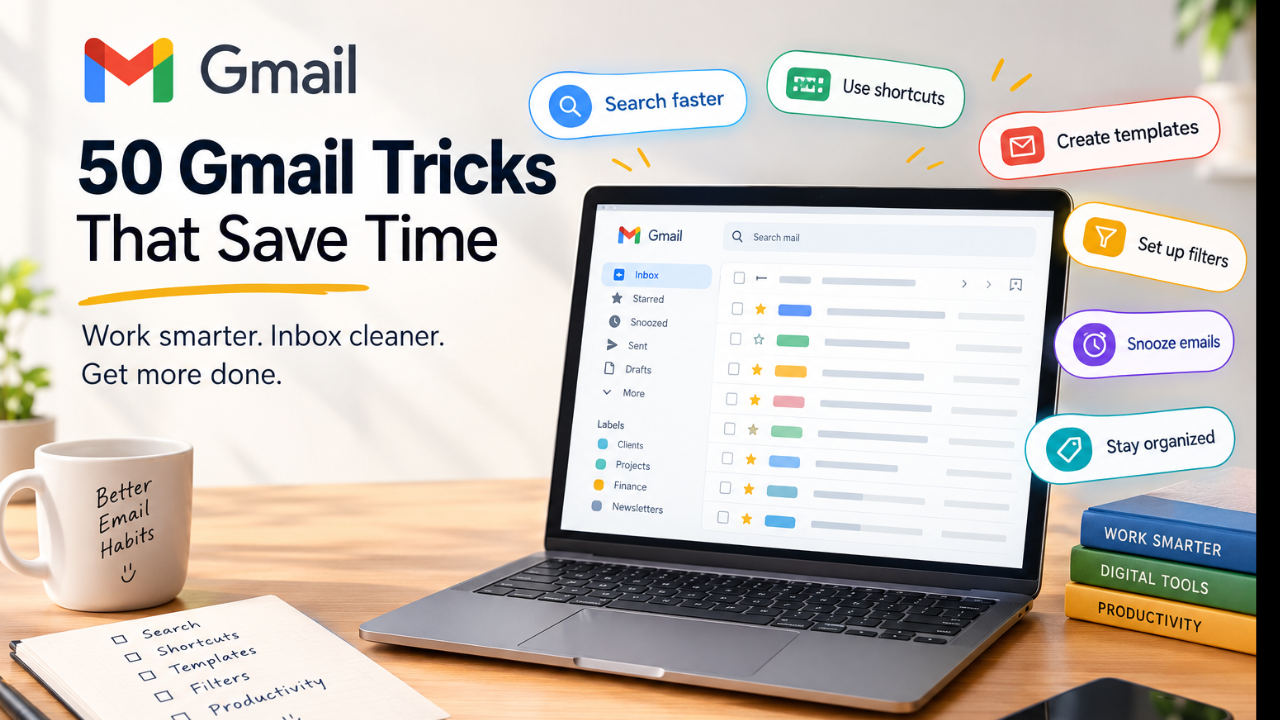
If you use Gmail every day, you are probably spending more time managing email than you realize.
Searching for old messages. Finding attachments. Writing the same replies. Cleaning your inbox. Following up with people. Moving emails into folders. Opening menus for actions that could have taken seconds.
The good news is that Gmail has dozens of built-in features that can dramatically reduce this work.
This guide covers 50 Gmail tricks that can help you search faster, write emails quicker, automate repetitive tasks, organize your inbox, and get more done without leaving Gmail.
Read Also: 50 ChatGPT Shortcuts, Commands & Features Everyone Should Know – AI Discoveries
Google currently supports advanced search operators, keyboard shortcuts, filters, templates, multiple inbox layouts, snoozing, labels, and other tools designed to make Gmail faster to manage. (Google Help)
Quick list: 50 Gmail tricks
- Use Gmail search operators
- Search by sender
- Search by recipient
- Search by date
- Find emails with attachments
- Search by file type
- Search exact phrases
- Exclude words from searches
- Combine search operators
- Search unread emails
- Search starred emails
- Search large emails
- Search by subject
- Search emails within a date range
- Turn searches into filters
- Use keyboard shortcuts
- Press
/to search - Press
cto compose - Use
g + ito return to Inbox - Use
g + sto open Starred - Use
g + dto open Drafts - Use
g + tto open Sent - Use
eto archive - Use
#to delete - Use
rto reply - Use
ato reply all - Use
fto forward - Use
Shift + ito mark as read - Use
Shift + uto mark as unread - Undo a sent email
- Schedule emails
- Snooze emails
- Create email templates
- Create filters
- Automatically label emails
- Automatically archive newsletters
- Automatically mark selected emails as read
- Create multiple inboxes
- Use Gmail labels
- Use multiple stars
- Add emails to Google Tasks
- Turn emails into calendar events
- Use Gmail’s integrated sidebar
- Find emails with search chips
- Use advanced search
- Forward emails as attachments
- Reduce inbox clutter with categories
- Use aliases and plus addressing
- Use Gemini in Gmail where available
- Build a simple daily Gmail workflow
Let’s break them down.
1. Use Gmail search operators
You do not need to scroll through hundreds of emails to find one message.
Use search operators directly in the Gmail search box.
For example:
from:john@example.com
or:
has:attachment
or:
after:2026/01/01
Gmail lets you combine operators to narrow results further. (Google Help)
This is one of the biggest Gmail time savers.
2. Search by sender
Looking for every email from a particular person?
Use:
from:person@example.com
Example:
from:client@example.com
You can combine this with other operators.
Example:
from:client@example.com has:attachment
3. Search by recipient
To find emails you sent to someone, use:
to:person@example.com
Example:
to:john@example.com
This is useful when you remember who you contacted but cannot remember the subject.
Read Also: YouWare: I Tested This AI App & Website Builder – AI Discoveries
4. Search by date
Use:
after:2026/09/01
or:
before:2026/09/21
You can combine them:
after:2026/09/01 before:2026/09/21
This is much faster than scrolling through your inbox.
5. Find emails with attachments
Type:
has:attachment
Gmail will show messages containing attachments.
You can make the search more specific:
from:client@example.com has:attachment
6. Search for specific file types
Try:
filename:pdf
or:
filename:xlsx
or:
filename:docx
This can be extremely useful when someone sent you a document several months ago.
7. Search exact phrases
Put a phrase inside quotation marks.
Example:
"monthly marketing report"
This helps Gmail find messages containing that exact phrase.
8. Exclude words from your search
Use a minus sign.
Example:
invoice -paid
This searches for invoices while excluding messages containing “paid.”
Gmail supports negative search operators for narrowing results. (Google Help)
9. Combine search operators
This is where Gmail search becomes powerful.
Try:
from:client@example.com has:attachment after:2026/01/01
You can search by sender, attachment status, and date simultaneously.
10. Search unread emails
Use:
is:unread
You can make it more specific:
from:client@example.com is:unread
This is useful when you want to quickly identify messages that still need attention.
11. Search starred emails
Use:
is:starred
Gmail also supports searches for specific star types if you have multiple stars enabled. (Google Help)
12. Find large emails
Try:
larger:10M
This searches for messages larger than 10 MB.
It can help you identify emails with large attachments that are consuming storage.
13. Search by subject
Use:
subject:invoice
Example:
subject:project proposal
This searches the subject line rather than relying on general keyword matching.
14. Search within a specific date range
Combine after: and before:.
Example:
after:2026/08/01 before:2026/09/01
This is particularly useful for finding a document, conversation, or receipt from a specific month.
15. Turn a search into a filter
If you repeatedly perform the same search, turn it into a Gmail filter.
Search for the messages first.
Then choose the option to create a filter from the search criteria.
Gmail can then automatically apply actions to matching messages. (Google Help)
16. Turn on keyboard shortcuts
Keyboard shortcuts can dramatically reduce mouse clicks.
Go to:
Settings → See all settings → General → Keyboard shortcuts
Turn them on and save your changes.
Google provides a complete keyboard shortcut list inside Gmail by pressing ?. (Google Help)
17. Press / to search
Instead of clicking the search box, press:
/
Your cursor jumps to Gmail’s search field when shortcuts are enabled.
Then type your search query.
18. Press c to compose
Press:
c
Gmail opens a new compose window.
This is much faster than moving your mouse to the Compose button.
19. Use g + i to return to Inbox
Press:
g then i
This takes you directly to your Inbox when keyboard shortcuts are enabled. (Google Help)
20. Use g + s to open Starred
Press:
g then s
You will jump directly to your starred messages.
21. Use g + d to open Drafts
Press:
g then d
This takes you straight to your drafts.
22. Use g + t to open Sent
Press:
g then t
This takes you directly to your sent mail.
23. Archive with e
Select or open an email and press:
e
Gmail archives the message.
The email leaves your Inbox but remains available in All Mail and through search.
24. Delete with #
With keyboard shortcuts enabled, pressing:
#
deletes the selected conversation.
25. Reply with r
Press:
r
to reply to an email.
This eliminates the need to click the Reply button.
26. Reply all with a
Press:
a
to reply to everyone included in the conversation.
Be careful with this shortcut when the message has many recipients.
27. Forward with f
Press:
f
to forward the current email.
28. Mark an email as read with Shift + i
Select an unread message and press:
Shift + i
Gmail marks it as read.
29. Mark an email as unread with Shift + u
Press:
Shift + u
to mark the selected message as unread.
This is useful when you want to return to an email later.
30. Undo a sent email
Made a mistake immediately after sending?
Gmail’s Undo Send feature gives you a short cancellation window.
You can configure the cancellation period to 5, 10, 20, or 30 seconds. (Google Help)
Go to:
Settings → See all settings → General → Undo Send
For important emails, setting the longest available cancellation period can give you extra time to catch mistakes.
31. Schedule emails
You do not have to send every email immediately.
Use Gmail’s Schedule send option to prepare an email now and send it later.
This is useful for:
• Follow-ups
• Client communication
• International teams
• Morning announcements
• Reminders
32. Snooze emails
Snoozing removes an email from your Inbox temporarily and brings it back at the date and time you choose. (Google Help)
For example, if someone sends you an email that you cannot handle today, snooze it until tomorrow morning.
You can also search for snoozed messages with:
in:snoozed
33. Create email templates
If you repeatedly send similar emails, stop rewriting them.
Gmail lets you save reusable message templates.
First enable Templates under:
Settings → See all settings → Advanced → Templates
Then create and insert reusable messages from the compose window. Google notes that templates are available from Gmail on computer. (Google Help)
Useful templates include:
• Meeting confirmations
• Sales follow-ups
• Client onboarding
• Job applications
• Partnership requests
• Customer support responses
34. Create filters
Filters automate repetitive inbox management.
For example, you can create a filter for messages from a particular sender and automatically:
• Apply a label
• Archive the message
• Mark it as read
• Star it
• Forward it
• Delete it
Filters turn Gmail from a manual inbox into a partially automated system.
Read Also: How to Create a Personal AI Agent: A Practical Guide for 2026
35. Automatically label emails
Create labels for categories such as:
Clients
Finance
Projects
Newsletters
Job Opportunities
Receipts
Then use filters to automatically apply those labels.
This makes important conversations easier to find later.
36. Automatically archive newsletters
If newsletters are useful but do not need to sit in your Inbox, create a filter.
For example, identify the sender or newsletter address and choose:
“Skip the Inbox.”
The messages remain available without constantly cluttering your main inbox.
37. Automatically mark certain emails as read
Some emails do not require immediate attention.
For example, automated notifications may not need to appear as unread.
Create a filter and choose:
“Mark as read.”
This keeps your unread count focused on messages that actually require attention.
38. Create multiple inboxes
Gmail supports Multiple Inboxes.
You can create sections based on search criteria or labels. (Google Help)
For example:
Inbox
Follow Up
Important
Clients
To Do
This can be useful if you manage several projects or communication streams.
39. Use Gmail labels instead of traditional folders
Gmail labels allow you to categorize messages without treating them like files that can exist in only one location.
You could label an email:
Client
and:
Project A
and:
Follow Up
This creates a flexible organization system.
40. Use multiple stars
Gmail supports several star and marker types.
Google lists options including yellow, orange, red, purple, blue and green stars, plus other markers depending on your settings. (Google Help)
You could create your own system.
For example:
Yellow star = Important
Red star = Urgent
Purple star = Follow up
Then search for specific star types when needed.
41. Add emails to Google Tasks
Some emails contain actions rather than information.
Instead of leaving the email sitting in your Inbox, add it to Google Tasks.
This turns an email into something you can manage as a task.
42. Turn emails into calendar events
If an email contains information about a meeting or appointment, Gmail provides tools that can help create a calendar event from the message. (Google Help)
This can save you from manually copying dates, times and event details.
43. Use Gmail’s integrated sidebar
Gmail can integrate tools such as Google Calendar, Google Keep and Google Tasks.
That means you can work with related information without constantly opening new browser tabs.
Google also documents keyboard navigation between the sidebar and inbox. (Google Help)
44. Use search chips
You do not always need to memorize search operators.
Gmail’s search interface provides search chips for things such as:
• From
• To
• Date
• Has attachment
• Is unread
• File type
These can help narrow your results quickly. (Google Help)
45. Use advanced search
Click the search options icon inside Gmail’s search bar.
You can search using fields such as:
From
To
Subject
Has the words
Doesn’t have
Size
Date
Search location
Gmail can then use those criteria to produce a much narrower result set. (Google Help)
46. Forward emails as attachments
Sometimes you need to send an entire email conversation to someone without simply forwarding its contents.
Gmail provides a “Forward as attachment” option from the More actions menu. (Google Help)
This can be useful when handling support cases, approvals, documentation or business communication.
47. Reduce inbox clutter with categories
Gmail’s Default inbox can separate messages into categories such as:
Primary
Social
Promotions
Updates
This can move less relevant messages away from your main inbox. (Google Help)
If your inbox receives hundreds of promotional or notification emails, categories can reduce the visual noise.
48. Use plus addressing
Gmail supports variations of your email address using a plus sign.
For example:
yourname+shopping@gmail.com
Messages can still arrive in your normal Gmail inbox.
This can be useful for identifying where you gave your email address and creating filters around specific uses.
For example:
yourname+news@gmail.com
You can then search:
to:yourname+news@gmail.com
and create a filter around those messages.
49. Use Gemini in Gmail where available
Eligible Google Workspace and Google AI users may be able to use Gemini features inside Gmail.
Google’s current Gmail search documentation gives examples such as asking Gmail to show unread emails or emails from a particular person sent during a certain period. Availability depends on the account and plan. (Google Help)
This adds a natural-language layer to finding information in your mailbox.
50. Build a simple daily Gmail workflow
The biggest Gmail time saver is not a single shortcut.
It is having a repeatable system.
Try this workflow:
Morning:
- Search
is:unread - Deal with urgent messages.
- Archive messages that need no action.
- Snooze messages you cannot handle yet.
- Convert action items into Tasks.
- Label important conversations.
During the day:
- Use keyboard shortcuts.
- Use templates for repetitive replies.
- Schedule non-urgent emails.
- Create filters whenever you notice the same manual task happening repeatedly.
End of day:
- Search for important unanswered conversations.
- Review snoozed messages.
- Clear unnecessary emails.
- Leave tomorrow’s actionable messages organized.
10 Gmail search operators worth memorizing
If you only remember one section from this article, make it this one.
| What you want | Gmail search |
|---|---|
| Emails from someone | from:name@example.com |
| Emails sent to someone | to:name@example.com |
| Unread emails | is:unread |
| Starred emails | is:starred |
| Emails with attachments | has:attachment |
| PDF attachments | filename:pdf |
| Large emails | larger:10M |
| After a date | after:2026/09/01 |
| Before a date | before:2026/09/21 |
| Exact phrase | "exact phrase" |
Gmail allows you to combine these operators, which makes complex searches much faster than manually browsing your inbox. (Google Help)
10 Gmail keyboard shortcuts worth memorizing
| Action | Shortcut |
|---|---|
| Compose | c |
| Search | / |
| Archive | e |
| Delete | # |
| Reply | r |
| Reply all | a |
| Forward | f |
| Mark as read | Shift + i |
| Mark as unread | Shift + u |
| Keyboard shortcut help | ? |
Keyboard shortcuts must be enabled for many of these commands to work. Google recommends pressing ? in Gmail to see the available shortcuts. (Google Help)
The Gmail productivity system I recommend
You do not need to implement all 50 tricks at once.
Start with these five:
- Learn Gmail search operators.
- Turn on keyboard shortcuts.
- Create templates for repetitive emails.
- Use filters to automate recurring inbox tasks.
- Snooze emails instead of keeping everything in your Inbox.
These five features can eliminate a large amount of repetitive email work.
The key idea is simple:
Stop treating Gmail as a list of messages you need to manually process.
Use search to find information.
Use filters to automate repetitive actions.
Use labels to organize information.
Use templates to eliminate repetitive writing.
Use shortcuts to reduce clicks.
Use snooze and Tasks to manage follow-ups.
That is when Gmail starts working more like a productivity system than an inbox.
Frequently Asked Questions
What is the fastest way to find an old email in Gmail?
Use Gmail search operators instead of scrolling. Start with the sender, date, subject, attachment, or a distinctive phrase. You can combine operators to narrow the results further. (Google Help)
What Gmail trick saves the most time?
For many users, search operators, filters, templates and keyboard shortcuts provide the biggest time savings because they reduce repetitive searching, clicking and typing.
How do I find emails with attachments in Gmail?
Search for:
has:attachment
You can make it more specific with other operators, such as:
from:client@example.com has:attachment
How do I find unread emails in Gmail?
Search:
is:unread
You can combine it with a sender, label, date or other search operator.
How do I stop newsletters from cluttering my Gmail inbox?
Create a filter for the newsletter sender or relevant search criteria. Then choose an action such as applying a label and skipping the Inbox.
Can Gmail automate email organization?
Yes. Gmail filters can automatically apply actions to matching messages. This can include labeling, archiving, marking messages as read, forwarding and other actions. (Google Help)
Can I save email responses in Gmail?
Yes. Gmail’s Templates feature lets you save reusable messages and insert them when needed. Templates must be enabled in Gmail settings, and Google currently documents the feature for Gmail on computer. (Google Help)
How do I undo a sent Gmail message?
Immediately after sending, click Undo in the “Message sent” notification. Gmail lets you configure the cancellation period to 5, 10, 20 or 30 seconds. (Google Help)
What is Gmail snooze?
Snooze temporarily removes an email from your Inbox and returns it at the date and time you select. (Google Help)
Does Gmail have AI search?
Google currently documents AI-assisted Gmail search features for eligible users. Availability depends on the Google Workspace or Google AI plan associated with your account. (Google Help)
Final takeaway
You probably do not need another productivity app.
Before adding another tool to your workflow, learn how to use the tools already inside Gmail.
Master search operators.
Turn repetitive actions into filters.
Save common replies as templates.
Use keyboard shortcuts.
Snooze emails instead of keeping them in your Inbox.
Create a system for follow-ups.
Those small changes can make Gmail significantly faster to use every day.
For the official Gmail documentation and the latest feature availability, check Google’s Gmail Help resources. Gmail Help Center




Leave a Reply