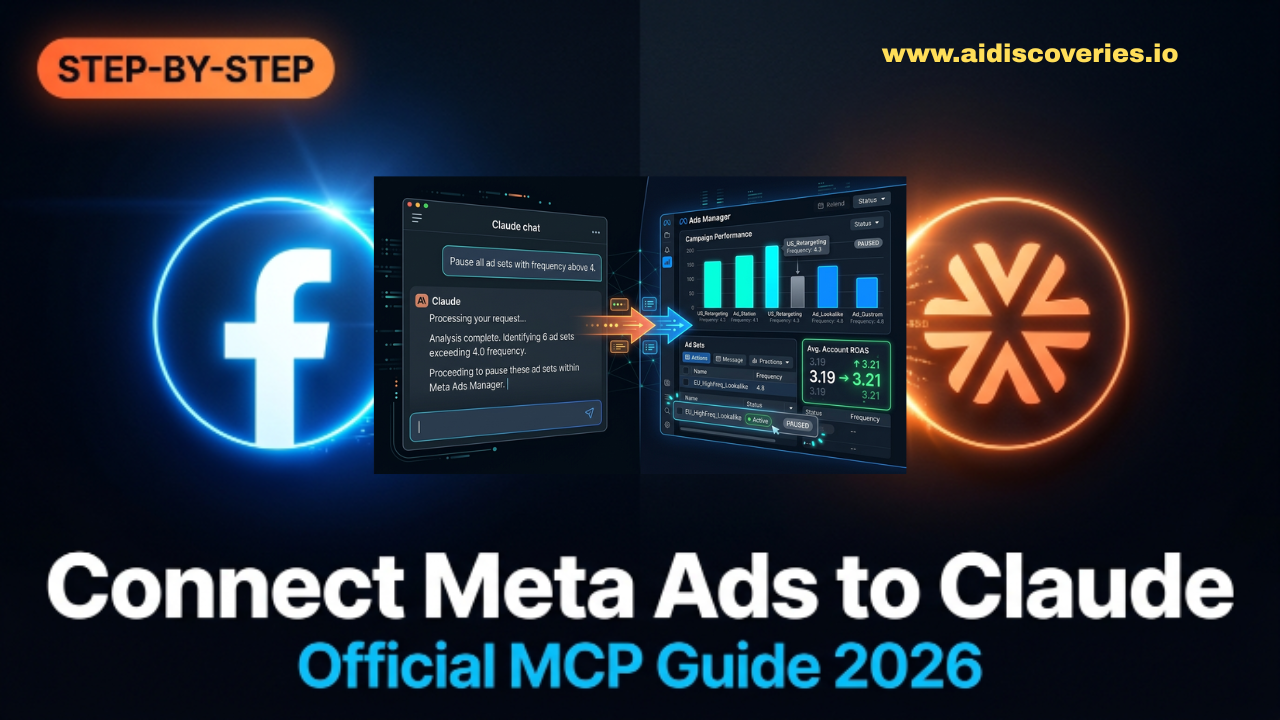
On April 29, 2026, Meta launched its official AI Connectors — an MCP server and CLI that let Claude read and manage your ad campaigns in plain English, with no Marketing API approval needed.
📅 Published May 4, 2026⏱ 8 min read🔧 Setup time: ~10 min
✅ TL;DR Go to claude.ai/settings/integrations → search “Meta Ads” → authorize via Facebook Business OAuth → done. You can now ask Claude about your campaigns in plain English.
In this guide
- What Meta launched and why it matters
- What you need before you start
- Method 1 — Meta’s Official MCP (Claude web & Desktop)
- Method 2 — Meta CLI (for Claude Code / developers)
- Method 3 — Third-party MCP connectors
- Side-by-side comparison
- What to ask Claude once connected
- FAQ
What Meta launched — and why it matters
Before April 2026, connecting any AI tool to Meta Ads required you to create a Facebook Developer App, apply for Marketing API access, wait up to three days for approval, and manage your own access tokens. The barrier was high enough that only technical teams bothered.
On April 29, 2026, Meta released its Meta Ads AI Connectors in open beta — two official pathways that use standard Business OAuth (the same system Shopify and Mailchimp use). The result: any marketer with a Claude Pro account can query live campaign data in under ten minutes.
Meta shipped two flavors:
- Meta Ads MCP server — An HTTP-based server you paste into Claude Desktop or connect via
claude.ai/settings/integrations. The choice for most marketers. - Meta CLI — A local terminal binary for developers using Claude Code or other agentic environments.
Read Also: How to Use ChatGPT for Business Growth: Step-by-Step Guide – AI Discoveries
🛡 Is this safe for my ad account? Yes. This is Meta’s officially supported automation path. The longstanding concern that AI tools could trigger account bans is now formally retired for users of the official connector or certified third-party MCPs.
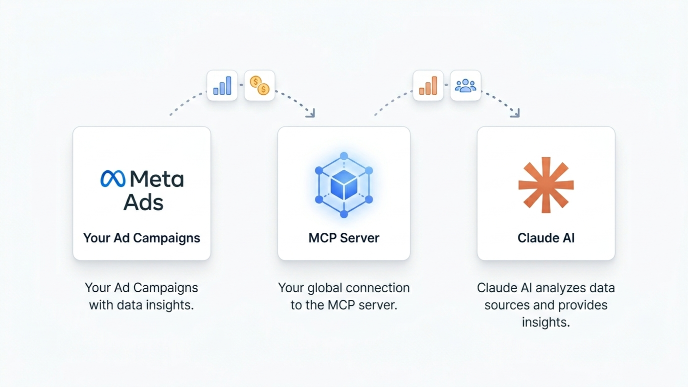
Once connected, Claude can read performance data in real time, pause ad sets, adjust budgets, and audit your product catalog — all through plain-English instructions.
What you need before you start
- Claude Pro, Max, or Team plan — MCP integrations are not available on Claude’s free tier.
- Meta Business Manager admin access — You must be an admin of the Business Manager account that owns the ad accounts you want to connect.
- For the CLI method only: Node.js 18+ or a compatible runtime.
⚠ Free plan limitation Claude’s free tier does not support MCP connections. You need at least a Pro subscription to use any of the methods below.
Method 1 — Meta’s Official MCP (Recommended for most users)
This is the fastest path for anyone using Claude.ai (web or mobile) or Claude Desktop. Setup takes about 10 minutes and requires no code.
Option A — Claude.ai web (easiest)
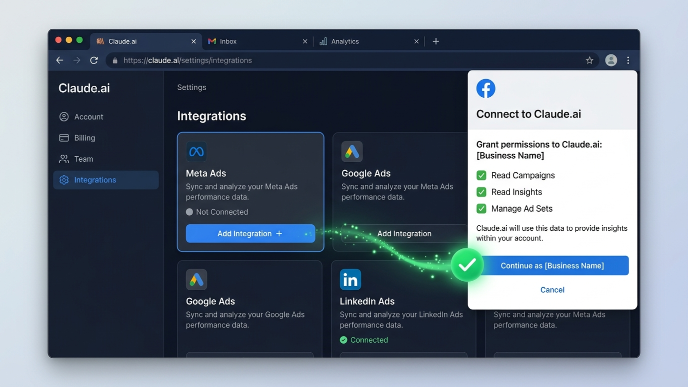
- 1 Open Claude Integrations settingsNavigate to
claude.ai/settings/integrations. You’ll see a list of available connectors. - 2 Find Meta Ads and click Add IntegrationSearch for “Meta Ads” in the connectors list. Click the card, then click Add Integration.
- 3 Authorize via Meta Business OAuthYou’ll be redirected to Facebook. Make sure you’re logged into the correct Business Manager account, not a personal profile. Click Continue and grant the requested permissions.
- 4 Select your ad accountsAfter OAuth, choose which ad accounts Claude should have access to. You can select multiple accounts. Confirm and close the dialog.
- 5 Test the connectionOpen a new Claude chat and type: “Show me yesterday’s ad spend across all campaigns.” If connected properly, Claude will return live data within seconds.
Option B — Claude Desktop (JSON config)
If you use Claude Desktop, you’ll need to edit the MCP config file manually. Here’s what to add:
// ~/.config/claude/mcp_servers.json  (macOS/Linux)
// %APPDATA%\Claude\mcp_servers.json  (Windows)
{
  "mcpServers": {
    "meta-ads": {
      "type": "http",
      "url": "https://ads.meta.com/mcp/v1"
    }
  }
}
After saving the file, restart Claude Desktop. Click Needs login next to the Meta Ads entry in the sidebar to complete the OAuth flow.
✅ No Developer App needed Unlike the old Marketing API path, Meta’s official MCP uses standard Business OAuth. There is no App Review process and no waiting period.
Method 2 — Meta CLI (for Claude Code & developers)
The Meta CLI is a local terminal binary designed for developers working in Claude Code, OpenAI Codex, or other agentic environments. Setup takes about 15 minutes.
- 1 Install the Meta CLIRun the following in your terminal. Node.js 18 or higher is required.
npm install -g @meta/ads-cli- 2 AuthenticateRun the auth command. A browser window will open for Business OAuth.
meta-ads auth login- 3 Register with Claude CodeAdd the CLI as an MCP transport so Claude Code can call it.
claude mcp add --transport http meta-ads "http://localhost:5732/mcp"- 4 Restart Claude Code and verifyRun
claude mcp listto confirm themeta-adsentry appears. Then test with a natural-language prompt.
💡 When to use the CLI over the MCP server The CLI is better suited for scripted workflows, scheduled reporting, and tasks that need to chain Meta Ads with other tools like file systems or CI pipelines. For conversational use and one-off analysis, Method 1 is simpler.
Method 3 — Third-party MCP connectors
Several third-party services offered Meta Ads → Claude integrations before Meta launched its official connector. These remain relevant for teams that want additional features — multi-platform support, pre-built dashboards, or advanced agency workflows.
Third-party
Pipeboard
Remote MCP with no local setup. Supports Meta, Google, TikTok, and Snap Ads. Certified Meta Business Partner.
⏱ ~5 min setup
Third-party
Adzviser
No-code connector focused on analytics. Exports to Google Sheets and Looker in addition to Claude.
⏱ ~5 min setup
Open Source
meta-ads-mcp (GitHub)
Open-source MCP server by Pipeboard. Full control, self-hosted. Requires Node.js and a Meta Developer App.
⏱ 30–45 min setup
Third-party
Composio
Multi-app MCP router. Connects Meta Ads alongside hundreds of other SaaS tools through a single endpoint.
⏱ ~10 min setup
For most marketers and agencies who only need Meta Ads data, Meta’s official MCP (Method 1) is the simplest and most secure choice. Third-party connectors are worth considering when you need cross-platform data blending or features like autonomous budget pacing and client portals.
Side-by-side comparison
| Method | Setup time | Requires code? | Works with Claude.ai web? | Works with Claude Code? | Cost |
|---|---|---|---|---|---|
| Meta Official MCP | ~10 min | ✗ No | ✓ Yes | ✓ Yes | Free (beta) |
| Meta CLI | ~15 min | ✓ Yes | ✗ No | ✓ Yes | Free (beta) |
| Pipeboard | ~5 min | ✗ No | ✓ Yes | ✓ Yes | Paid plans |
| Adzviser | ~5 min | ✗ No | ✓ Yes | ✗ No | From $0.99/mo |
| Self-hosted (open source) | 30–45 min | ✓ Yes | ✓ Yes | ✓ Yes | Free |
What to ask Claude once connected
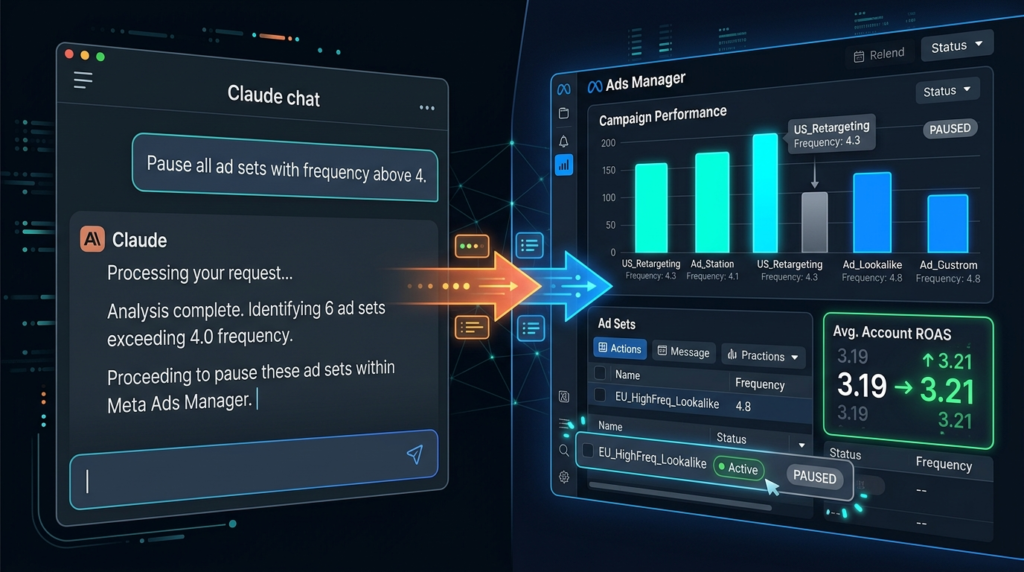
Here are proven prompts to get immediate value from your Meta Ads connection:
- “Show me my top 10 ad sets by spend over the last 7 days, with frequency and ROAS.”
- “Pause every ad set where frequency is above 4 and CPM is trending up.”
- “Increase the budget on my best-performing campaign by 20%, but cap it at $500/day.”
- “Which creatives have the highest thumb-stop rate this month? Show me the top 5.”
- “Compare performance of lookalike audiences vs. interest-based audiences over the last 30 days.”
- “Audit my product catalog and flag any SKUs with broken images or missing GTINs.”
- “Build a weekly performance summary for the last four weeks and show it as a table.”
- “Which campaigns are in the learning phase right now, and how close are they to exiting it?”
💡 Keep a human in the loop Before applying any AI-recommended budget change or creative pause, review Claude’s reasoning. Meta’s campaign learning phase resets when you make significant changes, so act deliberately.
Frequently asked questions
Can I connect Meta Ads to Claude for free?
Meta’s official MCP server is free during open beta, but you need a Claude Pro, Max, or Team plan to use MCP integrations. Claude’s free tier does not support MCP connections. Will this get my ad account banned?
No. Meta launched its official AI Connectors on April 29, 2026, making this an officially sanctioned automation pathway. Using Meta’s own MCP or a certified third-party connector (like Pipeboard, which holds a Meta Business Partner badge) will not result in a ban. Does this work with Facebook and Instagram ads?
Yes. Meta Ads encompasses campaigns running across Facebook, Instagram, Messenger, and the Audience Network. Claude can analyze and manage placements on all of these surfaces once connected. Is my ad data safe when connected to Claude?
The official Meta MCP uses OAuth 2.0 — your credentials are never stored by Claude or Anthropic. You can revoke access at any time from your Meta Business Manager security settings. Third-party MCPs like Pipeboard use TLS 1.3 in transit and do not store your Meta credentials either. Can I connect multiple ad accounts?
Yes. During the OAuth flow you can select multiple ad accounts. Claude will be able to query them individually or together. For agencies managing many accounts, third-party connectors like Pipeboard offer dedicated multi-account views and per-client token isolation. Does Meta’s MCP work with ChatGPT too?
Yes. Meta’s official MCP server is compatible with both Claude and ChatGPT. The setup process for ChatGPT follows a similar OAuth flow via that platform’s plugin/connector settings. What is MCP and why does it matter for Meta Ads?
MCP (Model Context Protocol) is an open standard introduced by Anthropic in November 2024 that lets AI assistants securely connect to external data sources and services. Think of it as a universal adapter between your ad platforms and any MCP-compatible AI. Meta adopted MCP for its AI Connectors rather than building a proprietary integration, meaning the same connection works across Claude, ChatGPT, and other MCP-compatible tools.
Last verified: May 4, 2026 · Sources include Meta’s official announcement (facebook.com/business/news/meta-ads-ai-connectors), Anthropic’s MCP documentation, and Pipeboard’s Meta Ads MCP GitHub repository.
This guide is for informational purposes. Always review AI-generated changes before applying them to live campaigns.
Tutorial · Meta Ads · Claude AI




Leave a Reply