Every business owner wants more qualified leads.
Few want to spend hours searching LinkedIn, writing personalised messages, updating spreadsheets, following up, and tracking conversations.
That work can now happen automatically.
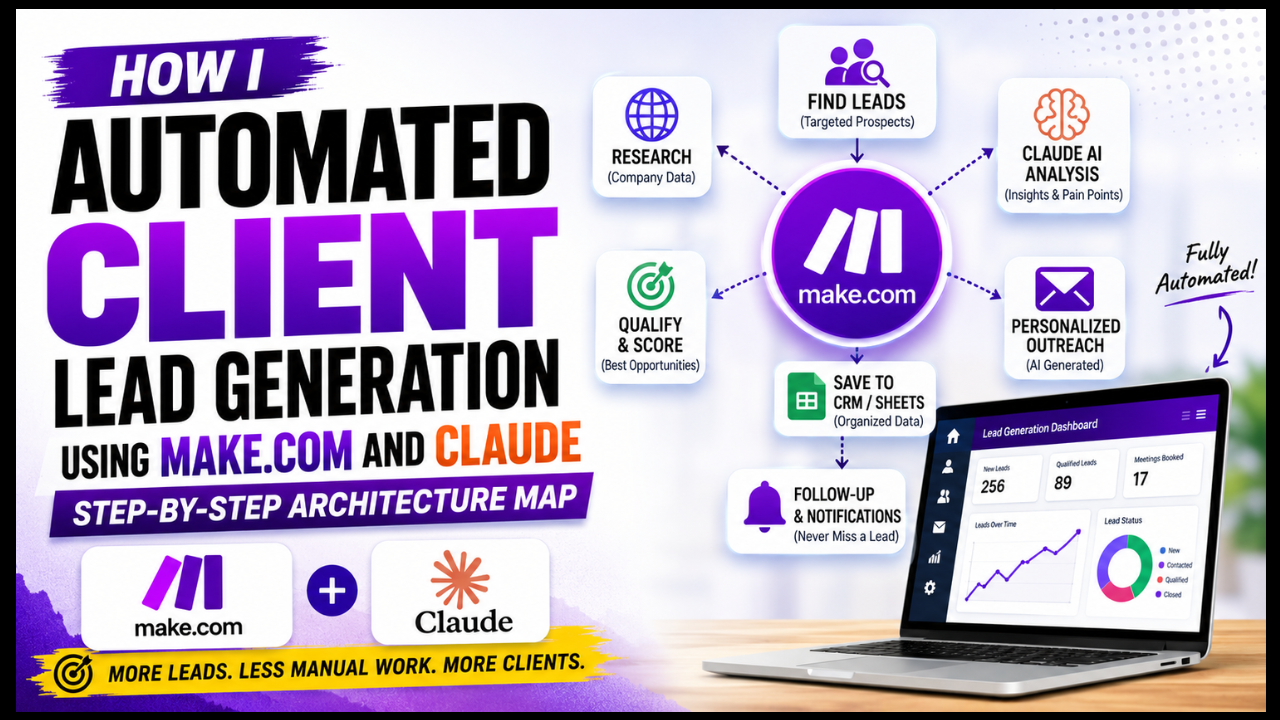
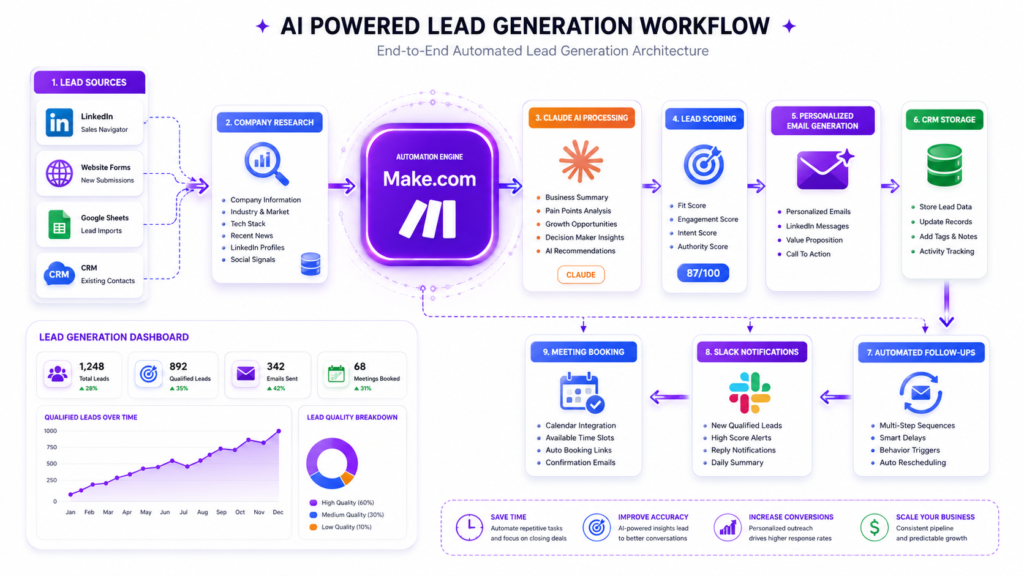
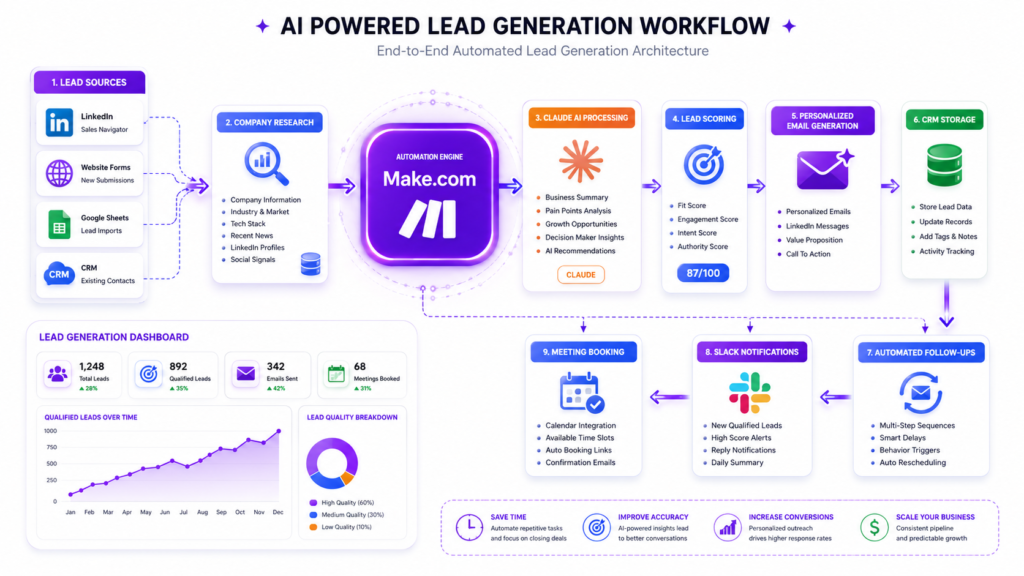
This tutorial shows the exact automation architecture you can build using Make.com and Claude to generate, qualify, enrich, personalise, and organise leads with minimal manual work.
Read Also: How to Build Personal Assistant AI Agents in Make.com
This is a tutorial architecture designed to teach the workflow. You can adapt it to your own business, agency, or consulting practice.
By the end of this guide you’ll understand:
• How the complete automation works
• Every tool involved
• The Make.com scenario structure
• Claude’s role inside the workflow
• Common mistakes
• Ways to scale the automation
• How agencies package this as a high value service
Why Traditional Lead Generation Is Broken
Many businesses still rely on manual work.
Someone has to:
• Find prospects
• Research every company
• Visit LinkedIn
• Read websites
• Write cold emails
• Personalise messages
• Record everything in a spreadsheet
• Remember follow ups
The result is inconsistent outreach and lost opportunities.
Automation solves this.
Instead of hiring another assistant, you can create a digital workflow that performs repetitive tasks around the clock.
What You’ll Build
Imagine this process.
A new company appears on your prospect list.
Within minutes your automation automatically:
✓ Finds company information
✓ Identifies decision makers
✓ Summarises the business
✓ Detects pain points
✓ Generates personalised outreach
✓ Stores everything inside Airtable or Google Sheets
✓ Creates follow up reminders
✓ Sends notifications to Slack or email
No copying.
No repetitive typing.
No switching between dozens of browser tabs.
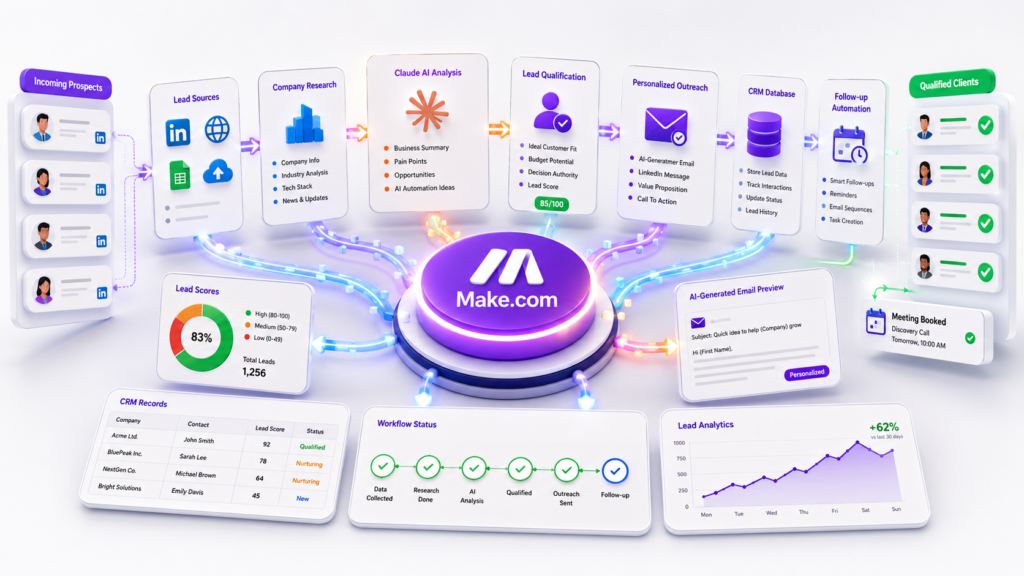
The Complete Automation Architecture
Lead Source
      │
      ▼
Make.com Trigger
      │
      ▼
Company Research
      │
      ▼
Claude Analysis
      │
      ▼
Lead Qualification
      │
      ▼
Personalised Outreach
      │
      ▼
CRM Database
      │
      ▼
Follow-up Scheduler
      │
      ▼
Notifications
Every module performs one specific job.
This makes the workflow reliable and easy to improve later.
Tools Used
The architecture combines several cloud tools.
Make.com
Acts as the automation engine.
It connects every application together.
Responsibilities include:
• Moving data
• Running workflows
• Error handling
• Scheduling
• Integrations
Read Also: Google Africa AI Lab 2026: What It Actually Is, and How to Apply
Claude
Claude performs the reasoning.
Instead of simple automation, Claude understands context.
Examples include:
• Analysing company websites
• Finding business opportunities
• Writing personalised outreach
• Identifying likely business challenges
• Producing summaries
Google Sheets or Airtable
Stores every prospect.
Typical fields include:
Company Name
Website
Industry
Employee Size
Decision Maker
Lead Score
Pain Points
AI Summary
Outreach Message
Status
Next Follow Up
CRM
Examples include:
HubSpot
Pipedrive
GoHighLevel
Salesforce
Zoho CRM
Email Platform
Examples:
Gmail
Microsoft Outlook
Instantly
Smartlead
Lemlist
Step 1. Trigger the Workflow
The automation begins when a new company enters your system.
Possible triggers include:
A new spreadsheet row
A submitted website form
A webhook
A CRM update
A scraped lead list
A LinkedIn export
Make.com instantly starts the scenario.
Step 2. Validate the Lead
Before spending AI credits, validate the information.
Checks include:
Website exists
Email format is valid
Duplicate detection
Required fields completed
If validation fails, stop the automation.
This saves money.
Step 3. Research the Company
The workflow collects information like:
Industry
Services
Products
Recent news
Company size
Location
Technology stack
Social media presence
This creates context for Claude.
Step 4. Claude Analyses the Business
Now Claude receives structured information.
Example prompt:
You are a B2B sales consultant.

Analyse this company.

Identify:

Business model

Target audience

Growth opportunities

Likely operational challenges

Potential AI automation opportunities

Write a short summary.

Generate a lead score out of 100.
Claude returns structured insights.
Instead of generic outreach, every prospect receives personalised messaging.
Step 5. AI Scores the Lead
Example scoring model.
| Factor | Weight |
|---|---|
| Company size | 20 |
| Revenue potential | 20 |
| Industry match | 20 |
| AI adoption | 20 |
| Website quality | 20 |
Score ranges might look like this:
90 to 100
Contact immediately.
70 to 89
High priority.
50 to 69
Nurture campaign.
Below 50
Archive.
Step 6. Generate Personalised Outreach
Claude now writes messages tailored to each prospect.
Example email structure:
Subject
Personal introduction
Business observation
Problem identified
Suggested solution
Call to action
Because Claude understands context, messages feel human instead of copied.
Step 7. Save Everything
Every result is stored automatically.
Typical destinations include:
CRM
Google Sheets
Airtable
Notion
Database
Nothing is lost.
Step 8. Create Follow Up Tasks
If nobody replies after several days:
Make.com automatically:
Creates reminder tasks
Schedules another email
Updates CRM status
Notifies the sales team
Complete Make.com Scenario
Trigger

↓

Validate Lead

↓

Research Company

↓

Claude Analysis

↓

Lead Score

↓

Generate Email

↓

Save to CRM

↓

Schedule Follow-up

↓

Slack Notification

↓

End
Example Claude Prompt
You are an experienced business consultant.

Analyse the following company.

Return:

Company summary

Main challenges

Growth opportunities

Automation opportunities

Personalised cold email

LinkedIn connection message

Follow-up email

Lead score

Return everything in JSON.
Using structured outputs makes Make.com much easier to configure.
Benefits of This Workflow
Business owners report improvements such as:
Less manual research
Faster outreach
More personalised communication
Higher response rates
Consistent lead qualification
Better CRM data
Lower operational costs
More time for sales conversations
Common Mistakes
Many beginners build one huge workflow.
Avoid that.
Instead:
Create smaller scenarios.
Validate data early.
Log errors.
Monitor failed operations.
Store prompts separately.
Reuse modules whenever possible.
Security Best Practices
Never expose API keys.
Encrypt sensitive data.
Limit permissions.
Audit automation logs.
Comply with GDPR and other applicable privacy regulations when collecting and processing personal data.
How Agencies Sell This Service
Automation agencies package this workflow as:
AI Lead Generation System
Sales Automation Setup
Business Growth Automation
CRM Automation
AI Prospecting System
Many charge recurring monthly fees for maintenance, optimisation, and reporting because businesses want reliable systems rather than one time implementations.
How to Scale the Workflow
Once the basic version works, add:
Website monitoring
Competitor analysis
Automatic proposal generation
Meeting scheduling
Calendar integration
Voice AI qualification
WhatsApp automation
Document generation
Invoice creation
CRM reporting dashboards
Each addition increases the value of the automation.
Frequently Asked Questions
Is Make.com better than Zapier?
Make.com provides more advanced visual workflows, branching logic, and data transformation features. For complex AI automations, many builders prefer it because it offers greater flexibility.
Why use Claude instead of traditional AI prompts?
Claude excels at analysing large amounts of context and generating detailed, structured outputs that work well for personalised lead research and outreach.
Can beginners build this workflow?
Yes. Start with a simple trigger, connect Claude, test each module, and gradually expand the scenario as you become more comfortable with Make.com.
Can this work for any industry?
Yes. Agencies, consultants, software companies, logistics providers, accountants, marketing firms, and professional service businesses can all adapt the architecture to their own lead generation process.
How much time can this save?
The exact savings depend on your process, but automating research, qualification, and message drafting can reduce hours of repetitive work each week while allowing your team to focus on conversations with qualified prospects.
Final Thoughts
AI is changing how businesses generate leads.
Instead of spending hours researching prospects and writing repetitive messages, you can build a workflow that gathers information, analyses businesses, creates personalised outreach, and organises everything automatically.
The real advantage is not replacing people. It is removing repetitive tasks so sales teams can spend more time building relationships and closing deals.
Whether you run a startup, agency, consultancy, or growing business, combining Make.com with Claude gives you a scalable foundation for smarter lead generation.
If you start with a simple architecture and improve it over time, you’ll create a system that delivers consistent results and grows alongside your business.
Key Takeaways
• Make.com connects your apps into a single automated workflow.
• Claude adds intelligent research, lead scoring, and personalised content generation.
• Breaking the process into smaller modules makes the automation easier to maintain.
• Structured outputs such as JSON simplify integration with CRMs and databases.
• Businesses can use this architecture to reduce manual work, improve lead quality, and scale outreach.





Leave a Reply