Google AI Studio makes it easier to turn an app idea into a working prototype using AI. You can describe what you want to build, generate code, refine the interface, and experiment with features without starting every project from scratch.
But there is an important distinction. Creating an app with Google AI Studio, installing it on your Android phone, and keeping that app private are three different things. Understanding these steps will help you build a useful Android app without accidentally publishing it to the public.
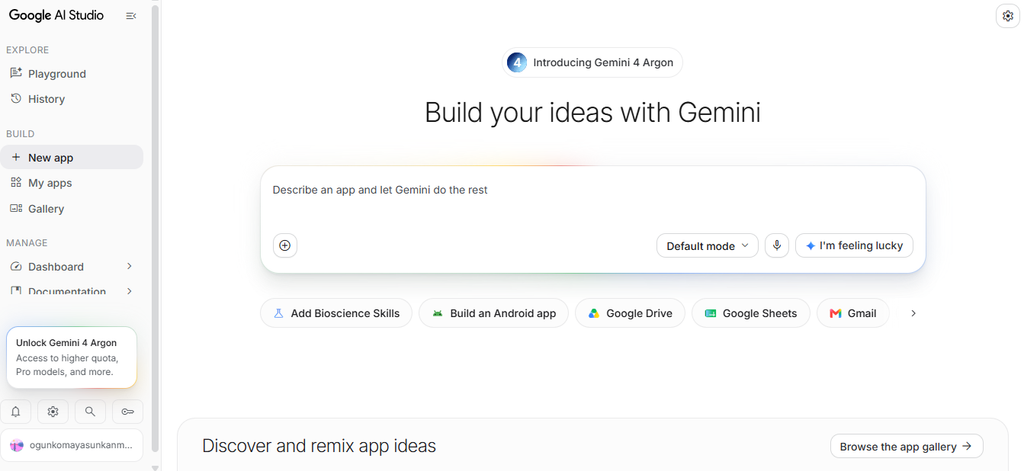
In this tutorial, you will learn how to use Google AI Studio to create an Android app, export or adapt the generated code, run it on your phone, and keep it private while you test it. You will also learn which tools to use when AI Studio generates a web app rather than a native Android application.
Beginner-friendly
Updated October 2026
Android development

Build and test a native Android app with AI assistance, then decide how you want to distribute it.
What you will learn
- How to create a native Android app using Google AI Studio.
- How to write prompts that generate useful, functional apps.
- How to preview your app and fix bugs.
- How to install your app on your own Android phone.
- How to keep your project private and avoid public distribution.
- How to move your code into Android Studio for more advanced development.
Google introduced native Android app creation in AI Studio in May 2026. The feature generates Kotlin-based projects using Jetpack Compose and supports browser-based emulation, installation on a physical device, and testing through Google Play.
Android Developers Blog
+1
What is Google AI Studio?
Google AI Studio is a browser-based development environment that lets you build applications with Google’s Gemini AI models. Instead of writing every component manually, you describe the application you want, review the generated code, and refine it through further instructions.
Visit Google AI Studio.
Its Build mode supports two important types of applications:

1. Native Android apps
Built with Kotlin and Jetpack Compose. These apps can use Android features and be installed on compatible Android devices.

2. Web apps
Built for browsers, with options for server-side logic and deployment. You can make a web app accessible from a phone, but that does not automatically make it a native Android app.
For this tutorial, we will focus on native Android development.
What does private Android app creation mean?
Before you start, understand that the word “private” can describe three different outcomes.
| Your goal | What to do |
|---|---|
| Use the app only on your own phone | Install and test the app directly on your device. |
| Build an app without publishing it publicly | Keep the project private and do not release it to the public Play Store. |
| Give the app only to employees or members of your organization | Use managed private app distribution through Google Play, with the appropriate organizational setup. |
Google AI Studio keeps apps private by default according to its Build mode documentation. However, privacy settings for your project, access to a shared preview, and the distribution settings for an installed Android app are separate concerns.
CCNews
+1
If you simply want a personal app for your own use, you do not need to publish it on the Google Play Store.
Step 1: Open Google AI Studio and select Android

- Open Google AI Studio.
- Sign in with your Google account.
- Navigate to Build mode.
- Select the Android app option in the platform selector. Depending on the interface, it may appear as “Build an Android app” or “Android.”
- Start a new project.
Do not assume that every project created in Build mode is an Android app. Web is also a supported option, so confirm the Android platform before generating your project.
CCNews
+1
Step 2: Describe the app you want to build
Your first prompt matters. Tell the AI what the app should do, who will use it, how the interface should look, and where it should store information.
Read Also: Gemini 4 Argon: Features, Pricing, Access, and Use Cases
For your first project, start with something simple, such as a private personal task manager.
Here is a prompt you can copy into Google AI Studio.
Build a native Android app called My Private Task Manager using Kotlin and Jetpack Compose.
Purpose:
Help one person organize daily tasks and track their progress.
Core features:
- Add, edit, complete, and delete tasks.
- Give every task a title, optional description, due date, and priority.
- Display tasks in Today, Upcoming, Completed, and All Tasks sections.
- Add search and filtering by priority and completion status.
- Show a simple dashboard with the number of completed and pending tasks.
- Save tasks locally on the device so they remain available after closing and reopening the app.
- Include empty states, validation, loading indicators where appropriate, and clear error messages.
Design:
Use a clean, modern Android interface with a simple navigation bar, readable typography, accessible controls, and a light theme. Make the layout responsive to different Android screen sizes.
Technical requirements:
- Build a genuine native Android app using Kotlin and Jetpack Compose.
- Use appropriate local persistence, such as Room or DataStore, based on the data model.
- Keep the app functional without an internet connection.
- Request only the Android permissions that are necessary.
- Do not add analytics, advertising, public accounts, or unnecessary network connections.
- Do not publish the app or make the project public.
- Generate the complete project and resolve build errors before considering the task complete.
Begin by creating the working application. Then explain the main files, how task data is stored, and how I can install and test the app on my own Android phone.
Why this prompt works: it defines the features, technical requirements, storage behavior, and privacy expectations. It also tells the AI to create a native app rather than a website that merely resembles a mobile application.
Remember that AI-generated code still needs testing. If the agent does not implement a requested feature correctly, ask it to fix that feature and verify the result.
Step 3: Let AI Studio generate your app
After submitting your prompt, give the agent time to create the project.
A native Android project typically uses Kotlin for application logic and Jetpack Compose for the user interface. These are established Android development technologies.
Android Developers Blog
+1
Once generation finishes, inspect the preview and test the main functions.
Initial testing checklist
The app opens without a build error.I can add a new task.I can edit and delete a task.I can mark a task as complete.The dashboard updates correctly.Tasks remain after I close and reopen the app.The interface works on a phone-sized screen.
0 of 7 checks completed
If something does not work, do not regenerate the entire application immediately. Give the agent a specific correction prompt.
For example:
Test the current task manager implementation. Find and fix any errors that prevent tasks from being created, edited, deleted, completed, or saved locally. Preserve the existing design. Verify that tasks persist after the app restarts, and report any remaining issues honestly.
Specific requests make it easier to isolate bugs and avoid breaking features that already work.
Step 4: Preview your Android app in the browser
Google AI Studio supports a browser-based Android emulator for testing native Android projects. This lets you inspect the app before installing it on your own phone.
CCNews
+1

Test these scenarios:
- Open every major screen.
- Add several tasks with different priorities.
- Complete a task and confirm that the dashboard updates.
- Restart the app and check whether saved data remains.
- Try empty fields, long titles, and invalid dates.
- Check the layout for overlapping text or controls.
If the app crashes or fails to build, ask AI Studio to inspect the relevant error, fix the underlying issue, and rerun the checks.
A successful preview is a useful milestone, but it does not guarantee that every feature will work on a physical device.
Step 5: Install your private Android app on your phone

This is where your project becomes useful beyond the browser.
Google’s AI Studio Android workflow supports installing generated apps on physical devices using Android Debug Bridge (ADB) in the browser.
CCNews
Follow the device installation instructions shown in your AI Studio project. Depending on the current workflow and your device, you may need to enable Android developer options and USB debugging.
A typical process looks like this:
- Open Settings on your Android phone.
- Find About phone and locate the Build number.
- Tap Build number repeatedly until developer mode is enabled. The exact number of taps and menu names can vary by manufacturer.
- Open Developer options and enable USB debugging if the installation workflow requires it.
- Connect your phone to your computer using a USB cable that supports data transfer, if required.
- Approve the debugging authorization prompt on your phone.
- Follow the installation or ADB instructions provided by AI Studio.
- Open the installed app and test its functions on the phone.
Only authorize debugging from computers you trust. When you finish testing, turn USB debugging off if you no longer need it.
If your current AI Studio workflow offers a downloadable Android package instead, follow the relevant installation instructions for that package. You may need to allow installation from the specific source you use. Do not install APK files from unknown websites.
Can you install the app without publishing it to Google Play?
Yes. You can test an Android app directly on your own device without releasing it to the public Play Store.
However, direct installation and managed private distribution are different. If you want to distribute an app only to employees or members of an organization, Google provides a separate private app publishing workflow through Managed Google Play.
Play Console Help
Step 6: Keep your app and project private
Privacy requires more than avoiding the public Play Store.
Google’s documentation states that AI Studio apps are private by default. Sharing an app can allow other people to use it, and people you share it with can see its code and create their own copies.
CCNews
To keep your project private:
- Do not use public sharing or deployment options unless you intend to share the app.
- Keep project access restricted to your account and any explicitly authorized collaborators.
- Avoid storing passwords, private keys, or sensitive personal information directly in source code.
- Review permissions and network connections before installing the app.
- Check whether any information is sent to an external service.
- Back up the source code somewhere you control.
There is also a difference between keeping an app private and keeping its data entirely on your phone.
Read Also: Viktor Review 2026: Features, Pricing, Pros, Cons, and Is It Worth It?
For example, a task manager that stores information locally can work without an internet connection. An AI assistant that sends requests to a cloud-based model may transmit prompts or other information to that service. Its data handling depends on the implementation and the provider’s applicable terms and privacy policies.
If you are building an app for confidential business records, customer data, or sensitive documents, review the architecture and data flows before using real information.
Step 7: Export your Android app for further development
Once your app works, you may want to customize it beyond what the browser-based builder supports.
Google AI Studio supports exporting code and connecting projects to GitHub. Its native Android workflow can also be continued in Android Studio.
CCNews
+1

Here is the general workflow:
- Open your project in AI Studio.
- Find the available code export, download, or Android Studio handoff option.
- Save the generated source code and project files.
- Open the project in Android Studio using the supported import or handoff workflow.
- Allow Gradle to synchronize dependencies and download any required components.
- Build and run the app using an Android emulator or a connected device.
- Review build errors, permissions, dependencies, and application behavior.
- Generate a signed release package when you are ready to distribute the app.
You can get Android Studio from the official Android developer website.
Exporting the code gives you more control over your project. It also means you may need to configure the development environment and resolve dependencies yourself.
Step 8: Choose how to distribute your private app
You have three main options, depending on what you want to accomplish.
Option A: Personal installation
Best for private utilities, personal productivity tools, and prototypes. Install the app directly on your own device and keep it off public app stores.
Option B: Internal testing
Best for testing with a small group before launch. Google AI Studio supports publishing to the Google Play internal testing track when the required developer account and integration are configured.
blog.google
Option C: Managed private distribution
Best for businesses that want to restrict app availability to their organization. This requires the appropriate Google Play developer setup and organization restrictions.
Play Console Help
If your goal is simply to build an app for yourself, Option A is usually the simplest starting point.
Step 9: Understand the limitations before building a complex app
Google AI Studio reduces the work involved in creating an Android app, but it does not remove every development challenge.
One important distinction is that AI Studio’s native Android workflow differs from its web app environment. The official documentation describes server-side runtimes, secret management, and direct Firebase integrations for web apps. Those capabilities should not be assumed to work identically in native Android projects.
CCNews
+1
Here are some practical considerations.
| Requirement | What you should consider |
|---|---|
| Offline functionality | Use local storage and test behavior without internet access. |
| AI-powered features | Plan how the app will communicate securely with an AI service. |
| User accounts | Determine how authentication will be implemented and maintained. |
| Cloud synchronization | Choose a suitable backend and test data synchronization. |
| Payments | Implement secure payment processing and validate transactions on the server. |
| Sensitive information | Review permissions, data collection, storage, and access controls. |
| Production release | Test across devices and Android versions before distribution. |
For example, if you want to build a private AI meal planner, you can start with local meal tracking and saved recipes. If you later add personalized AI recommendations, you will need to plan how the model receives user inputs and how you protect any API credentials.
Never assume that an API key is secure simply because AI generated the code. Review the implementation and keep privileged credentials out of publicly accessible client-side code.
Troubleshooting common Google AI Studio Android app problems
Problem 1: AI Studio creates a website instead of an Android app
Solution
Start a project with the Android platform selected. Explicitly request Kotlin and Jetpack Compose in your prompt.
Problem 2: The app looks correct but some buttons do nothing
Solution
Ask the agent to test each interaction, connect the missing event handlers, and verify the results. Test again in the emulator.
Problem 3: Data disappears after restarting the app
Solution
Check whether the app uses persistent local storage rather than temporary in-memory state. Ask the agent to implement and verify suitable persistence.
Problem 4: The app will not install on your phone
Solution
Check device compatibility, debugging authorization, USB connection, installation permissions, and the error reported by the installation workflow.
Problem 5: You want to share the app without making it public
Solution
Choose an appropriate private testing or managed distribution method. Do not confuse sharing a project with restricting who can install the finished app.
Frequently asked questions
Can I create an Android app using Google AI Studio without coding?
Yes. You can describe the app in natural language and let the agent generate a Kotlin and Jetpack Compose project. You may still need to troubleshoot errors, review generated code, and configure advanced features.
Is Google AI Studio free for Android app creation?
Google AI Studio provides access to its app-building tools, but availability, usage limits, and any costs associated with AI services or connected infrastructure can vary. Check the current terms and usage information in Google AI Studio before building a project that makes frequent AI requests.
Can I build an app without publishing it on the Play Store?
Yes. You can install and test a compatible Android app directly on your own device. You do not have to publish it publicly to use it for personal testing.
Can I create an app that only I can use?
Yes. You can build a personal app and install it on your own phone. Keep project sharing restricted, avoid public deployment, and review the app’s data flows if privacy is important.
Can Google AI Studio create a fully native Android app?
Yes. Its Android build workflow generates Kotlin-based native projects using Jetpack Compose. This differs from generating a website that runs in a mobile browser.
Can I sell an app created with Google AI Studio?
Potentially, yes. You must ensure that your app complies with the relevant platform terms, software licenses, privacy requirements, and distribution policies. You are responsible for the application’s behavior, data handling, and legal compliance.
CCNews
Can I build an Android app that works offline?
Yes, if you design it to support offline operation. Use appropriate local storage, avoid unnecessary network dependencies, and test the app with internet access disabled. Features that rely on a remote AI model or cloud service may not work offline.
Can I create a private app for my business?
Yes. For a simple internal tool, you can begin with direct device installation or a testing track. If you need distribution restricted to your organization, investigate Managed Google Play and its organizational requirements.
Final thoughts
Google AI Studio makes native Android app development more accessible by allowing you to move from a written description to a working Kotlin project. You can preview your app, refine its features, test it on your phone, and continue development in Android Studio.
The best approach is to start with a small app that solves one specific problem. Verify that it works, confirm where it stores data, and keep access restricted while you test it. Add more complex features only after the basics are reliable.
For a personal tool, you can often avoid the public Play Store entirely. For a business application, plan authentication, security, data storage, and private distribution before using real customer information.
The main lesson is simple: AI can accelerate app development, but you still need to verify the code, test the behavior, and make deliberate decisions about privacy.
Official resources and further reading
- Google AI Studio, start building your app.
- Google AI Studio Build documentation, understand Build mode, project sharing, code export, and web app capabilities.
- Build Android apps in Google AI Studio, learn about the native Android workflow.
- Android Studio, continue development locally.
- Google Play Help: Publish private apps, understand managed private distribution.
Written by Olasunkanmi Adeniyi · AI Discoveries · Practical AI tutorials for builders, professionals, and entrepreneurs.
✍️ About the Author
Olasunkanmi Adeniyi is a product manager, AI prompt engineer, and the founder of AI Discoveries (aidiscoveries.io). With hands-on expertise in leading AI models, no-code automation, and digital strategy, he helps businesses and creators adopt practical artificial intelligence. He is the author of several business and tech guides, including ChatGPT Mastery Guide for Business Owners, AI-POWERED LINKEDIN GROWTH AUDIT
and SELL YOURSELF. All content is rooted in real-world testing, modern workflows, and a commitment to smart, actionable technology adoption.
Learn more and explore his latest work at www.aidiscoveries.io.





Leave a Reply