Published: April 15, 2026
By AI Discoveries – Your go-to source for AI tools, browser hacks, and productivity upgrades
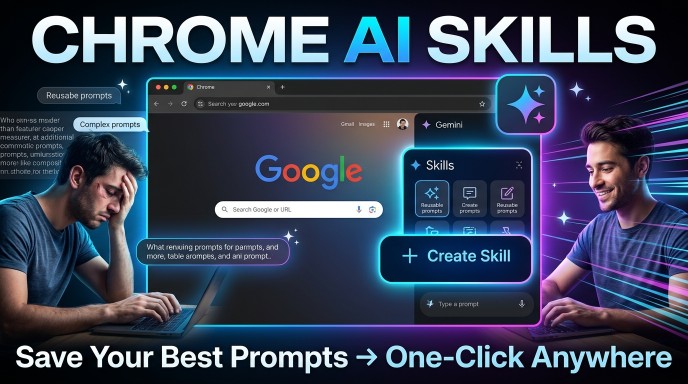
Google just dropped a game-changing update to Chrome that’s about to save you hours of repetitive typing. Yesterday (April 14, 2026), the company rolled out AI Skills — a brand-new feature inside Gemini in Chrome that lets you turn any of your best prompts into one-click, reusable “Skills.”
No more copying and pasting the same detailed prompt across tabs, websites, or even different days. Whether you’re analyzing recipes for macros, comparing products across shopping tabs, summarizing long PDFs, or extracting key insights from job listings, your custom AI workflows are now just a slash (/) or plus (+) away.
In this ultimate guide, we’ll break down exactly what Chrome AI Skills are, why they’re a massive productivity win, step-by-step instructions to build your own, the best preset Skills to start with, pro tips for powerful prompts, and everything else you need to know to get ahead.
What Are AI Skills in Google Chrome?
Skills are saved, reusable Gemini prompts that run directly in the Chrome sidebar with full context from the current webpage (and any additional tabs you select).
Think of them as personal AI shortcuts or mini-agents tailored to your daily browsing habits. Unlike one-off chats in gemini.google.com or the Gemini app, Skills are deeply integrated into your browser experience and sync across all your desktop Chrome instances when signed in.
Key highlights:
- Browser-aware: Gemini sees the live content on the page(s) you’re viewing.
- One-click activation: Type
/or tap+in the Gemini chat box → pick your Skill. - Library of presets: Google shipped dozens of ready-to-use Skills for common tasks.
- Fully customizable: Edit, remix, or delete anytime.
- Secure & permission-based: Skills that take actions (e.g., calendar events, emails) always ask for confirmation first.
This feature builds on Gemini’s existing presence in Chrome (side panel, tab context, Auto Browse preview) and turns the browser into a true AI-powered productivity hub.
Why Chrome AI Skills Matter (And Why You’ll Use Them Daily)
- Eliminates prompt fatigue — Stop retyping long, nuanced instructions.
- Works across tabs — Perfect for side-by-side comparisons, research, or multi-page analysis.
- Personalized & private — Skills live in your Google account; Google emphasizes Chrome’s built-in security protections.
- Available now — Rolling out to desktop Chrome (Windows, Mac, ChromeOS) for users with browser language set to English (US). More languages coming soon.
Early testers are already using Skills for nutrition tracking, competitive shopping research, document triage, and gift buying. The possibilities are endless.
How to Access Gemini in Chrome (Prerequisite)
- Open Chrome (make sure you’re signed in to your Google account).
- Look for the sparkle icon (“Ask Gemini”) in the upper-right toolbar.
- Click it to open the Gemini sidebar.
- You’re ready! (If the icon is missing, go to chrome://settings/ai or search “Gemini” in Chrome settings to enable it.)
Pro tip: Set a keyboard shortcut for even faster access (available in Chrome settings under AI Innovations → Gemini in Chrome).
Step-by-Step: How to Build Your Own Custom AI Skills in Chrome
Here’s the exact process (verified from official rollout and early hands-on reports):
- Open the Gemini sidebar and run a prompt you love.
Example: “Analyze the recipe on this page, list every ingredient with estimated protein content, and suggest swaps to maximize total protein while keeping the original flavors intact.” - Wait for Gemini’s response (it uses the current page context automatically).
- Save it as a Skill:
- In the chat history, find the three-dot menu (⋮) next to your prompt or the response.
- Select “Save as Skill” (or similar “Save this prompt as a Skill” option — Google surfaces it prominently for useful chats).
- Give your Skill a clear, memorable name (e.g., “Protein Maximizer”).
- Optionally add a short description.
- Test & refine:
- Type
/in a new chat. - Your new Skill appears in the menu (with a compass icon for discoverability).
- Select it, choose any additional tabs if needed, and run.
- Edit anytime:
- Go back to your Skills library (via
/menu). - Select the Skill → Edit prompt, name, or description.
That’s it — your custom Skill is now live and synced everywhere you use Chrome.
Advanced prompt engineering tips for killer Skills:
- Be specific about output format (e.g., “Output as a markdown table with columns: Ingredient | Protein (g) | Suggestion”).
- Explicitly reference “current webpage” or “selected tabs.”
- Include constraints (“keep original flavor,” “under $50 budget,” “professional tone”).
- Add follow-up instructions (“then compare to similar products on other open tabs”).
Google’s Preset Skills Library: 50+ Ready-to-Use Gems to Try Today
Google launched with a rich starter library covering productivity, shopping, health, research, and more. Here are standout presets you should save and tweak immediately:
- Protein Maximizer — Analyzes any recipe and optimizes for protein.
- Product Spec Comparator — Pulls specs from multiple open tabs and builds side-by-side tables.
- Document Scanner — Extracts key info, action items, or summaries from long articles/PDFs.
- YouTube Video Summarizer — Pulls timestamps, key takeaways, and action items from video pages.
- Gift Finder — Matches budget + recipient interests across shopping sites.
- Ingredient Checker — Flags allergens or checks macros in food product pages.
- Job Listing Evaluator — Compares roles against your resume criteria.
How to browse the library: Type / in Gemini → look for the Skills or compass section → “Discover” or library view. Save any that resonate, then customize.
Real-World Use Cases That Will Change How You Browse
- Fitness enthusiasts: One-click macro optimization on any recipe site.
- Shoppers: Instant multi-tab product comparisons (price, specs, reviews).
- Researchers & students: Rapid document triage or literature review across tabs.
- Content creators: Consistent YouTube/video analysis or research synthesis.
- Professionals: Job application screening, competitor analysis, or meeting prep from shared docs.
Privacy, Security & Limitations (What You Need to Know)
- Skills only run when you explicitly trigger them.
- Gemini in Chrome respects Chrome’s strict privacy model — no data sharing beyond what’s needed for the prompt.
- Action-heavy Skills (calendar, email) always require explicit confirmation.
- Current limits: Desktop-only for now; US English language setting required; rolling out gradually.
- Not the same as “Gems” in the Gemini app (those are persistent custom personas). Skills are browser-context workflows.
Pro Tips to Master Chrome AI Skills
- Name Skills clearly and action-oriented (e.g., “Max Protein Recipe” beats “Recipe Helper”).
- Create a “personal suite” — one for work, one for health, one for shopping.
- Combine with Chrome’s vertical tabs or reading mode for ultimate workflow.
- Remix presets instead of starting from scratch — faster and more reliable.
- Monitor your Skills list regularly and delete unused ones to keep the menu clean.
The Future of Browsing Is Skill-Powered
Skills are just the beginning. With Gemini continuing to evolve inside Chrome, we’re moving toward a browser that doesn’t just show you the web — it actively works with you using your own intelligence.
This feature positions Chrome (already the world’s most popular browser) as the smartest AI-first browsing experience available today.
Ready to Build Your First Skill?
Open Chrome right now, click the sparkle icon, try one of Google’s presets or craft your own, and save it as a Skill. You’ll wonder how you ever browsed without it.
Drop your favorite Skill idea in the comments — I’ll compile the best user-created ones in a follow-up post.
Bookmark this guide — it will be your go-to reference as Skills expand to more languages and capabilities.
FAQs
Q: Is this available on mobile?
A: Not yet — desktop Chrome only for the initial rollout.
Q: Do I need Google AI Pro or Ultra?
A: No. Basic Gemini access in Chrome is free; advanced features may benefit from higher tiers.
Q: Can I share Skills with others?
A: Not directly yet (they’re account-specific), but you can copy/paste prompt text easily.
Q: How do I turn off the Gemini icon?
A: Settings → AI Innovations → Gemini in Chrome → toggle off.
Start building your Skills today and reclaim hours every week. The web just got a whole lot smarter — and it’s all inside Chrome. 🚀
Sources & further reading: Official Google announcement, hands-on reports from ZDNet, TechCrunch, Wired, and early tester feedback.
What’s your first Skill going to be? Let’s discuss below!





Leave a Reply