By Olasunkanmi Adeniyi | Updated: May 2026 | Reading Time: 7 minutes
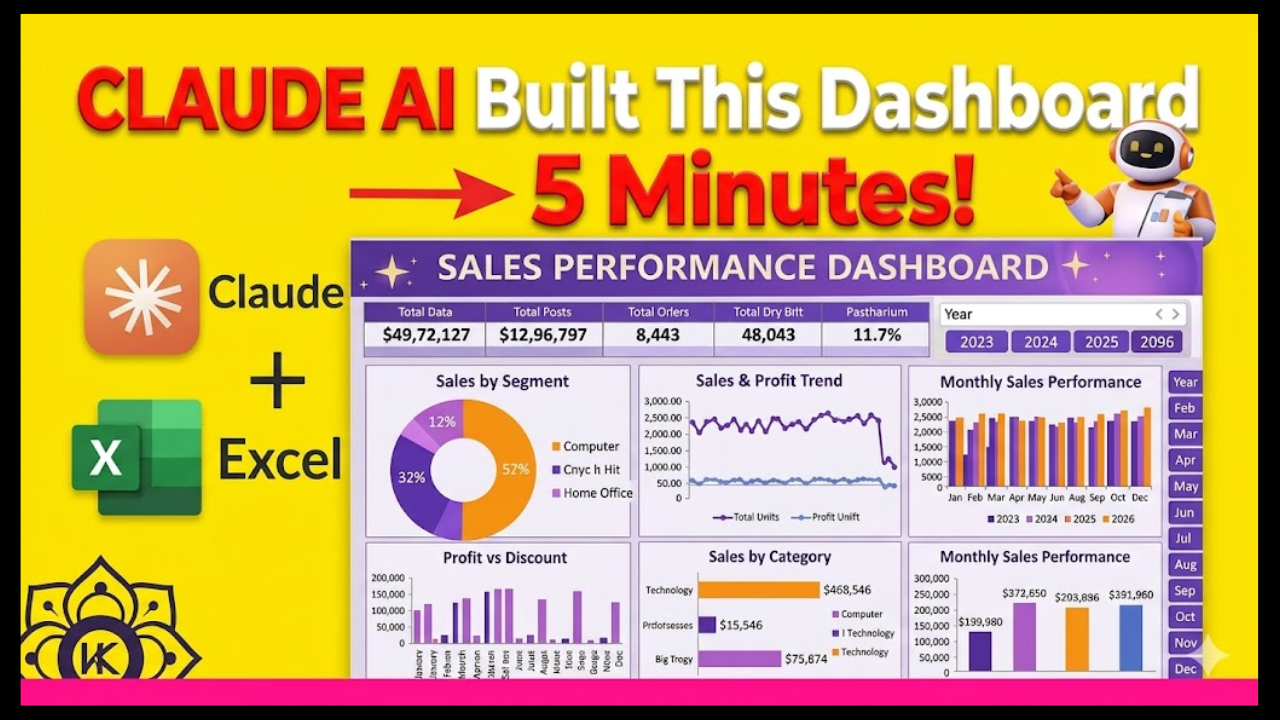
TL;DR: You can use Claude AI to generate VBA code that automatically cleans your Excel data, builds pivot tables, and creates a full dashboard — all with just three button clicks. What normally takes 7 hours takes under 2 minutes.
Read Also: How To Find High-Paying Foreign Clients With Claude AI (with 7 ready-to-use Claude prompts)
What If One Click Could Replace Hours of Excel Work?
Imagine opening a messy, unstructured Excel file on a Monday morning and having a polished, fully automated dashboard ready before your coffee gets cold.
That’s not a dream. That’s Claude AI + Excel VBA in 2025 — and in this guide, you’ll learn exactly how to set it up, step by step.
Whether you’re a data analyst, a finance professional, or someone who just wants to stop wasting hours formatting spreadsheets, this tutorial will change how you work with Excel forever.
Why Claude AI Is a Game-Changer for Excel Automation
Most people know Claude AI as a conversational AI assistant. But its real superpower for Excel users? Generating production-ready VBA (Visual Basic for Applications) code on demand — no programming experience required.
Here’s what makes this approach so powerful:
- ✅ No coding knowledge needed
- ✅ Works with any messy dataset
- ✅ Fully reproducible with one-click macro buttons
- ✅ Scales to any Excel file, any industry
- ✅ Free to get started (Claude has a free tier)
Let’s walk through the full three-step automation workflow.
Read Also: How to Use Claude’s Cowork to Automate File Management Without Writing a Single Line of Code
What You’ll Build: The 3-Click Excel Automation System
By the end of this guide, you’ll have three macro buttons in your Excel file:
| Button | What It Does | Time Saved |
|---|---|---|
| Clean Data | Formats raw, messy data automatically | ~2 hours |
| Build Pivot Tables | Creates multiple pivot tables in seconds | ~2.5 hours |
| Build Dashboard | Generates charts and a full visual dashboard | ~2.5 hours |
Total time saved: ~7 hours, done in under 2 minutes.
Prerequisites: What You Need Before You Start
- Microsoft Excel (with the Developer Tab enabled)
- A free or paid Claude AI account (log in with Google)
- A raw Excel dataset (messy data works perfectly)
- 10 minutes of your time — just the first time
Step 1: Clean and Format Your Raw Data Automatically
The Problem With Messy Excel Data
Raw data exports — from CRMs, ERPs, accounting software, or manual entry — are almost always a mess. Missing headers, inconsistent formatting, blank rows, merged cells. Fixing it manually is tedious, error-prone, and slow.
How Claude AI Solves This in Seconds
1. Open Claude AI in your browser Go to claude.ai and log in using your Google account.
2. Use this prompt (copy and paste it into Claude):
Write Excel VBA code that does the following to the active worksheet:
1. Removes all blank rows and columns
2. Standardises date formats to DD/MM/YYYY
3. Trims all leading and trailing spaces from text cells
4. Applies bold formatting to the header row
5. Auto-fits all column widths
6. Converts the data range into a formatted Excel Table
7. Displays a message box saying "Data cleaned and formatted successfully."
Name the macro: CleanAndFormatData
💡 Pro Tip: Customise the prompt to match your specific dataset. The more specific you are, the better the code.
3. Copy the generated VBA code from Claude
4. Open the Visual Basic Editor in Excel
- Go to the Developer Tab → Click Visual Basic
- Click Insert → Module
- Rename the module to
CleanDataFormat - Paste the VBA code and close the editor
5. Assign the macro to a button
- Insert a shape in your spreadsheet (e.g., a rounded rectangle)
- Label it “🧹 Clean Data”
- Right-click the shape → Assign Macro → Select
CleanAndFormatData→ OK
6. Click the button In a single click, seven formatting actions execute simultaneously. Your messy data is now clean, structured, and table-ready.
Step 2: Create Multiple Pivot Tables Automatically
Why Pivot Tables Take So Long Manually
Creating one pivot table is manageable. Creating five or six — each with different row fields, value summaries, and filters — can easily eat up two to three hours of your day.
With Claude AI, you automate all of them at once.
1. Use this prompt in Claude AI:
Write Excel VBA code that automatically creates the following pivot tables from the data on the sheet named "Data":

- Pivot Table 1: Sales by Region (Sheet name: "PT_Region")
- Pivot Table 2: Sales by Product Category (Sheet name: "PT_Category")
- Pivot Table 3: Monthly Sales Trend (Sheet name: "PT_Monthly")
- Pivot Table 4: Top 10 Customers by Revenue (Sheet name: "PT_Customers")

Each pivot table should:
- Be placed on its own new worksheet
- Have currency formatting on value fields
- Be sorted descending by value
- Include grand totals

Name the macro: CreatePivotSheets
💡 Customise the pivot table names and fields to match your actual data column headers for best results.
2. Copy the generated code from Claude
3. Add a new module in the Visual Basic Editor
- Go to Developer Tab → Visual Basic
- Click Insert → Module
- Rename it
Pivot - Paste the code and close the editor
4. Create a new button and assign the macro
- Right-click your new “📊 Pivot Tables” button → Assign Macro
- Select
CreatePivotSheets→ OK
5. Click the button Watch as all your pivot tables are generated, one by one, each on their own sheet. What used to take the better part of a morning is done before you finish your next sip of tea.
Step 3: Build a Full Dashboard Automatically
This is where the magic becomes genuinely jaw-dropping.
What the Dashboard Includes
The Claude-generated VBA code can automatically create:
- Bar charts, line charts, and pie charts from your pivot data
- A dedicated Dashboard sheet with all visuals arranged neatly
- Consistent colour themes and formatting
- Dynamic titles linked to your data
1. Use this prompt in Claude AI:
Write Excel VBA code that creates a professional dashboard on a new sheet called "Dashboard" using the pivot tables on sheets named "PT_Region", "PT_Category", "PT_Monthly", and "PT_Customers".

The dashboard should include:
- A bar chart showing Sales by Region
- A line chart showing Monthly Sales Trend
- A pie chart showing Sales by Category
- A top 10 customers table

All charts should:
- Have clear titles
- Use a consistent blue and white colour scheme
- Be evenly sized and arranged in a 2x2 grid layout

Name the macro: BuildDashboard
2. Copy the code, add a new module in Visual Basic Editor
- Rename it
Dashboard - Paste the code and close the editor
3. Create your final button and assign the macro
- Right-click “📈 Build Dashboard” → Assign Macro →
BuildDashboard→ OK
4. Click the button Your complete, professional Excel dashboard appears in seconds. Charts, layouts, titles — all built automatically from your raw data.
The Full Workflow at a Glance
Raw Messy Data
      ↓
[🧹 Click: Clean Data Button]
      ↓
Structured, Formatted Data Table
      ↓
[📊 Click: Pivot Tables Button]
      ↓
4 Pivot Table Sheets Generated
      ↓
[📈 Click: Build Dashboard Button]
      ↓
Professional Excel Dashboard ✅
Total clicks: 3. Total time: Under 2 minutes.
Tips to Get Better VBA Code From Claude AI
Getting great code from Claude AI is about prompt quality. Here’s what works:
- Name your columns explicitly — “I have columns: Date, Region, Product, Units Sold, Revenue”
- Specify your Excel version — Claude will tailor the VBA syntax accordingly
- Ask for error handling — Add “Include error handling and clear messages for the user” to any prompt
- Request comments — Add “Add comments to explain each section of the code” so you can learn and customise
- Iterate — If the first output isn’t perfect, paste it back and say “Fix this part: [describe the issue]”
Common Questions (FAQ)
Is this safe? Will VBA macros harm my file?
VBA macros run locally on your machine and only affect the workbook you run them in. Always save a backup of your original file before running any macro for the first time.
Does this work with Excel for Mac?
Most VBA code works cross-platform, but some UI elements (like certain chart formatting options) can behave differently on Mac. Ask Claude to write “Mac-compatible VBA” if needed.
Do I need a paid Claude AI plan?
No. The free tier of Claude AI is sufficient for generating VBA code of this complexity. Paid plans offer faster responses and longer context windows, which helps with very large codebases.
Can I reuse these buttons for different datasets?
Yes. Once your macro buttons are set up, they work on any dataset you paste into the same workbook, as long as the column structure matches what the code expects.
What if the VBA code throws an error?
Copy the error message, go back to Claude, and paste it with: “This VBA code returned the following error: [error message]. Please fix it.” Claude will diagnose and correct it instantly.
Why This Method Will Only Get More Powerful
As AI models like Claude continue to improve, the quality of generated VBA code will only get better — handling more edge cases, more complex data structures, and more sophisticated visualisations. Learning to prompt AI effectively for code generation is one of the highest-leverage skills a modern Excel user can develop.
This isn’t about replacing Excel expertise. It’s about amplifying it.
Summary: What You Learned Today
- How to use Claude AI to generate Excel VBA code without any programming knowledge
- How to clean and format raw data automatically using a one-click macro
- How to build multiple pivot tables in seconds instead of hours
- How to create a full Excel dashboard with charts, using nothing but a prompt and a button click
- How to write better prompts to get more accurate, customisable VBA code
Ready to Try It?
The next time you’re staring at a messy Excel file with a sinking feeling, remember: three prompts, three buttons, two minutes.
Start with Step 1. Clean your data. Then build your pivots. Then watch your dashboard appear.
And the next time someone asks you how you turned around that report so fast? You’ll know exactly what to tell them.
Found this useful? Share it with a colleague who still spends hours in Excel every week — you might just change their workflow forever.



Leave a Reply