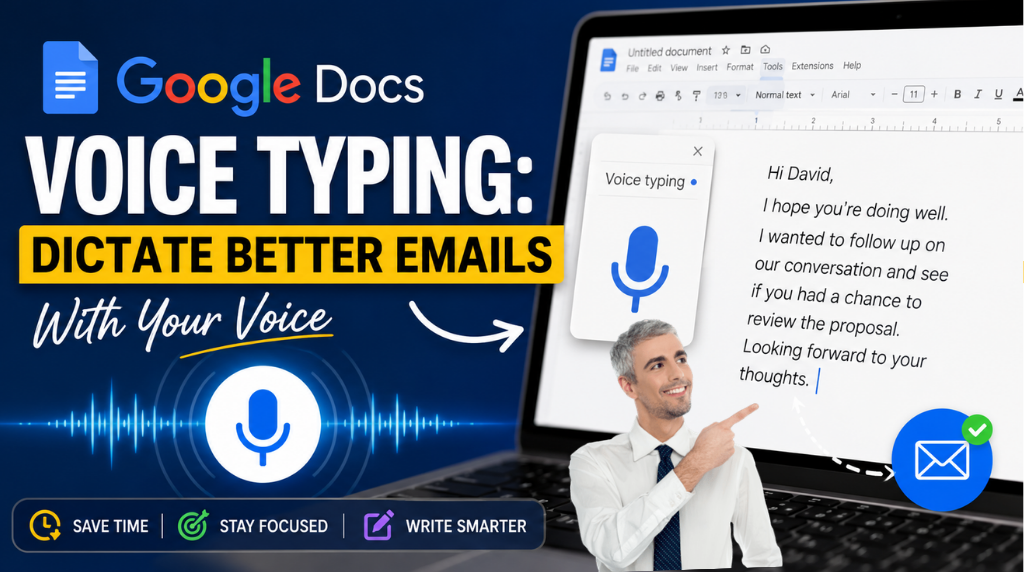
What if you could write a professional email without typing a single sentence?
You can.
Google Docs includes a built-in Voice typing feature that converts your speech into editable text. Instead of struggling to type every word, you can simply speak your thoughts, let Google Docs transcribe them, edit the result, and paste the finished email into Gmail or another email service.
For anyone who writes emails frequently, this can turn a slow typing task into a much faster speak → edit → send workflow.
In this guide, you’ll learn how to use Google Docs voice typing to write emails, how to dictate more accurately, useful voice commands, how to fix transcription mistakes, and how to combine voice typing with AI to create better emails.
What Is Google Docs Voice Typing?
Google Docs Voice typing is a speech-to-text feature that lets you type and edit documents using your voice.
Google says the feature works in the latest versions of Chrome, Edge and Safari, provided your computer microphone is working. The browser handles the speech-to-text processing and sends the resulting text to Google Docs. (Google Support)
You can use it for much more than emails.
For example, you can use voice typing to:
- Draft emails
- Write blog posts
- Brainstorm ideas
- Take notes
- Create reports
- Draft social media posts
- Write meeting notes
- Capture ideas while you’re thinking
And because the resulting text is editable, you don’t have to get everything perfect while speaking.
Read Also: Claude AI for Writing: How to Draft Emails, Reports, and Messages in Seconds

Can You Use Google Docs Voice Typing to Write Emails?
Yes.
Google Docs doesn’t send the email for you. Instead, you use Voice typing to create and edit your email draft inside a Google Doc, then copy the finished text into Gmail or another email platform.
This approach is particularly useful when:
- You type slowly
- You have a long email to write
- You have lots of ideas but don’t want to type them
- You prefer speaking to writing
- You want to create a rough draft quickly
- You’re combining dictation with AI writing tools
The key is to think of Google Docs Voice typing as your drafting engine, not your complete email-sending system.
How to Use Google Docs Voice Typing for Emails
Here’s the step-by-step process.
Step 1: Open Google Docs
Open Google Docs in a supported desktop browser and create a new document.
You’ll use the blank document as your email drafting workspace.
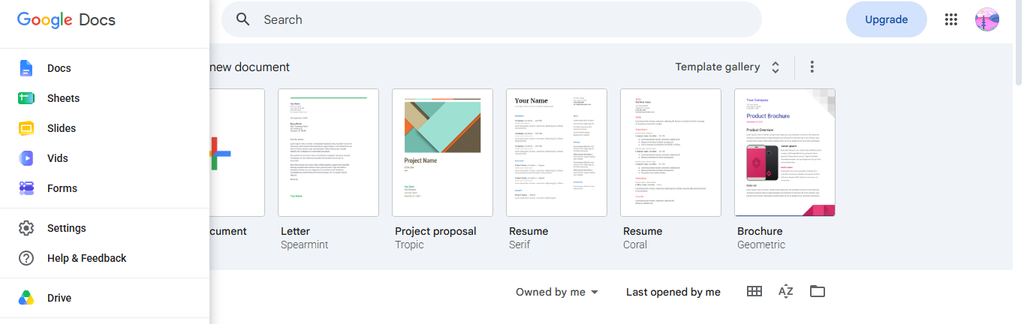
Google recommends keeping your browser updated, and the Voice typing feature is available in the latest versions of Chrome, Edge and Safari. (Google Support)
Step 2: Turn On Your Microphone
Before you start dictating, make sure your computer microphone is working.
If you’re using an external microphone, check that it’s properly connected and that your browser has permission to access it.
A quiet environment can also improve transcription accuracy.
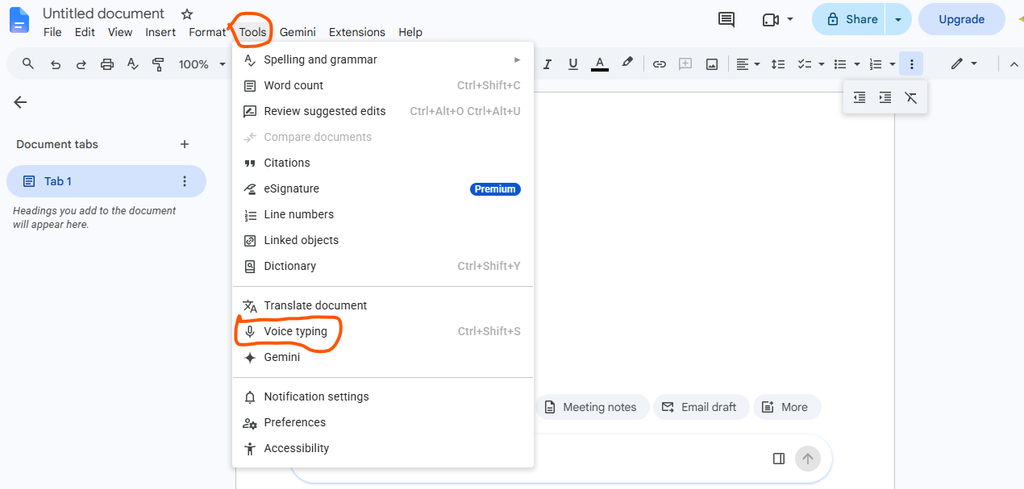
Step 3: Turn On Voice Typing
Inside your Google Doc:
Tools → Voice typing
A microphone box will appear.
Click the microphone and begin speaking.
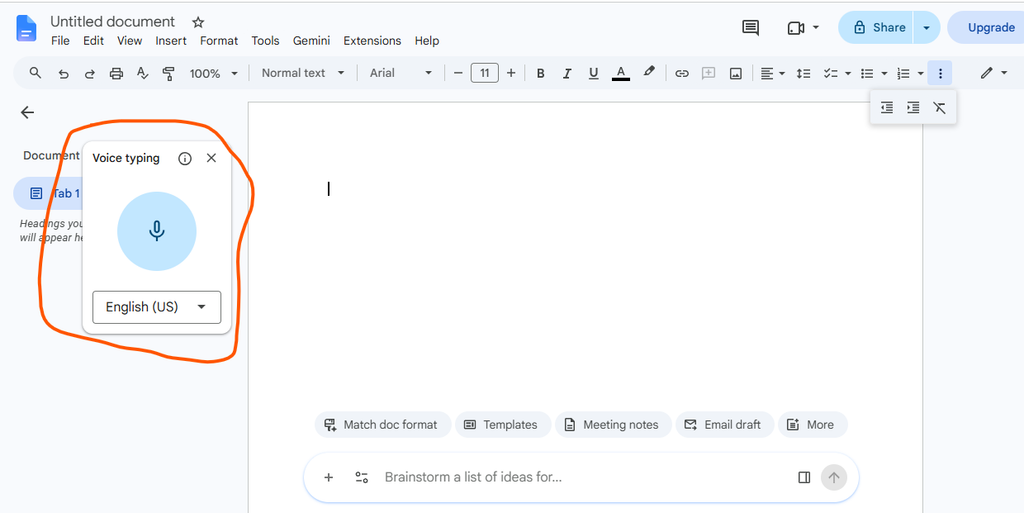
Google’s official instructions recommend speaking clearly at a normal volume and pace. (Google Support)
Keyboard shortcut
If you’re using Chrome, Google also lists Ctrl + Shift + S as the shortcut for starting Voice typing. (Google Support)
Step 4: Dictate Your Email
Here’s where you can save considerable time.
Don’t try to dictate the perfect email immediately.
Instead, speak naturally and get your ideas onto the page.
For example:
Hi Sarah, thanks for getting back to me. I wanted to follow up on our conversation about the project. I’ve reviewed the proposal and I’m happy with the direction. Could we schedule a meeting on Friday to discuss the next steps?
Google Docs will convert your speech into text.
You can then go back and polish it.
Step 5: Use Voice Commands for Punctuation
One of the easiest ways to improve your dictated emails is to use punctuation commands.
Google Docs supports commands such as:
- Period
- Comma
- Exclamation point
- Question mark
- New line
- New paragraph
Google notes that punctuation and voice commands aren’t available in every language. Voice commands specifically require both the account language and document language to be English. (Google Support)
So instead of stopping every few seconds to manually add punctuation, you can incorporate these commands while dictating.
Step 6: Edit Your Dictated Email
Don’t copy the transcript directly into Gmail.
Always review it first.
Speech recognition can occasionally misunderstand words, particularly:
- Names
- Numbers
- Company names
- Email addresses
- Technical terms
- Accents
- Unusual words
Google Docs allows you to move the cursor to an error and correct it without necessarily turning off Voice typing. It can also show suggested alternatives for some words. (Google Support)
This makes the editing stage much easier.
Step 7: Use AI to Polish the Email
This is where voice typing becomes even more powerful.
Instead of trying to dictate a perfect email, create a rough voice draft first.
Then use an AI writing assistant to improve it.
For example, you could ask AI:
Make it more professional
Rewrite this email in a professional but friendly tone. Keep the meaning unchanged.
Make it shorter
Reduce this email by 40% while keeping all important information.
Improve the opening
Rewrite the opening paragraph to make it warmer and more engaging.
Make it more persuasive
Make this email more persuasive without making it sound pushy.
Create a subject line
Give me five concise subject lines for this email.
This creates a simple productivity system:
Your ideas → Your voice → Google Docs → AI editing → Final email
How to Dictate Better Emails With Your Voice
The quality of your final email depends partly on how you dictate it.
Here are several techniques that can make the process significantly better.
1. Speak in complete thoughts
Don’t dictate random words one at a time.
Instead, explain your idea as though you’re talking to the person who will receive the email.
This usually creates a more natural first draft.
2. Start with the purpose
Before you begin speaking, know why you’re sending the email.
Ask yourself:
What do I want the recipient to understand, decide or do?
Once you know the answer, dictation becomes much easier.
3. Don’t obsess over grammar during dictation
This is one of the biggest mistakes people make.
If you constantly stop to correct every sentence, you lose the speed advantage of voice typing.
Get the ideas out first.
Edit second.
4. Pause between ideas
Speaking too quickly can make your transcription harder to review.
Google recommends speaking clearly at a normal volume and pace. (Google Support)
Think in paragraphs rather than one continuous stream of words.
5. Review names and numbers carefully
This is particularly important for business emails.
Always double-check:
- Names
- Dates
- Prices
- Phone numbers
- Addresses
- URLs
- Product names
- Company names
One transcription error in a number or name can completely change the meaning of an email.
Useful Google Docs Voice Commands
Google Docs supports more than simple dictation.
When Voice typing is active, you can use voice commands to select text, format documents and navigate around the document. (Google Support)
For example, Google documents commands such as:
- Select paragraph
- Select all
- Bold
- Italicize
- Underline
- Apply heading
- Go to the end of the line
- Go to the end of the paragraph
- Stop listening
- Resume
This means Voice typing can function as more than a transcription tool—it can also provide hands-free editing and navigation.
Google Docs Voice Typing vs. Typing an Email
Which is faster?
It depends on the person and the task.
For a two-line email, typing may be faster.
For a long email, brainstorming session or detailed explanation, speaking can be much more efficient.
Consider this workflow:
| Traditional email writing | Voice-first email writing |
|---|---|
| Think | Think |
| Type | Speak |
| Delete | Transcribe |
| Rewrite | Edit |
| Type again | Polish |
| Send | Send |
The biggest advantage isn’t necessarily that voice typing produces a perfect email.
It’s that it reduces the friction between having an idea and getting that idea onto the page.
Can You Use Google Docs Voice Typing on a Phone?
There is an important distinction here.
The classic Google Docs Voice typing feature documented by Google is primarily a desktop-browser feature and works with the latest versions of Chrome, Edge and Safari. (Google Support)
On mobile, Google also has newer Gemini-powered voice capabilities in Google Docs. Google says this feature can be used to brainstorm, draft, refine and format documents with voice commands on Android and iOS, although availability depends on eligibility and plan requirements. (Google Support)
So if you’re looking for the traditional Tools → Voice typing option, use Google Docs in a supported desktop browser.
Google Docs Voice Typing Supports Multiple Languages
Another useful advantage is language support.
Google currently lists a large number of supported languages and accents for Voice typing, including English (Nigeria), English (Ghana), English (South Africa), English (UK), English (US) and many others. (Google Support)
However, voice commands have additional language requirements, so speech-to-text availability and voice-command availability aren’t necessarily identical.
What to Do If Google Docs Voice Typing Isn’t Working
If Voice typing isn’t recognizing your voice, try these fixes.
Check your microphone
Make sure your computer recognizes the microphone and that it isn’t being used exclusively by another application.
Move somewhere quieter
Background noise can interfere with speech recognition.
Speak more clearly
Google recommends speaking at a normal volume and pace. (Google Support)
Check browser permissions
Your browser needs microphone access for Voice typing to work.
Try another microphone
An external microphone may improve results if your built-in microphone produces poor audio.
Restart the browser
If everything appears correctly configured but Voice typing still doesn’t work, restarting the browser can sometimes resolve temporary issues.
The Best Google Docs + AI Email Workflow
If your goal is to write better emails faster, don’t stop at voice transcription.
Use this five-step workflow:
1. Think
Identify the purpose of the email.
2. Dictate
Speak your ideas into Google Docs.
3. Edit
Correct transcription mistakes.
4. Polish
Use AI to improve clarity, tone and structure.
5. Send
Copy the final version into Gmail and review it one last time before sending.
This approach separates thinking, writing and editing instead of forcing you to perform all three tasks simultaneously.
Example: Turning a Voice Draft Into a Professional Email
Imagine you dictate:
I just wanted to follow up about the proposal we discussed yesterday and ask if you’ve had time to look at it because we need to know whether we can start next week.
That’s a perfectly useful first draft.
But you could polish it into:
Subject: Follow-Up on Project Proposal
Hi David,
I’m following up on the proposal we discussed yesterday. Have you had a chance to review it?
We’d appreciate your feedback so we can confirm whether we’re able to begin the project next week.
Best regards,
Olasunkanmi
The voice draft captured the idea.
Editing and AI helped turn that idea into a professional communication.
That’s the real value of the workflow.
Frequently Asked Questions
Is Google Docs Voice Typing free?
Google Docs provides a built-in Voice typing feature. Availability of related newer AI-powered voice features can depend on the Google Workspace or Google AI plan you have. (Google Support)
How do I activate voice typing in Google Docs?
Open a document, select Tools → Voice typing, click the microphone and begin speaking. (Google Support)
Can Google Docs voice typing write emails?
Yes. You can dictate an email inside Google Docs, edit the transcript and then copy the finished email into Gmail or another email platform.
Does Google Docs voice typing add punctuation?
Google supports commands such as “period,” “comma,” “question mark,” “exclamation point,” “new line” and “new paragraph,” although punctuation functionality isn’t available in every language. (Google Support)
Can I edit while voice typing?
Yes. Google says you can move the cursor to a mistake and correct it while Voice typing is active. (Google Support)
What browser works with Google Docs Voice typing?
Google says Voice typing works with the latest versions of Chrome, Edge and Safari. (Google Support)
Is Google Docs Voice typing available in Nigeria?
Google’s supported language list includes English (Nigeria). (Google Support)
Final Thoughts: Stop Typing Every Email From Scratch
The biggest mistake is thinking that voice typing needs to produce a perfect email immediately.
It doesn’t.
Think of Google Docs Voice typing as a way to capture your thoughts quickly.
Speak your ideas.
Let Google Docs turn them into text.
Fix the mistakes.
Use AI when you need help polishing the message.
Then send the final version.
The workflow is simple:
Speak → Transcribe → Edit → Polish → Send.
Once you get comfortable with it, writing longer emails can feel less like a typing task and more like having a conversation with a blank document.
And that’s where voice typing becomes genuinely useful—not because it replaces writing, but because it makes getting your ideas written down dramatically easier.
Quick Takeaway
Google Docs Voice typing is best for people who want to draft emails faster without typing every word. Open Google Docs, go to Tools → Voice typing, speak naturally, correct the transcript, polish the message and copy it into your email client.
For even better results, combine voice dictation + AI editing to turn rough spoken thoughts into clear, professional emails.
Recommended Resources for further reading:
- Best AI tools for writing emails
- How to use Gemini Step-By-Step For Beginers
- Best free AI productivity tools
- How to use AI to write faster
- Google Gemini productivity tips
- Best AI tools for content creators
Official source: Google Docs: Type & edit with your voice
✍️ About the Author
Olasunkanmi Adeniyi is a solo founder, product builder, AI practitioner, no-code and low-code developer, and SEO/content strategist. He builds websites, SaaS products, digital tools, and content systems using AI and modern development tools.
Rather than writing about AI from theory alone, Olasunkanmi focuses on testing, building, experimenting, and documenting what actually works. His work explores AI-powered workflows, product development, automation, SEO, content strategy, online business, and the practical use of emerging technologies.
Through AI Discoveries, he publishes practical tutorials, in-depth guides, experiments, and real-world use cases designed to help entrepreneurs, professionals, creators, and businesses understand and apply AI more effectively.
His goal is simple: make AI practical, understandable, and actionable—so readers can move from learning about what AI can do to actually using it to build, work, and grow.
Learn more and explore his latest work at www.aidiscoveries.io.





Leave a Reply