Artificial intelligence has changed how people work, learn, and create content. Among the most powerful AI assistants available today is Google Gemini.
Whether you want to write emails, summarize documents, generate ideas, analyze spreadsheets, or research complex topics, Gemini can help you complete tasks in minutes instead of hours.
Read Also: How to Use AI to Study Smarter and Learn 10x Faster. The Ultimate Student Guide (2026)
This guide explains exactly how to use Gemini step by step, even if you’ve never used AI before.
By the end, you’ll know how to:
• Create your Gemini account
• Write prompts that produce better answers
• Upload files for analysis
• Generate images
• Use Gemini inside Gmail, Google Docs, and Google Sheets
• Avoid common beginner mistakes
• Get better results with real-world examples
Let’s get started.
What Is Google Gemini?
Google Gemini is an AI assistant developed by Google. It uses large language models to understand text, images, audio, video, and documents.
Unlike traditional search engines that provide links, Gemini can generate answers, explain concepts, write content, solve problems, and analyze information in a conversational way.
According to Google’s official Gemini documentation, Gemini is designed as a multimodal AI assistant that can understand and generate text, images, audio, video, and code. Google continues to expand Gemini’s capabilities across its products, making it one of the company’s core AI technologies for both personal and professional use.
Many people use Gemini for:
- Writing blog posts
- Drafting emails
- Coding
- Homework assistance
- Data analysis
- Business planning
- Content creation
- Brainstorming ideas
- Research
- Image generation
Because Gemini integrates with Google’s ecosystem, it also works with Gmail, Google Drive, Docs, Sheets, and Calendar.
Who Should Use Gemini?
Gemini is useful for almost anyone who works with information.
Examples include:
- Students
- Business owners
- Marketers
- Software developers
- Teachers
- Researchers
- Freelancers
- Content creators
- Sales teams
- Customer support agents
Read Also: How I Automated Client Lead Generation Using Make.com and Claude (2026 Guide) – AI Discoveries
Even if your job isn’t technical, Gemini can help automate repetitive tasks.
Step 1: Create a Gemini Account
Getting started takes only a few minutes.
- Visit the official Gemini website.
- Sign in using your Google account.
- Accept Google’s terms.
- Choose your preferred Gemini plan.
Most users can begin with the free version.
If you need higher usage limits and access to Google’s latest models, you can upgrade later.
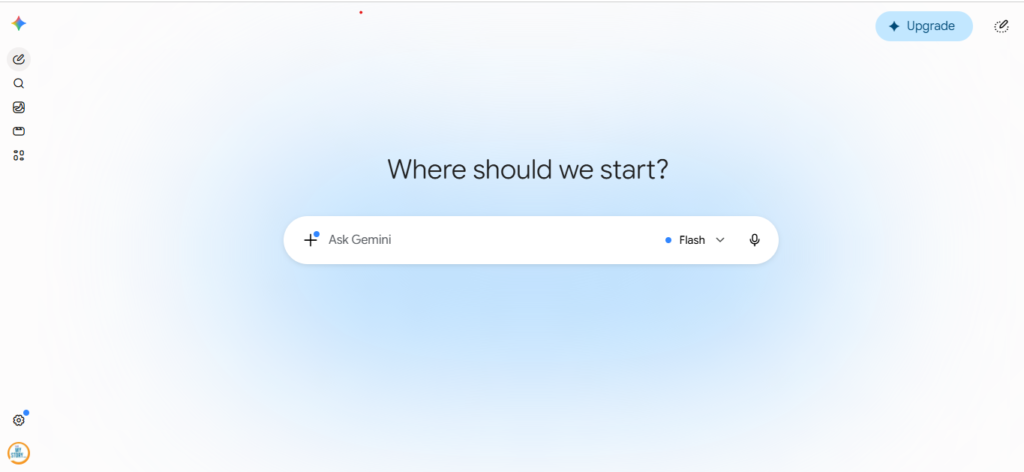
Step 2: Understand the Gemini Interface
After signing in, you’ll see a clean interface.
The main sections include:
Prompt Box
This is where you type your questions or instructions.
Chat History
Gemini saves previous conversations so you can return to them later.
File Upload
Upload PDFs, Word documents, spreadsheets, images, presentations, or text files.
Model Selection
Depending on your subscription, you may choose between different Gemini models optimized for speed or reasoning.
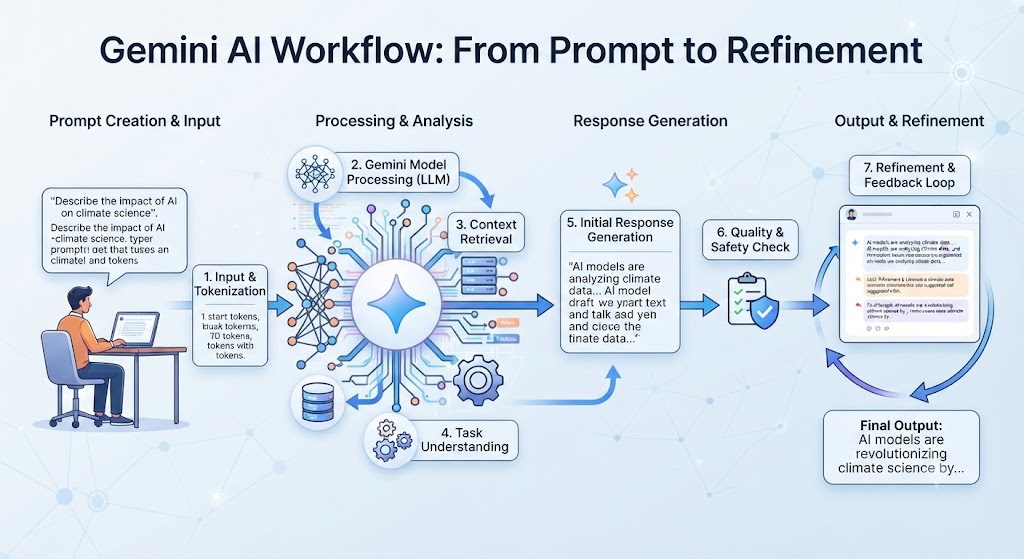
Step 3: Write Your First Prompt
The quality of your results depends on your prompt.
Instead of writing:
“Write about AI.”
Write:
“Write a 700-word beginner-friendly article explaining how AI helps small businesses reduce operating costs. Include practical examples.”
Notice the difference.
The second prompt tells Gemini:
- Audience
- Topic
- Length
- Purpose
- Desired output
More context almost always produces better responses.
Read Also: ChatGPT vs Claude vs Gemini: Which One Should You Use? The Complete 2026 Guide
Step 4: Ask Follow-Up Questions
One of Gemini’s biggest strengths is conversation.
Instead of starting over every time, continue the discussion.
Example:
You:
“Create a business plan for an online bakery.”
Gemini responds.
Then ask:
“Reduce the startup budget to under $2,000.”
Or:
“Rewrite this for investors.”
Or:
“Convert this into a PowerPoint outline.”
Each follow-up improves the result.
Step 5: Upload Files
Gemini can analyze documents.
Click Upload.
Choose your file.
Examples include:
- PDF reports
- Excel spreadsheets
- PowerPoint presentations
- Research papers
- Contracts
- Images
Example prompt:
“Summarize this 40-page report into five key insights.”
Another example:
“Identify sales trends from this spreadsheet.”
Gemini saves hours of manual work.
Step 6: Generate Images
Gemini can generate images from text descriptions.
Example prompt:
“Create a modern office workspace with a woman using AI software. Bright lighting. Minimalist design.”
You can refine the image by asking:
“Make it photorealistic.”
Or:
“Use blue and white branding.”
Or:
“Add more natural lighting.”
Step 7: Use Gemini for Research
Instead of searching multiple websites, ask Gemini to organize information.
Example:
“What are the advantages and disadvantages of electric vehicles? Present the answer in a comparison table.”
Another example:
“Explain quantum computing like I’m 12 years old.”
Gemini simplifies complex topics.
Always verify critical information using authoritative sources when making business, legal, financial, or medical decisions.
Businesses looking to build AI-powered applications with Gemini should explore the Google Cloud AI documentation. It includes implementation guides, APIs, architecture recommendations, security practices, and examples for integrating Gemini into websites, applications, and enterprise workflows.
Read Also: 10 Real Ways People Are Making Money With AI Right Now (2026 Guide)
Step 8: Use Gemini Inside Google Workspace
Gemini integrates with Google’s productivity tools.
If you use Gmail, Google Docs, Sheets, or Drive, the Google Workspace Learning Center provides detailed tutorials on how Gemini integrates into these applications. Learning these built-in features can help you automate repetitive tasks such as drafting emails, summarizing documents, analyzing spreadsheets, and preparing presentations.
Gmail
Ask Gemini to:
- Draft replies
- Summarize long email threads
- Improve grammar
- Create follow-up emails
Example:
“Write a professional email declining a meeting while proposing another date.”
Google Docs
Use Gemini to:
- Rewrite paragraphs
- Generate outlines
- Brainstorm headlines
- Improve clarity
Google Sheets
Gemini helps:
- Analyze data
- Generate formulas
- Explain charts
- Find trends
Google regularly announces new Gemini features, model improvements, and productivity enhancements on the Google AI Blog. Checking these updates helps you stay informed about new capabilities, supported languages, and best practices as Gemini continues to evolve.
Step 9: Save Time with Prompt Templates
Here are prompts you can reuse.
Blog Writing
“Write a 1,500-word SEO article targeting beginners. Use H2 headings, FAQs, bullet points, and practical examples.”
Marketing
“Create a Facebook advertising campaign targeting first-time homebuyers.”
Business
“Develop a SWOT analysis for a food delivery startup.”
Education
“Explain photosynthesis using simple language suitable for a 10-year-old.”
Programming
“Review this Python code. Identify bugs and optimize performance.”
Original Examples of Using Gemini
Example 1: Content Creator
Sarah uploads a YouTube transcript.
Prompt:
“Turn this into a LinkedIn post, Twitter thread, and newsletter.”
Instead of spending three hours rewriting content, she finishes in fifteen minutes.
Example 2: Sales Manager
David uploads a spreadsheet containing customer orders.
Prompt:
“Identify my top five customers by revenue and recommend upselling opportunities.”
Gemini provides insights within seconds.
Example 3: Student
A university student uploads lecture notes.
Prompt:
“Create twenty multiple-choice questions from these notes.”
Gemini instantly creates a study guide.
Best Practices
To get better answers:
- Be specific.
- Include context.
- Mention your audience.
- State your goal.
- Specify the output format.
- Ask follow-up questions.
- Upload supporting documents when available.
Common Mistakes Beginners Make
Using Vague Prompts
Bad:
“Help me.”
Better:
“Help me create a marketing plan for a new coffee shop targeting university students.”
Expecting Perfect Results Immediately
Treat Gemini like a collaborator.
Refine the conversation.
Ignoring Context
Tell Gemini:
Who you are.
What you’re trying to achieve.
Who the audience is.
The more context you provide, the better the response.
Many of Gemini’s underlying advances come from research conducted by Google DeepMind. The research team publishes technical breakthroughs in reasoning, multimodal understanding, long-context processing, and AI safety, many of which eventually become part of Gemini’s capabilities.
Gemini is evolving rapidly, with new features released throughout the year. To ensure you’re using the latest capabilities and recommended workflows, regularly review Google’s official Gemini documentation, the Google AI Blog, and the Google Workspace Learning Center. These resources provide accurate, up-to-date guidance directly from the teams building the platform.
Gemini vs Traditional Search
| Feature | Gemini | ChatGPT |
|---|---|---|
| Developed by | OpenAI | |
| Web Search | Native Google integration | Available with supported models |
| Gmail Integration | Yes | No native integration |
| Google Docs | Yes | No native integration |
| Google Sheets | Yes | No native integration |
| Image Generation | Yes | Yes |
| File Analysis | Yes | Yes |
| Coding | Excellent | Excellent |
| Deep Research | Yes | Yes |
| Mobile App | Yes | Yes |
| Voice Conversations | Yes | Yes |
| Best For | Google ecosystem users | General AI productivity |
Traditional search gives you links.
Gemini gives you answers.
Traditional search requires reading multiple pages.
Gemini summarizes information into one conversation.
Traditional search helps you find information.
Gemini helps you understand and apply it.
Frequently Asked Questions
Is Gemini free?
Yes. Google offers a free version with optional paid plans that provide access to more advanced models and higher usage limits.
Can Gemini analyze PDFs?
Yes. You can upload PDF documents and ask Gemini to summarize, explain, compare, or extract information.
Can Gemini generate images?
Yes. Gemini supports image generation from text prompts in supported regions and plans.
Does Gemini work on mobile?
Yes. Gemini is available through web browsers and mobile apps on supported Android and iOS devices.
Is Gemini better than ChatGPT?
Both are powerful AI assistants. Gemini integrates deeply with Google’s ecosystem, while ChatGPT offers its own strengths, including broad model capabilities and different workflows. The best choice depends on your needs.
Can Gemini write code?
Yes. Gemini can generate, explain, debug, and optimize code in multiple programming languages.
Can businesses use Gemini?
Absolutely. Businesses use Gemini for customer support, research, reporting, marketing, content creation, software development, and workflow automation.
Final Thoughts
Learning how to use Gemini step by step is one of the highest leverage skills you can develop today. From writing and research to coding, analysis, and content creation, Gemini helps individuals and businesses work more efficiently.
The key to getting the best results is not simply asking questions. It is learning how to write clear prompts, provide context, upload relevant files, and refine responses through conversation.
Start with simple tasks. Experiment with different prompts. As you become more familiar with Gemini’s capabilities, you’ll discover new ways to save time, improve productivity, and make better decisions.
If you’re just beginning, use this guide as your roadmap. Practice each step, apply the examples, and you’ll quickly build confidence using Gemini for work, learning, and everyday problem solving.
Key Takeaways
• Gemini is Google’s AI assistant for writing, coding, research, image generation, and productivity.
• You can start using Gemini with a free Google account.
• Better prompts produce better results.
• Gemini supports text, PDFs, spreadsheets, images, and presentations.
• Gemini integrates with Gmail, Google Docs, Google Sheets, and Google Drive.
• Follow-up prompts help improve responses.
• Businesses can use Gemini for marketing, customer support, reporting, and workflow automation.





Leave a Reply