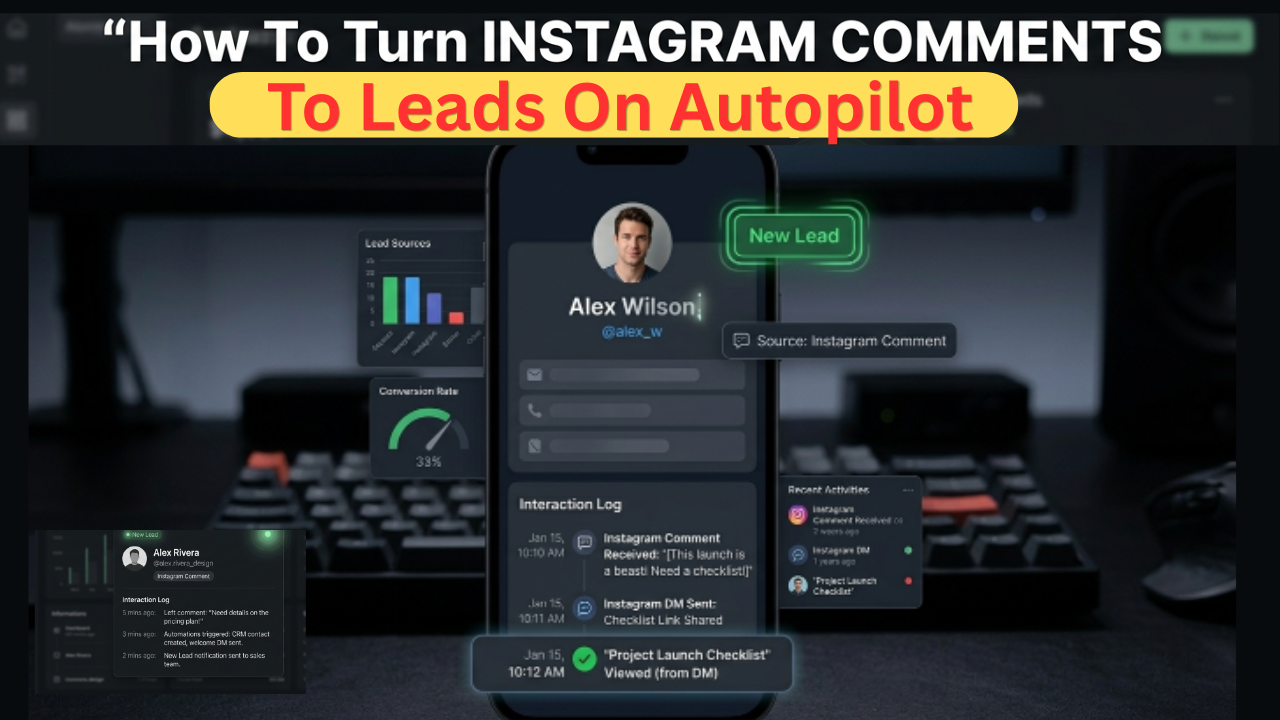
Learn how to build a fully automated Instagram comment-to-DM lead funnel using GoHighLevel. This step-by-step guide covers setup, workflow configuration, keyword triggers, and CRM capture — no coding required.
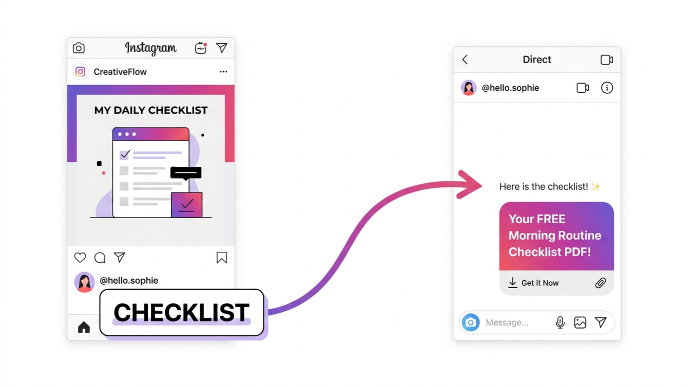
Quick Summary: When someone comments a specific keyword on your Instagram post, GoHighLevel automatically sends them a personalized DM sequence, captures them as a lead in your CRM, and moves them toward a conversion — completely on autopilot.
Table of Contents
- What Is Instagram Comment Automation?
- Why Use GoHighLevel for Instagram Automation?
- Prerequisites
- Step 1: Connect Your Instagram Account to GoHighLevel
- Step 2: Create the Automation Workflow
- Step 3: Configure the Trigger
- Step 4: Set Up the Public Comment Reply
- Step 5: Configure the First DM (Interactive Messenger)
- Step 6: Configure the Lead Magnet Delivery DM
- Step 7: Publish Your Workflow
- How the Automation Looks in Real Life
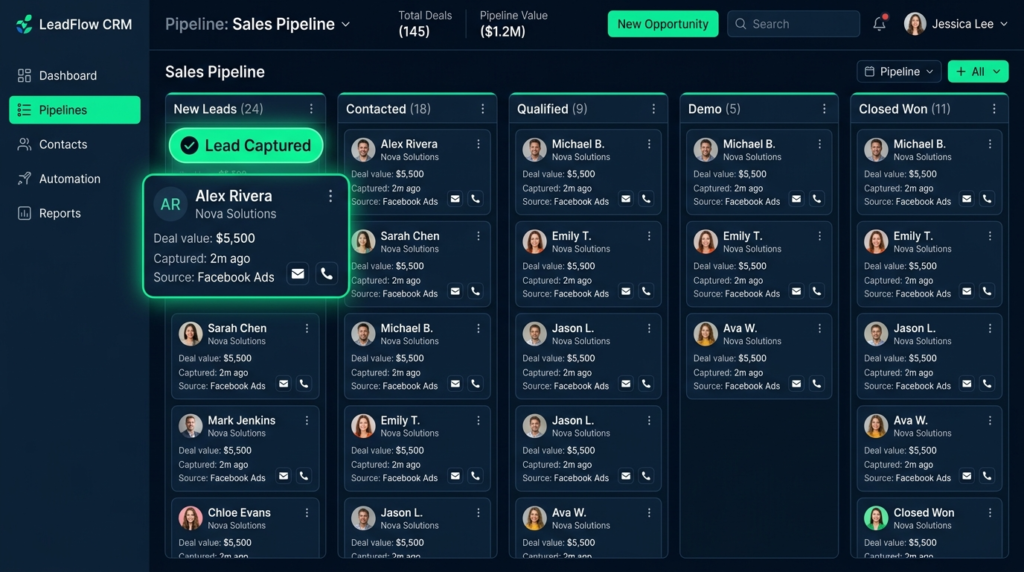
- How GoHighLevel Captures Leads Automatically
- Best Practices for Instagram Comment Automations
- Frequently Asked Questions
- Final Thoughts
What Is Instagram Comment Automation?
Instagram comment automation is a marketing technique where a specific keyword comment on your Instagram post automatically triggers a pre-built DM (direct message) sequence. Instead of manually replying to hundreds of comments, a platform like GoHighLevel handles the entire conversation flow for you — from the first public reply to delivering a lead magnet — without you lifting a finger.
Here’s the core concept:
- You create an Instagram post and tell your audience: “Comment [KEYWORD] and I’ll DM you the free guide.”
- A follower comments that keyword.
- GoHighLevel instantly fires a public reply on the post AND sends a personalized DM.
- The DM presents interactive buttons (e.g., “Get the Checklist” or “Visit My Blog”).
- Based on what the user taps, they’re guided through a conversion path.
- The contact is automatically added to your GoHighLevel CRM as a tracked lead.
This is one of the highest-converting, lowest-effort lead generation tactics available to content creators, coaches, marketers, and small business owners in 2025.
Why Use GoHighLevel for Instagram Automation?
GoHighLevel (GHL) is an all-in-one marketing and CRM platform that natively supports Instagram automation through its Workflow Builder. Here’s why it stands out:
- Native Instagram integration — connects directly through your Facebook Business account
- Pre-built workflow templates — the “Instagram Comment Automation” recipe is ready to use out of the box
- Interactive DM buttons — lets users tap to choose their own path inside the DM, increasing engagement
- Automatic CRM capture — every commenter becomes a tracked lead with zero manual data entry
- Branching logic — different responses lead to different follow-up sequences
- AI Workflow Builder — you can even describe what you want in plain English and GHL builds it
No other platform combines comment automation, CRM capture, DM sequences, and branching logic in a single tool this seamlessly.
Prerequisites
Before building this automation, make sure you have:
- ✅ An active GoHighLevel account (sub-account access)
- ✅ A Facebook Business Page connected to your Instagram account
- ✅ An Instagram Professional account (Business or Creator)
- ✅ An Instagram post you want to use for the campaign
- ✅ A lead magnet URL (Google Doc, landing page, affiliate link, booking link, etc.)
Step 1: Connect Your Instagram Account to GoHighLevel
This is a one-time setup. Once connected, your Instagram account is available for all future automations.
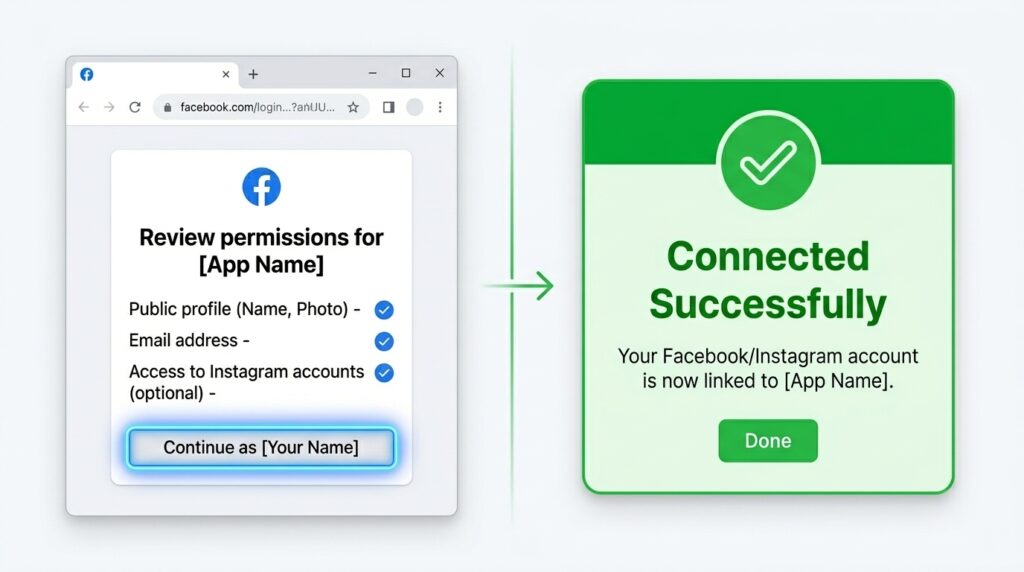
How to Connect:
- From your GoHighLevel sub-account dashboard, go to the lower-left sidebar and click Settings.
- In the Settings sidebar, click Integrations.
- Find the Facebook card and click it (Facebook manages both Facebook Pages and Instagram accounts).
- Click Connect — a Facebook login window will open.
- Confirm your Facebook account, then select the Facebook Page you want to connect and click Continue.
- Select your Business account and click Continue.
- On the Instagram accounts screen, check your Instagram account and click Continue.
- On the Permissions Review screen, scroll through and click Save. These permissions (accessing posts, managing comments, handling Messenger conversations) are all required for comment automation to work.
- Click Got It to close the confirmation window.
- GHL will show a sync screen — check the box next to your page and click Connect and Continue.
- Click Configure Field Mapping → if it says “Forms not available,” that’s fine (only relevant for Facebook Lead Ad forms). Click Save.
Note: You may see a small yellow warning icon on the Facebook integration card. This is typically related to optional ad or product catalog permissions and does not affect Instagram comment automations. As long as your page and Instagram are connected, you’re good to go.
Step 2: Create the Automation Workflow
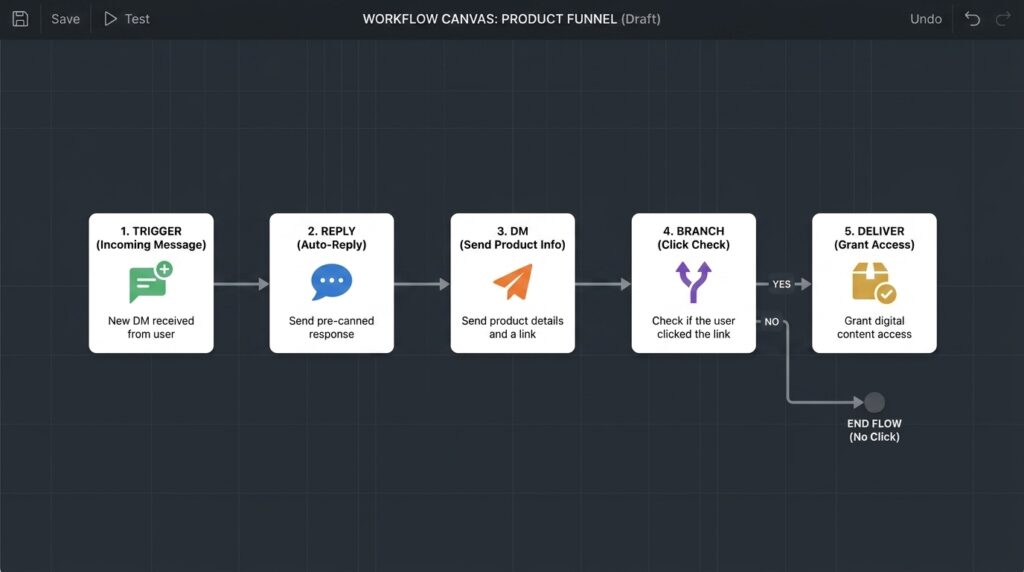
GoHighLevel’s Workflow Builder is where the magic happens. Rather than building from scratch, you’ll use the pre-built Instagram Comment Automation template.
How to Create the Workflow:
- In the left sidebar, click Automation → this opens the Workflows page.
- In the upper right corner, click Create Workflow.
- From the dropdown, select Select from Template.
- In the template library, click See All to expand the full list.
- Scroll to find “Recipe: Instagram Comment Automation” (it’s near the bottom).
- Hover over it and click Preview to see the full workflow before committing.
What the Template Includes:
| Step | What It Does |
|---|---|
| Trigger | Watches a specific Instagram post for a keyword comment |
| Respond on Comment | Posts a public reply to the comment (e.g., “Hey, check your DM!”) |
| Instagram Interactive Messenger (1) | Sends the first DM with interactive tap buttons |
| Branching Logic | Routes users based on which button they tap |
| Instagram Interactive Messenger (2) | Delivers the actual lead magnet link |
- Click Choose Template (top right) to load it into the full Workflow Builder.
The workflow loads in Draft Mode — meaning it’s not live yet. You can configure everything safely before publishing.
Step 3: Configure the Trigger
The trigger tells GoHighLevel which post to watch and which keyword to listen for.
How to Configure:
- Click the Trigger card at the top of the workflow.
- In the Filters section on the right panel:
- Page is → select your connected Instagram account from the dropdown.
- Post type is → leave set to “Published Post.”
- Post is → click the dropdown to see your recent Instagram posts (pulled live from your account). Select the post you’re using for this campaign.
- Click Add Filters → Select → choose Exact Match.
- In the text field, type your trigger keyword (e.g.,
checklist). - Enable the “Track first level comments only” toggle. This ensures the automation fires only on direct post comments, not replies to other comments.
- Click Save Trigger.
Pro Tip: Use a short, memorable keyword that’s easy to type — single words like
guide,checklist,link,free, oryestend to get the highest comment rates.
Step 4: Set Up the Public Comment Reply
This is the public reply that appears in your post’s comment section immediately after someone comments the keyword. It serves two purposes:
- Confirms to the commenter that a DM is incoming.
- Creates social proof — other users scrolling the post see the exchange and are encouraged to comment the keyword too.
How to Configure:
- Click the Respond on Comment step in the workflow.
- The settings panel shows two pre-loaded reply variants:
- “Hey, check your DM.”
- “Thanks for showing interest. Please check your DM.”
- GoHighLevel rotates between these randomly — this keeps replies from looking robotic when multiple people trigger the automation.
- Edit these to match your brand voice, or click Add New Response to add more variations.
- Note: There’s a Like Comments toggle — this only works for Facebook posts, not Instagram. It won’t affect your automation either way.
- Click Save.
Best Practice: Add 3–5 comment reply variations for a natural, human-looking comment section.
Step 5: Configure the First DM (Interactive Messenger)
This is the first DM the person receives after commenting. It’s warm, personal, and presents them with action buttons to choose their next step.
How to Configure:
- Click the first Instagram Interactive Messenger step in the workflow.
- Confirm the Reply Type is set to “Reply to comment via DM” — leave it as is.
- In the message field, write your opening DM. Keep it warm and on-brand. Example: “Hi! I’m so excited you want to start your blogging journey. Here’s what I’ve got for you 👇”
- In the Buttons section, configure your interactive CTA buttons (up to 2): Button Action Use Case Visit My Blog Open Website → [your URL] Drives traffic to your site Get the Checklist Perform Actions Triggers the lead magnet delivery branch
- Note the 1-minute wait step automatically added below — this gives users time to respond before the timeout branch fires. You can increase it if needed.
- Click Save.
Step 6: Configure the Lead Magnet Delivery DM
This step lives inside the “Get the Checklist” branch and delivers your actual lead magnet link.
How to Configure:
- Click the second Instagram Interactive Messenger step (inside the “Get the Checklist” branch).
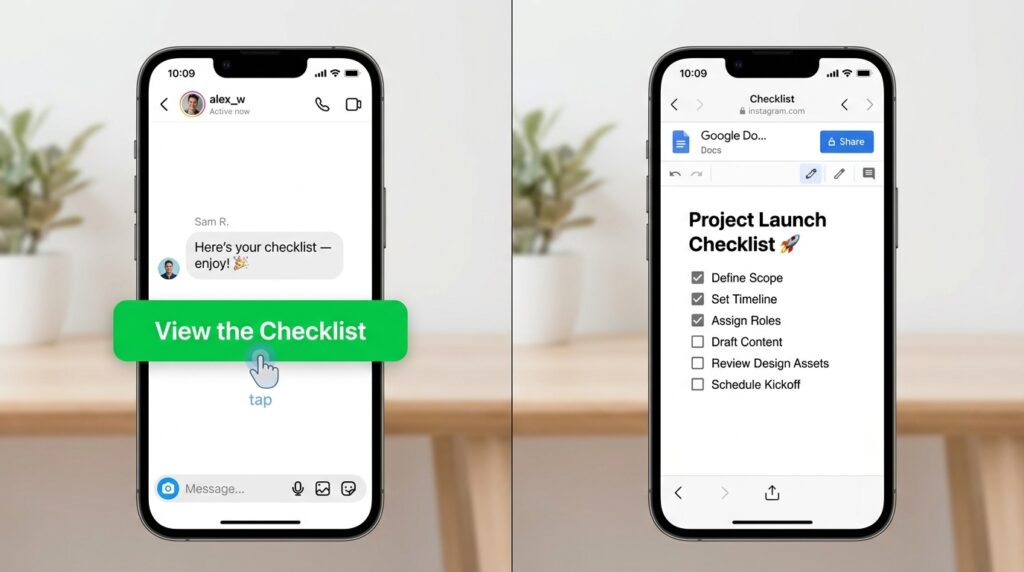
- Write a short delivery message. Keep it simple — the person already knows what’s coming: “Here’s your checklist — enjoy! 🎉”
- Click Add New Button:
- Button Name:
View the Checklist - Action: Open Website
- URL: Paste your lead magnet link (Google Doc, landing page, Gumroad, Notion page, etc.)
- Button Name:
- Click Save.
This button opens the link directly inside Instagram — zero friction, no app switching required.
Step 7: Publish Your Workflow
Once all steps are configured, it’s time to go live.
- In the top right corner of the Workflow Builder, find the Draft / Publish toggle.
- Flip it to Publish.
- Click Save.
Your automation is now live. Every time someone comments your keyword on the selected post, the entire sequence fires automatically.
How the Automation Looks in Real Life
Here’s the complete user journey from a follower’s perspective:
📸 User sees your Instagram post
        ↓
💬 User comments: "checklist"
        ↓
✅ GoHighLevel fires public reply: "Hey, check your DM!"
        ↓
📩 User receives DM with your welcome message + 2 buttons
        ↓
   [Visit My Blog]         [Get the Checklist]
        ↓                          ↓
  Opens your website     Receives second DM with
                         "View the Checklist" button
                                   ↓
                         Taps button → link opens
                         inside Instagram ✅
Total time from comment to lead magnet delivery: under 60 seconds. No human intervention required.
How GoHighLevel Captures Leads Automatically
This is the feature most people overlook — and it’s arguably the most valuable part of the entire system.
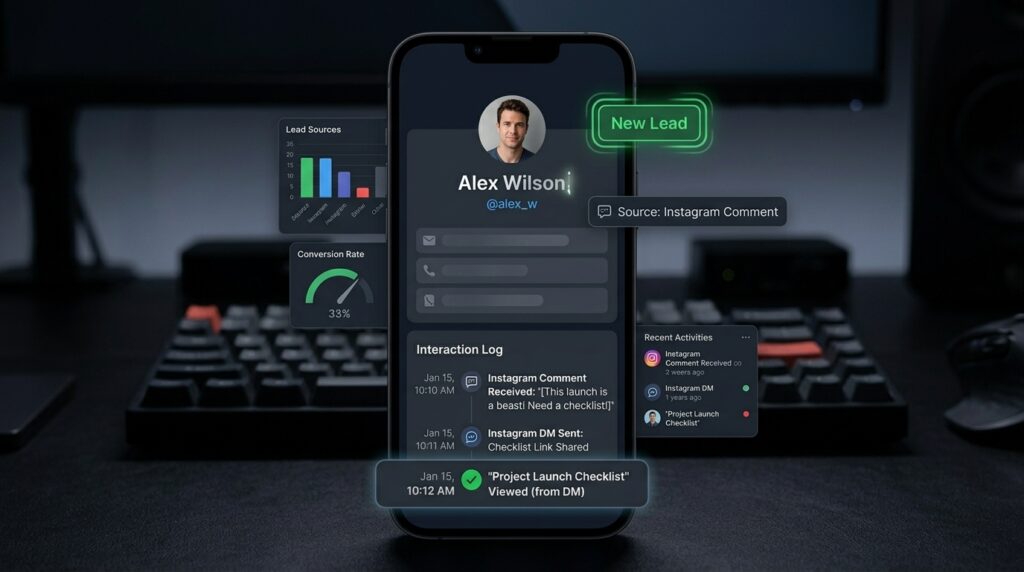
Every person who triggers your comment automation is automatically added to your GoHighLevel CRM as a contact. You don’t export spreadsheets. You don’t copy-paste names. The lead simply appears.
From the Enrollment History tab in your workflow, you can:
- See every contact who passed through the automation
- View the action executed and its status (“Finished” = ran successfully end-to-end)
- Click any contact to open their full CRM record, including a complete interaction log
From there, you can:
- Tag and segment contacts (e.g., tag them as “Checklist Lead”)
- Enroll them in nurture sequences
- Track their progress through your sales pipeline
- Follow up via email, SMS, or additional DMs
A comment automation isn’t just a clever freebie delivery tool — it’s a systematic, scalable lead capture engine.
Best Practices for Instagram Comment Automations
1. Write a Post That Drives the Comment
The automation only fires if people comment. Your post caption needs a clear, compelling call to action:
“Want my free WordPress Blog Launch Checklist? Drop the word CHECKLIST in the comments and I’ll DM it to you right now 👇”
2. Use Short, Easy-to-Type Keywords
Single, common words perform best: yes, free, guide, link, info, checklist, start.
3. Add Multiple Comment Reply Variations
Use 4–6 different public reply variations to keep your comment section looking organic, especially if the post goes viral.
4. Use Your Lead Magnet as a Hook, Not the End Goal
The checklist/freebie gets them in the door. The real value is the follow-up sequence you build in GoHighLevel after they opt in.
5. Test the Automation Before Promoting the Post
Before going live, test the full flow yourself from a separate Instagram account to make sure every step fires correctly.
6. Repurpose Across Multiple Posts
Once the workflow is built, you can duplicate it and point it at different posts with different keywords — scaling your lead generation without rebuilding from scratch.
Frequently Asked Questions
Does GoHighLevel support Instagram comment automation natively?
Yes. GoHighLevel has a pre-built workflow template called “Recipe: Instagram Comment Automation” that handles keyword triggers, public replies, DM sequences, branching logic, and CRM capture out of the box.
Does my Instagram account need to be a business account?
Yes. Your Instagram account must be a Professional account (Business or Creator) and connected to a Facebook Business Page to use GoHighLevel’s comment automation features.
Can I use this for Reels, not just feed posts?
The automation works on any published Instagram post, including Reels. The key is selecting the correct post inside the trigger filter settings.
What happens if someone comments the keyword multiple times?
GoHighLevel’s enrollment settings let you control re-enrollment behavior. You can set it to only enroll a contact once (recommended) to avoid spamming repeat commenters.
Can I use this to send people to an affiliate link?
Absolutely. In the “Open Website” button action, you can paste any URL — including affiliate links, sales pages, booking calendars, Gumroad pages, or Notion documents.
Does the “Like Comment” feature work on Instagram?
No. The Like Comment toggle in the Respond on Comment step only functions for Facebook posts. It has no effect on Instagram comments.
How long does it take for the DM to arrive after commenting?
Typically under 60 seconds. GoHighLevel includes a built-in 1-minute buffer to process responses before routing contacts through the workflow branches.
Can I connect multiple Instagram accounts to GoHighLevel?
Yes, but each sub-account in GoHighLevel manages one connected set of social pages. For multiple Instagram accounts, you’d use separate sub-accounts.
Is GoHighLevel the best tool for Instagram comment automation?
GoHighLevel is one of the most comprehensive options because it combines comment automation with CRM, email marketing, pipelines, and DM sequences in a single platform — making it ideal for agencies, coaches, and small businesses who want an all-in-one solution.
Final Thoughts
Instagram comment automation is one of the most underused lead generation strategies available to content creators and business owners right now. It’s low-friction for your audience, effortless for you, and — when paired with GoHighLevel’s CRM — transforms a casual comment into a trackable, nurturable lead.
Here’s what the complete system gives you:
- 🚀 Instant engagement — followers get a response within seconds
- 💬 Social proof — public replies drive more people to comment
- 📲 Interactive DMs — tap-button conversations convert better than passive messages
- 🗂️ Automatic CRM capture — no manual data entry, ever
- 🔁 Scalable — one workflow, unlimited leads
If you’re already creating content on Instagram, this automation essentially turns every post into a lead generation machine — with zero additional work after the initial setup.
Ready to build your Instagram comment automation? Start your GoHighLevel free trial and follow the steps above to have your first workflow live today.



Leave a Reply