Published: April 29, 2026 | Category: EdTech, AI Tools, Google Workspace | Reading Time: 9 min
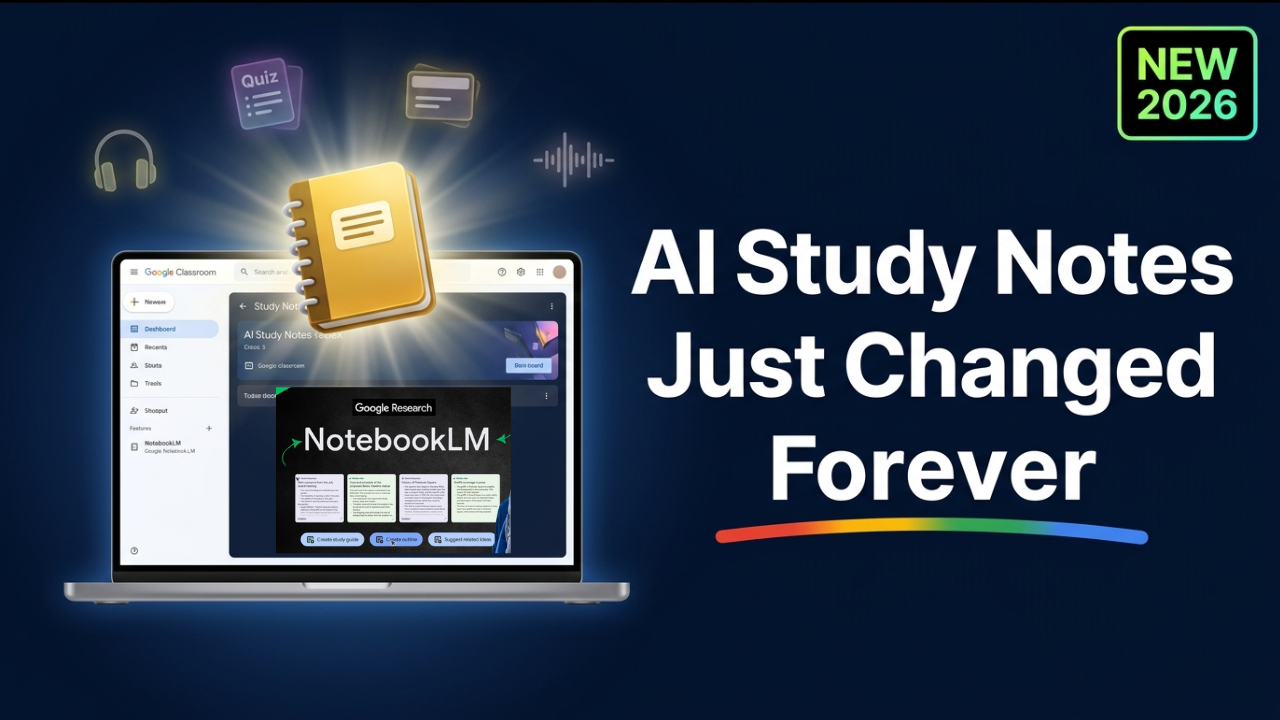
Google has officially expanded one of its most powerful AI tools directly into the hands of students. As of April 27, 2026, higher education students aged 18 and older can now create their own AI-powered personal class notebooks inside Google Classroom using NotebookLM — Google’s intelligent research and study assistant.
Read Also: HOW TO USE CLAUDE COWORK AS A BEGINNER — EVERYTHING YOU NEED TO KNOW – AI Discoveries
Until now, only teachers could use NotebookLM within Google Classroom to build interactive study guides for their classes. That changes today. This update marks a significant shift in how AI is being integrated into higher education, putting the power of AI-generated summaries, audio overviews, quizzes, infographics, and slide decks directly into students’ hands — all grounded in the actual materials assigned by their educators.
If you are a college student, a university instructor, or an academic institution administrator wondering what this means for you, this guide covers everything: what it is, how it works, who can access it, and how to make the most of it.
Table of Contents
- What Is NotebookLM?
- What Changed: Google’s April 2026 Update
- How to Create a Personal Class Notebook in Google Classroom
- Key Features of Personal Class Notebooks
- Who Can Access This Feature?
- How Is This Different from Teacher-Created Notebooks?
- Why NotebookLM Notebooks Reduce AI Hallucinations
- Tips for Students: Getting the Most Out of Your Notebook
- What This Means for the Future of AI in Education
- Frequently Asked Questions
What Is NotebookLM?
NotebookLM is Google’s AI-powered research and thinking assistant. It lets users upload their own source documents — PDFs, Google Docs, web links, YouTube videos, slides, and more — and then uses those sources exclusively to generate summaries, answer questions, and create study tools.
Unlike a general-purpose AI chatbot, NotebookLM does not pull information from the open internet in a freeform way. It grounds every response strictly in the sources you provide, and includes inline citations back to those original documents. This makes it uniquely reliable for academic use.
Key things NotebookLM can do:
- Summarize complex documents and lecture notes
- Answer specific questions based only on your uploaded sources
- Generate podcast-style audio overviews from dense reading material
- Create quizzes, mind maps, and study guides
- Produce infographics and slide decks for visual learners
- Allow interactive conversations with your source material
NotebookLM is available at notebooklm.google.com and also via standalone iOS and Android apps. It is free to use, making it accessible to students and educators in over 200 countries across more than 50 languages.
What Changed: Google’s April 2026 Update
On April 27, 2026, Google began rolling out a major upgrade to how NotebookLM is used inside Google Classroom. Previously, the integration was teacher-only: educators could create NotebookLM notebooks from their class materials and assign them to students as study aids.
Now, students themselves — specifically those aged 18 and older enrolled in higher education institutions — can create their own personal class notebooks directly from the Gemini tab inside Google Classroom.
Here is a quick timeline of how this feature evolved:
| Date | Development |
|---|---|
| June 2024 | Gemini integrated into Google Classroom for teachers |
| September 2025 | Teachers can create and assign NotebookLM notebooks and Gems in Classroom |
| April 27, 2026 | Students in higher education can now create personal class notebooks with NotebookLM |
This rollout began on desktop and laptop devices first, with a mobile version coming in the weeks ahead.
How to Create a Personal Class Notebook in Google Classroom
Creating your personal class notebook is a straightforward process. Here is exactly how to do it:
Step-by-Step Guide
Step 1: Open Google Classroom Sign in to your Google Workspace for Education account and navigate to your Google Classroom dashboard.
Step 2: Go to the Gemini Tab In the left-hand navigation bar inside Google Classroom, click on the Gemini tab. This is the central hub for all AI-powered features in Classroom.
Step 3: Navigate to Personal Class Notebooks Inside the Gemini tab, select Personal class notebooks.
Step 4: Create Your Notebook Click “Create class notebook.” A new tab will open in NotebookLM, where you can begin building and editing your notebook and its source materials.
Step 5: Add and Manage Sources Within NotebookLM, you can add up to 50 source documents per notebook. These can include:
- Lecture slides and notes uploaded by your teacher
- Course readings and PDFs
- Links to relevant web pages
- YouTube video lectures
- Your own supplementary documents
Step 6: Generate Study Tools Once your sources are added, use the Studio Panel to generate audio overviews, quizzes, summaries, infographics, and slide decks from your material.
Pro tip: You can still access your teacher-created notebooks from the Classwork page. Personal notebooks are in addition to — not a replacement of — teacher-assigned resources.
Read Also: BEST AI TOOLS FOR STUDENTS, CREATORS, AND ENTREPRENEURS (2026) – A Complete, Expert-Curated Guide – AI Discoveries
Key Features of Personal Class Notebooks
Once you have set up your personal class notebook, you unlock a rich suite of AI-powered study tools. Here is what students can generate:
1. Audio Overviews (Podcast-Style Summaries)
NotebookLM’s most celebrated feature: it converts your source documents into a conversational, podcast-style audio summary. Ideal for auditory learners or for studying on the go — commuting to campus, working out, or cooking dinner.
2. Video Overviews
Introduced in July 2025, Video Overviews turn your notebook sources into a narrated, slide-style explainer video, pairing an AI voice-over with visuals built from images, diagrams, quotations, and figures in your source material.
3. Interactive Quizzes
NotebookLM can auto-generate quizzes based on your class material — perfect for self-testing before exams. The questions are drawn directly from your uploaded sources.
4. Infographics
Students can now go beyond text-based notes. NotebookLM can generate visually stunning infographics that help internalize and present key concepts from course materials.
5. Slide Decks
Need to review information in presentation format? NotebookLM can build a complete slide deck from your source materials, useful both for studying and for preparing presentations.
6. Source-Grounded Q&A
Ask any question about your course material and get a detailed, cited answer. Every response points back to the exact source document it came from, so you always know where the information originated.
7. Up to 50 Sources Per Notebook
Students can compile up to 50 source documents per notebook, making it powerful enough to support comprehensive exam preparation across an entire semester of coursework.
Who Can Access This Feature?
Not every student has immediate access to personal class notebooks. Google has placed deliberate guardrails on the initial rollout. As of April 2026, the feature is available if all of the following conditions are met:
- Role: The user must be defined as a “Student” in Google Classroom
- Age: The student must be 18 years of age or older
- Institution type: The school or university must be classified as a higher education organization
- Workspace tier: The institution must have Google Workspace for Education Fundamentals, Standard, or Plus
- Admin settings: Gemini, NotebookLM, and Gemini in Classroom must all be turned On by the institution’s admin
For Administrators
To enable this feature for eligible students, administrators must configure the following in the Admin console:
- Turn NotebookLM On for users
- Turn Gemini On for users
- Ensure Gemini in Classroom is enabled
- Confirm that student roles in Classroom are correctly assigned
The feature is on by default for all qualifying students once these conditions are met. There is no separate opt-in required at the student level.
How Is This Different from Teacher-Created Notebooks?
Both types of notebooks use NotebookLM and are grounded in class materials. Here is how they differ:
| Feature | Teacher-Created Notebooks | Personal Class Notebooks |
|---|---|---|
| Who creates it | Teacher | Student |
| Accessible via | Classwork page / Classwork tab highlights | Gemini tab > Personal class notebooks |
| Based on | Teacher-selected class materials | Course materials from assigned classes |
| Customizable by student | No | Yes |
| Source limit | Varies | Up to 50 sources |
| Purpose | Standardized class resource | Personalized study tool |
Students still retain full access to teacher-created notebooks. Personal notebooks are an additive capability that gives students the autonomy to build their own customized study environment on top of what their teachers have provided.
Why NotebookLM Notebooks Reduce AI Hallucinations
One of the most valid criticisms of using generative AI in academic settings is the risk of hallucinations — when an AI confidently generates information that is simply incorrect or fabricated.
NotebookLM addresses this problem at the architecture level. Because personal class notebooks are tethered directly to the specific resources uploaded by the educator in Google Classroom, the AI is only allowed to answer based on those uploaded materials. It cannot freely pull from the open internet or from its general training data when responding to queries within your notebook.
This means:
- Answers are grounded in course-specific, educator-vetted content
- Every response includes inline citations pointing back to the source document
- Students get reliable, relevant answers strictly based on what has been taught in class
- The risk of the AI inventing academic “facts” is substantially reduced
This source-grounded architecture is what makes NotebookLM stand apart from general AI chatbots for academic use. It functions less like a free-range AI and more like an extremely well-read study partner who has only ever read the books on your course syllabus.
Additionally, student data in Google Workspace for Education is protected under enterprise-grade terms: it is not human-reviewed, and it is not used to train AI models.
Read Also: How to Stop Hitting Claude’s Usage Limits: 11 Rules That Actually Work – AI Discoveries
Tips for Students: Getting the Most Out of Your Notebook
Before an Exam
- Upload all lecture slides, notes, and readings for the relevant unit
- Generate an Audio Overview to listen during your commute
- Run a Quiz to test your retention before sitting down to study
- Generate a Summary to identify any concepts you have not yet mastered
For Writing Assignments
- Upload the assigned readings plus your own draft notes
- Use the Q&A feature to ask NotebookLM to help you identify supporting evidence from your sources
- Ask it to summarize arguments from multiple sources on a single question
For Group Study Preparation
- Build a notebook of core materials before a study group session
- Generate a slide deck to use as a visual reference during the session
- Create an infographic that captures the most complex concept for group discussion
For Long Courses
- Create separate notebooks per unit or topic rather than one massive notebook
- Take advantage of the 50 sources per notebook limit to build comprehensive unit-level notes
- Revisit and update source lists as new material is assigned throughout the semester
For Auditory and Visual Learners
- Prioritize Audio Overviews and Video Overviews as primary study formats
- Use Infographics for concepts that involve processes, hierarchies, or comparisons
What This Means for the Future of AI in Education
This update reflects a broader, accelerating shift in how AI is being integrated into formal education structures. Rather than treating AI as a peripheral tool that students use on their own time, Google is embedding it directly into the institutional learning workflow — with the key innovation being that the AI remains anchored to educator-curated content.
This is a meaningful distinction. The concern with AI in education is not just about hallucinations or plagiarism — it is about students bypassing the learning process altogether. By constraining NotebookLM to operate only within the materials assigned by the instructor, Google’s approach keeps the student’s attention on the curriculum itself, while making engagement with that curriculum richer and more multimodal.
The model also keeps educators in the loop. Because personal notebooks are built from teacher-uploaded materials, instructors remain the primary curators of what students study — AI simply transforms how that material is experienced and processed.
What we are likely to see next:
- Expansion to secondary education (currently restricted to 18+ higher ed students)
- Deeper Gemini integration enabling more conversational, LearnLM-powered tutoring within notebooks
- Analytics tools giving teachers visibility into how students are engaging with notebook content
- Mobile rollout completing the experience for students who study primarily on phones and tablets
Frequently Asked Questions
Q: Is NotebookLM in Google Classroom free? Yes. NotebookLM is free for all users on Google Workspace for Education Fundamentals, Standard, and Plus tiers. There is a premium Education Plus tier with expanded limits (up to 500 notebooks, 300 sources per notebook, 500 daily chat queries), but the core personal notebook feature is included in the standard free tiers.
Q: Can students under 18 use personal class notebooks? No. As of the April 2026 rollout, the feature is restricted to students aged 18 and older in higher education institutions. Google provides a distinct, more restricted NotebookLM experience for users under 18.
Q: Is this available on mobile? The initial rollout is web/desktop only. A mobile version is expected in the coming weeks.
Q: Can students use personal notebooks for K-12 courses? Not at this time. The feature is currently limited to higher education organizations. K-12 students can still access teacher-created notebooks that their educators assign.
Q: Does Google use student notebook data to train AI? No. Data within Google Workspace for Education accounts is not human-reviewed and is not used to train Google’s AI models. It is covered under enterprise-grade Google Workspace for Education terms.
Q: Can a student add their own documents to a personal notebook (not just teacher-uploaded ones)? Yes. Students can edit their notebooks and add their own supplementary source materials up to the 50-source-per-notebook limit, in addition to the educator-provided resources.
Q: What happens to teacher-created notebooks when a student creates a personal notebook? They coexist. Students retain full access to teacher-created notebooks via the Classwork page. Personal notebooks are separate and supplemental.
Q: How do I know if my institution has enabled this feature? If you are an eligible student (18+, higher education, correct Workspace tier), navigate to the Gemini tab in Google Classroom. If you see “Personal class notebooks,” the feature is enabled. If not, your institution’s admin may need to turn on Gemini, NotebookLM, and Gemini in Classroom in the Admin console.
Key Takeaways
- Google rolled out student-created personal class notebooks in Google Classroom on April 27, 2026
- The feature is powered by NotebookLM and accessible via the Gemini tab in Classroom
- Students can generate audio overviews, video overviews, quizzes, infographics, and slide decks from up to 50 course sources
- The AI operates only within educator-uploaded materials, significantly reducing hallucination risk
- Available to students aged 18+ in higher education institutions on eligible Google Workspace for Education plans
- Teacher-created notebooks remain available alongside personal student notebooks
- Mobile support is coming in the weeks following the initial web rollout
Sources: Google Workspace Updates Blog (April 27, 2026); Google for Education — NotebookLM; Chrome Unboxed; Tom’s Guide
Written By Olasunkanmi Adeniyi, A Senior Technical Writer for AI Discoveries





Leave a Reply