Updated October 3rd, 2026
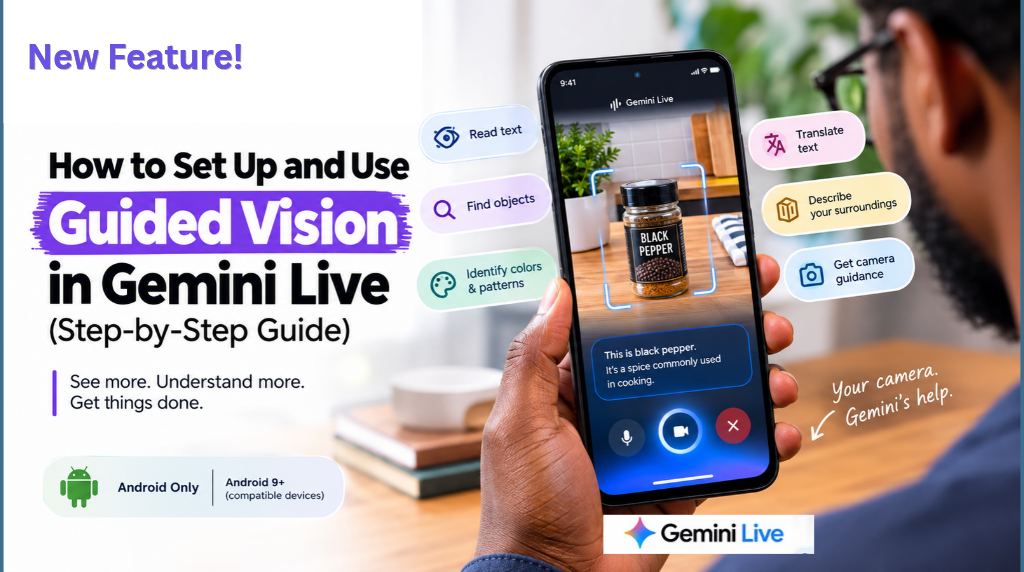
Google Gemini Live can now do more than have a voice conversation. With Guided Vision enabled, Gemini can use your Android phone’s camera to describe what is around you, read small text, help locate objects, and give spoken instructions when your camera needs to be repositioned.
Google launched Guided Vision in Gemini Live on October 1, 2026, with a strong focus on accessibility. The feature was developed with blind and low-vision communities and is available on compatible Android devices running Android 9 or later, in regions and languages where Gemini Live is supported.
This guide explains exactly how to turn on Guided Vision, start a session, use your camera effectively, and get better results from Gemini Live.
What Is Guided Vision in Gemini Live?
Guided Vision is a Gemini Live feature that provides real-time audio descriptions and visual assistance through your smartphone camera.
Instead of taking a picture and waiting for Gemini to analyze it, you can point your camera at something and have a natural conversation about what Gemini sees.
For example, you can ask:
“What does this label say?”
“Where is the black pepper?”
“What color is this shirt?”
“Can you describe this room?”
“Help me find the earbud on the floor.”
Gemini can respond verbally while also giving you guidance about how to position your camera. If your camera is pointing too high, too low, too close, or away from the object, Guided Vision can tell you how to reframe the view.
Key things Guided Vision can help with include:
• Reading small or complex text
• Translating visible text
• Identifying everyday objects
• Finding objects within your immediate surroundings
• Describing colors, shapes, and patterns
• Understanding the layout of a room or nearby environment
• Providing spoken camera-positioning guidance
• Answering follow-up questions about what the camera sees
Read Also: How Nigerian Small Businesses Can Build a Professional Online Presence in the AI Era!
Who Can Use Guided Vision?
Guided Vision is designed primarily as an accessibility feature, particularly for people who are blind or have low vision.
However, Google also highlights everyday uses for older adults, people with low literacy, and anyone who needs help interpreting visual information, such as reading fine print in poor lighting.
According to Google, Guided Vision is available on compatible Android devices running Android 9 or later, in regions and languages where Gemini Live is supported. Availability can vary because Google is rolling the feature out gradually.
If you do not see the Guided Vision setting yet, update your Gemini and Android software and check again later.
What You Need Before Setting Up Guided Vision
Before you start, make sure you have:
• An Android phone or tablet
• Android 9 or later for Guided Vision
• The Gemini mobile app
• A Google Account with access to Gemini Apps
• An up-to-date Gemini or Google app
• Gemini Live availability in your region
• Camera permission enabled for Gemini
Google’s current Gemini Live documentation says Gemini Live is available through the Gemini mobile app on Android. Gemini Live is not currently available through the Gemini web app or Google Messages.
How to Turn On Guided Vision in Gemini Live
Setting up Guided Vision only takes a few steps.
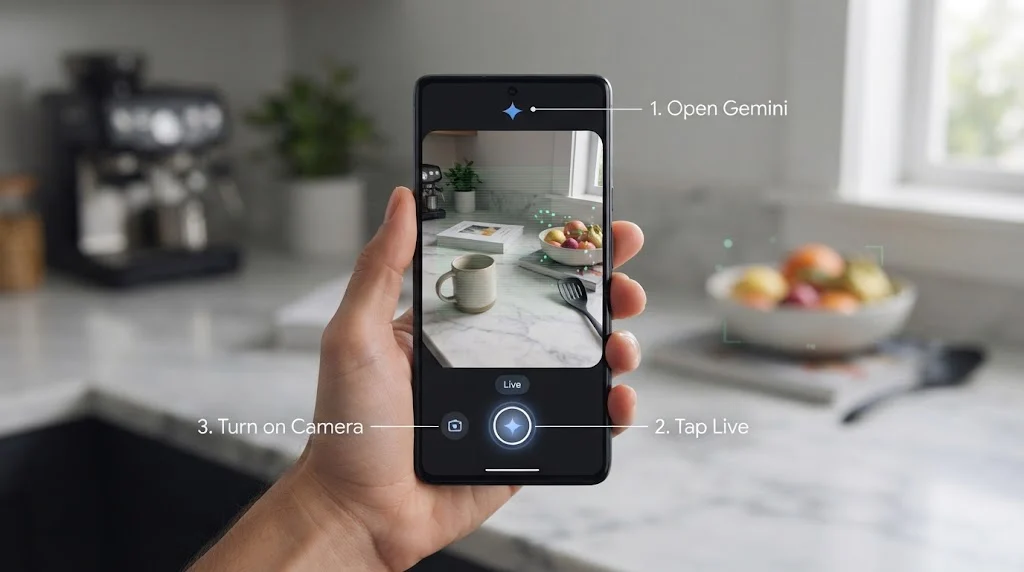
Step 1: Open the Gemini App
Open the Gemini mobile app on your Android phone.
Make sure you are signed into the Google Account you use with Gemini.
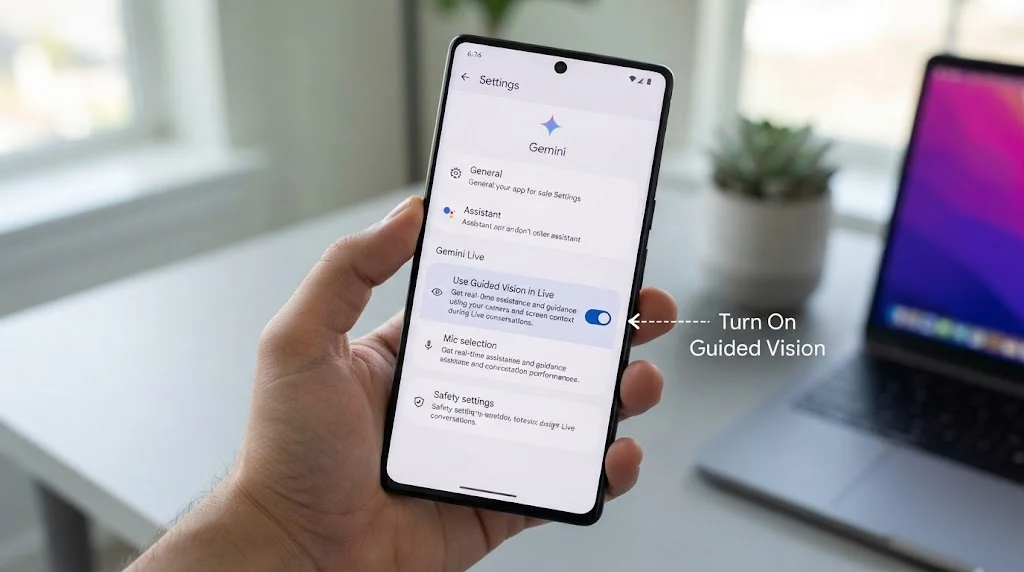
Step 2: Open Gemini Settings
Tap your profile picture or initial at the top of the Gemini app.
Then select Settings.
Step 3: Find Guided Vision
Look for the option labeled:
“Use Guided Vision in Live”
Turn this setting on.
Google’s official instructions place this setting inside the Gemini mobile app’s settings.
If Google displays a notification explaining Guided Vision, review it and tap Start Live if you want to begin immediately.
Step 4: Start Gemini Live
Return to the Gemini app.
At the bottom of the screen, tap Live.
You can also swipe left to enter Gemini Live.
Step 5: Turn On Your Camera
Once you are inside Gemini Live, tap the camera option to share your camera.
Point your phone toward the object, text, person, or environment you want Gemini to describe.
You are now using Guided Vision.
How to Use Guided Vision Effectively
The biggest difference between ordinary image analysis and Guided Vision is that you can interact with Gemini while it is seeing through your camera.
You don’t have to stop, take a picture, upload it, and start another conversation.
You can keep talking.
For example:
You: “What am I looking at?”
Gemini: Describes the scene.
You: “What color is the object on the left?”
Gemini: Answers the follow-up question.
You: “Can you find the black one?”
Gemini: Helps you identify or locate the relevant object.
This makes Guided Vision particularly useful for situations where the visual context changes as you move your phone.
How to Read Small Text With Guided Vision
One of the most practical uses is reading text that is difficult to see.
Point your camera toward the text and ask Gemini to read it.
Try prompts such as:
“Read this label for me.”
“Read the small text on this package.”
“What does this appliance display say?”
“Read this menu.”
“Translate the text you see.”
Google specifically lists food labels, appliance displays, menus, signs, and other complex or small text as use cases for Guided Vision.
For better results, hold your phone steady and give Gemini enough visual context to identify the text.
Read Also: How to Use Gemini Step by Step (2026 Beginner’s Guide for Beginners)
How to Find Objects With Guided Vision
Guided Vision can also help you locate everyday objects.
For example, you could point your phone toward a room and ask:
“Help me find my earbuds.”
“Where is the black pepper?”
“Can you see my keys?”
“Look around and tell me where the red bag is.”
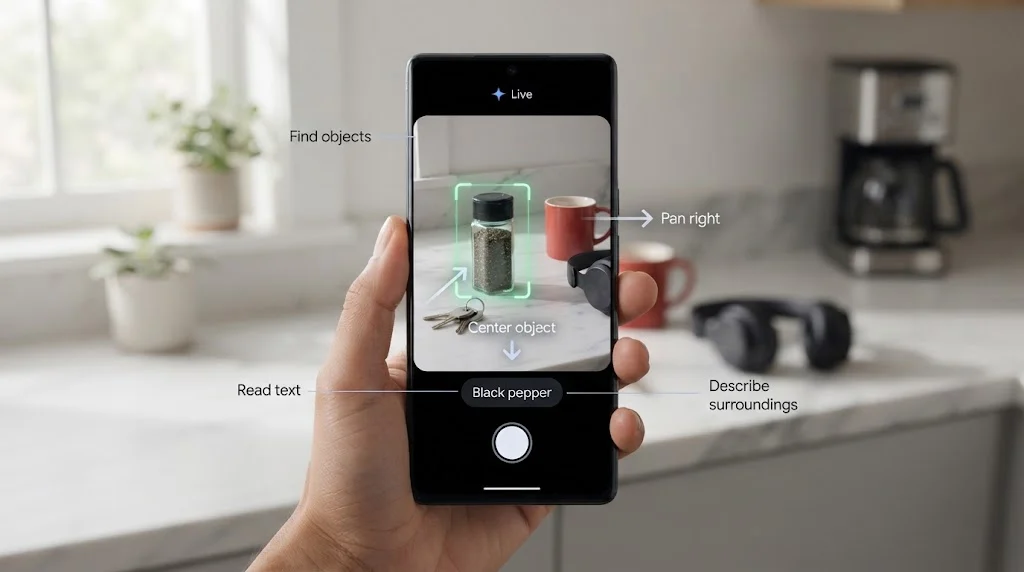
Google says Guided Vision can provide audio guidance for locating objects in your immediate surroundings.
If Gemini cannot see the object clearly, it may tell you to move your camera, pan across the area, or change the angle.
This camera guidance is one of the most important parts of Guided Vision.
How Gemini Guides Your Camera
You do not always need to know exactly how to position your phone.
Guided Vision can provide verbal cues when the camera needs to be adjusted.
For example, Gemini may guide you to:
Pan to the right.
Tilt the camera downward.
Move closer.
Step back.
Center the object.
Google says these spoken reframing cues are designed to help Gemini obtain clearer visual context.
This is especially useful when you cannot easily determine whether the object is properly centered in the camera view.
How to Ask Gemini About Colors, Shapes, and Patterns
Guided Vision can also help you understand visual characteristics.
For example, you could ask:
“What color is this jacket?”
“Does this shirt have stripes?”
“What shape is this object?”
“Describe the pattern on this shirt.”
“Do these two items appear to have similar colors?”
Google lists colors, patterns, shapes, and matching visual details among the feature’s intended everyday uses.
How to Understand Your Surroundings
You can also use Guided Vision to get a spoken description of an environment.
Point your camera around a room or nearby space and ask:
“Describe what is around me.”
“What objects are on this table?”
“Describe the layout of this room.”
“What do you see in front of me?”
This can provide useful context about your immediate surroundings.
However, there is an important distinction between understanding your surroundings and relying on Gemini for physical navigation.
Google explicitly says Guided Vision is not intended for navigation, obstacle detection, or as a replacement for established mobility aids or safe-travel practices.
How to Get Better Results From Guided Vision
The quality of Gemini’s response depends partly on the visual information available to it.
Use these practices:
- Give Gemini a clear target
Instead of saying:
“What is this?”
Try:
“What does the label on this package say?”
Specific questions give Gemini a clearer task.
Read Also: ChatGPT vs Claude vs Gemini: Which One Should You Use? The Complete 2026 Guide
- Move the camera slowly
If you are searching an area, move the camera gradually instead of rapidly scanning the entire room.
- Let Gemini guide you
If Gemini tells you to pan, tilt, move closer, or step back, follow the instruction before asking another question.
- Ask follow-up questions
You can build a conversation around what Gemini sees.
For example:
“Describe this object.”
“What color is it?”
“Is there another one nearby?”
“Where is it relative to the table?”
- Use enough lighting
Poor lighting can make visual interpretation harder. When possible, move toward better lighting or position the camera so the subject is clearly visible.
- Keep important objects in view
If you want Gemini to analyze an object, keep it within the camera frame while asking your question.
Guided Vision Accessibility Shortcuts
Google also provides shortcuts that can make Guided Vision faster to access.
On supported Android devices, open:
Settings → Accessibility → Vision assistance → Guided Vision
From there, you can configure a Guided Vision shortcut.
Google says available shortcut options can include:
• Accessibility button
• Accessibility gesture
• Volume keys
The accessibility gesture can be configured to start Guided Vision with a two-finger swipe from the bottom of the screen, while the volume-key option can use both volume keys.
Using Guided Vision With TalkBack
If you use TalkBack, Google’s Android screen reader, you can also access Guided Vision through the TalkBack menu.
Google’s current instructions say:
- Make sure TalkBack is up to date.
- Enable TalkBack.
- Tap the screen with three fingers to open the TalkBack menu.
- Select Guided Vision.
This provides another way to launch the feature without navigating through the Gemini settings every time.
How to Stop a Guided Vision Session
When you finish, tap End Live session.
You can also stop sharing your camera from the Gemini Live interface.
Remember that camera sharing and the Live conversation are separate controls. If you stop sharing the camera, you can continue using Gemini Live as a voice conversation. Google’s Gemini Live documentation confirms that users can turn camera sharing on and off during an active Live conversation.
Guided Vision vs. Regular Gemini Image Analysis
There is an important difference between Guided Vision and uploading an image to Gemini.
Regular image analysis typically works with a still image that you provide.
Guided Vision works inside Gemini Live and is designed for ongoing, conversational visual assistance.
With Guided Vision, you can:
• Share your camera in real time
• Ask questions verbally
• Receive spoken answers
• Ask follow-up questions
• Move the camera while continuing the conversation
• Receive verbal instructions for reframing the camera
This makes Guided Vision better suited to dynamic situations where you need continuing visual assistance rather than a one-time image analysis.
Real-World Examples of Guided Vision
Here are several practical ways you can use the feature.
Example 1: Reading a Food Label
Point your camera at a food package and say:
“Read the nutrition information on this label.”
You can then ask:
“What is the serving size?”
“What does this ingredient say?”
Example 2: Finding an Item
Point your camera toward a kitchen cabinet and ask:
“Help me find the black pepper.”
Gemini can describe what it sees and help you direct the camera toward the relevant area.
Example 3: Understanding a Menu
In a restaurant, you can point the camera at a menu and ask Gemini to read or describe the available options.
Google specifically identifies menus in low-light environments as an example of where Guided Vision can help.
Example 4: Choosing Clothes
Point the camera at an outfit and ask:
“What color is this shirt?”
“Does it have a pattern?”
“What does the jacket look like?”
Example 5: Exploring a Room
Point the camera around a room and ask:
“Give me a description of what is around me.”
You can then ask more specific questions about individual objects.
Privacy and Safety Considerations
Because Guided Vision uses your camera, you should be conscious of what you point it toward.
Google’s Gemini Live guidance recommends respecting other people’s privacy and asking permission before recording or including other people in a Live chat.
Avoid using Guided Vision as the sole source of information for situations where a mistake could cause serious harm.
Read Also: 30 Legitimate Ways to Make Money Online in 2026: A Beginner’s Opportunity Map
Google specifically warns that Guided Vision can make mistakes.
It is not a medical device.
It is not a mobility aid.
It is not a replacement for a white cane or other established mobility tools.
It should not be used for navigation or obstacle detection.
If you are walking through an unfamiliar environment, continue using appropriate mobility and safety practices.
Guided Vision Not Showing Up? Try These Fixes
If you cannot find the Guided Vision option, work through these checks.
- Update Gemini
Open Google Play and make sure your Gemini or Google app is up to date.
- Update Android
Check whether your phone is running Android 9 or later.
- Check Gemini Live availability
Guided Vision depends on Gemini Live being available on your device, account, region, and supported language.
- Check your settings
Open Gemini → Profile picture → Settings and look for “Use Guided Vision in Live.”
- Check camera permissions
Make sure Gemini has permission to access your device’s camera.
- Wait for the rollout
Google says Guided Vision is rolling out gradually. Some eligible users may therefore see the feature later than others.
Frequently Asked Questions
What is Guided Vision in Gemini Live?
Guided Vision is a Gemini Live feature that uses your Android phone’s camera to provide real-time audio descriptions, visual assistance, and spoken camera-reframing guidance.
How do I enable Guided Vision in Gemini?
Open the Gemini mobile app, tap your profile picture or initial, open Settings, and turn on “Use Guided Vision in Live.” Then start Gemini Live and share your camera.
Is Guided Vision available on iPhone?
Google’s current Guided Vision documentation describes the feature for compatible Android devices. Google says Guided Vision is available on Android 9 and above in regions and languages where Gemini Live is supported.
Does Guided Vision work without Gemini Live?
No. Guided Vision is a feature within Gemini Live. You start a Live conversation and then share your camera to use it.
Can Gemini Guided Vision read text?
Yes. Google lists reading fine print, food labels, menus, signs, appliance displays, and other complex text as supported use cases.
Can Guided Vision find objects?
Yes. You can use Guided Vision to identify and locate everyday objects in your immediate surroundings.
Can Guided Vision describe a room?
Yes. Google says Guided Vision can provide descriptions of your surroundings, including room layouts and objects around you.
Can Guided Vision help with navigation?
No. Google specifically warns users not to rely on Guided Vision for navigation or obstacle detection.
Why does Gemini tell me to move my camera?
Guided Vision can provide spoken reframing cues when Gemini needs a better view. It may ask you to pan, tilt, move closer, step back, or center an object.
Does Guided Vision make mistakes?
Yes. Google warns that generative AI can make mistakes, so you should verify important information and avoid relying on Guided Vision for safety-critical decisions.
The Bottom Line
Guided Vision turns Gemini Live into a conversational visual assistant.
The setup is straightforward:
Open Gemini → Settings → turn on “Use Guided Vision in Live” → start Gemini Live → share your camera → ask questions.
Once enabled, you can use it to read text, identify objects, locate everyday items, understand colors and patterns, and get spoken descriptions of your surroundings.
The most useful part is the interaction. Gemini does not simply analyze what your camera sees. It can also guide you toward a better camera position when it needs more visual context.
For people who are blind or have low vision, this can provide another layer of conversational visual assistance. For other users, it can also be useful whenever you need quick help understanding something in front of your camera.
Google is continuing to roll out Gemini Live updates, so the exact interface and availability may change over time. If you do not see Guided Vision today, keep the Gemini app and Android software updated and check again as the rollout expands.
Official Resources
Google’s Guided Vision documentation:
Google Android Accessibility Help: Guided Vision in Gemini Live
Google’s Gemini Live help guide:
Google Gemini Apps Help: Talk naturally with Gemini Live
Google’s official Guided Vision announcement:
Google Blog: Guided Vision launches in Gemini Live for Android
✍️ About the Author
Olasunkanmi Adeniyi is a solo founder, product builder, AI practitioner, no-code and low-code developer, and SEO/content strategist. He builds websites, SaaS products, digital tools, and content systems using AI and modern development tools.
Rather than writing about AI from theory alone, Olasunkanmi focuses on testing, building, experimenting, and documenting what actually works. His work explores AI-powered workflows, product development, automation, SEO, content strategy, online business, and the practical use of emerging technologies.
Through AI Discoveries, he publishes practical tutorials, in-depth guides, experiments, and real-world use cases designed to help entrepreneurs, professionals, creators, and businesses understand and apply AI more effectively.
His goal is simple: make AI practical, understandable, and actionable—so readers can move from learning about what AI can do to actually using it to build, work, and grow.
Learn more and explore his latest work at www.aidiscoveries.io.




Leave a Reply