Author: Olasunkanmi Adeniyi
Updated: September 2026
If you spend hours cleaning Excel files, writing formulas, comparing numbers, building reports, or formatting spreadsheets, you may be using Claude the wrong way.
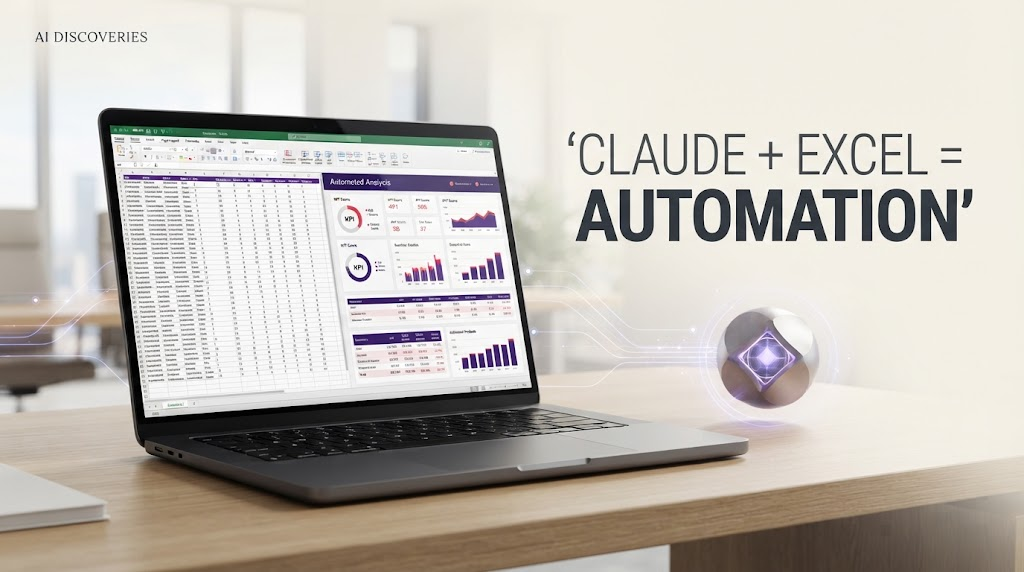
Claude can now work directly with spreadsheet files, create Excel workbooks, analyze uploaded data, generate formulas, build financial models, create charts, and modify existing spreadsheets.
Claude spreadsheet automation is the use of Claude’s AI capabilities to create, clean, analyze, modify, and interpret spreadsheet data with natural-language instructions. It can help automate repetitive Excel and spreadsheet tasks such as formula generation, data cleaning, reporting, chart creation, error detection, and business analysis.
KEY TAKEAWAYS
• Claude can create, analyze, clean, and modify Excel spreadsheets.
• You can use Claude to generate formulas, identify spreadsheet errors, analyze trends, and create charts.
• Claude for Excel allows eligible users to work with Claude directly inside Excel.
• The best results come from giving Claude the data, objective, rules, and desired output.
• You can turn repetitive spreadsheet tasks into reusable AI workflows.
• Always review important calculations, formulas, financial figures, and AI-generated changes before using the final spreadsheet.
Quick answer: To turn Claude into a spreadsheet machine, upload your data, define the desired outcome, ask Claude to inspect and clean the data, generate formulas and analysis, build visualizations, and produce a decision-ready workbook.
With Claude for Excel, eligible users can also work with Claude directly inside Excel. It can analyze workbooks, modify formulas while preserving relationships, identify errors, populate templates, and work across multiple tabs.
Read Also: Every AI Model Explained For You in Simple Language as a Beginner
The bigger opportunity is not simply asking Claude to “analyze my spreadsheet.”
It is turning Claude into a repeatable spreadsheet assistant that handles the tedious parts of your workflow.
Here is how to do it.
What Does It Mean to Turn Claude Into a Spreadsheet Machine?
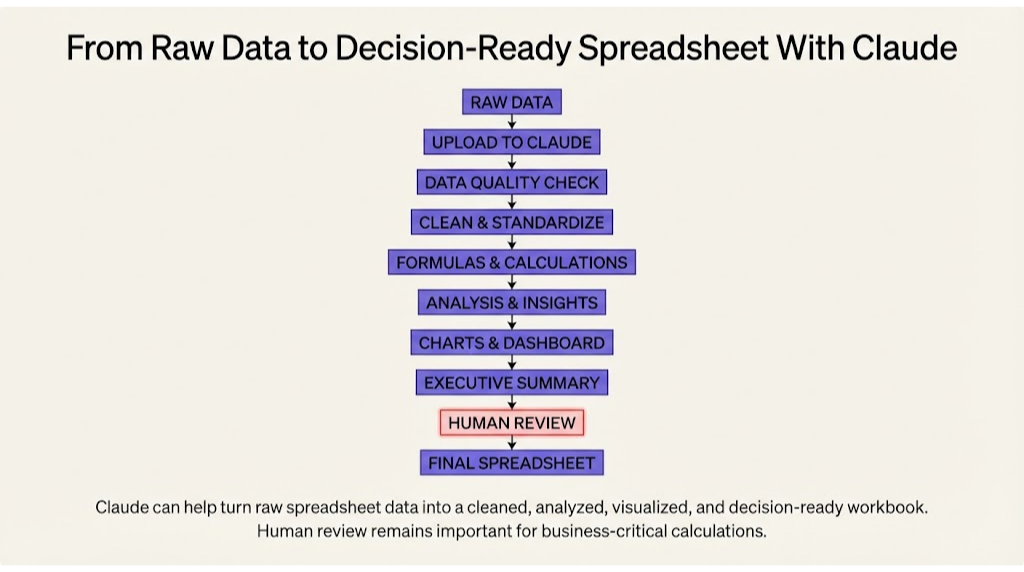
A spreadsheet machine is a workflow where Claude helps you move from raw data to a usable spreadsheet with less manual work.
Instead of doing this:
Collect data → clean data → write formulas → analyze numbers → create charts → format report → write summary
You can use Claude to handle much of the repetitive work:
Raw data → Claude → cleaned spreadsheet → formulas → analysis → charts → insights
Claude can create actual Excel files, including .xlsx workbooks, rather than simply giving you instructions in a chat. Anthropic says Claude can create spreadsheets with working formulas, multiple sheets, charts, and calculations.
That changes how you should think about AI and spreadsheets.
Claude becomes less like a chatbot and more like a spreadsheet assistant.
What Can Claude Do With Spreadsheets?
Depending on the Claude features and plan available to you, you can use it for tasks such as:
- Create Excel spreadsheets from scratch
- Analyze existing spreadsheets
- Clean messy datasets
- Generate and explain formulas
- Find spreadsheet errors
- Compare multiple sheets
- Build financial models
- Create dashboards and charts
- Summarize large datasets
- Categorize transactions or customer data
- Calculate growth rates and variances
- Populate spreadsheet templates
- Create reports from spreadsheet data
- Convert data from other files into spreadsheets
- Automate repetitive spreadsheet workflows
Claude can also process CSV and TSV files and use Python for more advanced data analysis and visualization.
How to Turn Claude Into Your Spreadsheet Machine
Step 1: Give Claude the Data
Start by uploading the spreadsheet, CSV, TSV, PDF, or other relevant file.
Do not immediately ask:
“Analyze this spreadsheet.”
That prompt is too vague.
Instead, explain what the spreadsheet contains and what you want to accomplish.
For example:
“Analyze this sales spreadsheet. It contains customer names, product categories, sales representatives, monthly revenue, units sold, and regions. I want to identify the strongest products, weakest regions, monthly revenue trends, and the sales representatives generating the most revenue.”
This gives Claude a specific analytical objective.
Claude can work with uploaded data and create analysis, charts, and other outputs from it.

Step 2: Tell Claude What the Final Spreadsheet Should Look Like
One of the biggest mistakes people make with AI spreadsheets is describing only the task.
Describe the desired result too.
For example:
“Create an Excel workbook with five sheets:
- Raw Data
- Cleaned Data
- Analysis
- Dashboard
- Executive Summary
Keep the original data unchanged in Raw Data. Clean duplicates and inconsistent values in Cleaned Data. Use formulas where appropriate. Create charts showing monthly revenue, regional performance, and product performance.”
Read Also: 5 Essential AI Tools to Skyrocket Your Daily Productivity!
Now Claude knows what you want to build.
This is much more useful than:
“Make this spreadsheet better.”
Step 3: Make Claude Clean the Data
Messy data can make a beautiful spreadsheet useless.
Ask Claude to inspect the dataset before making changes.
Use a prompt like:
“Inspect this spreadsheet for data-quality problems. Identify duplicate records, missing values, inconsistent dates, inconsistent capitalization, invalid numbers, unusual values, and inconsistent category names. Do not modify the original sheet. Create a cleaned version and explain every major change.”
Claude can perform data-cleaning tasks such as standardizing formats, finding duplicates, fixing encoding issues, and categorizing data.
This creates an important workflow:
Original data → Data-quality check → Cleaned data → Analysis
Step 4: Let Claude Build Your Formulas
You do not need to memorize every Excel formula.
Claude can help create, explain, debug, and modify formulas.
For example:
“Add a new column called Gross Margin. Calculate it as Revenue minus Cost of Goods Sold. Add another column called Gross Margin %. Use Gross Margin divided by Revenue. Format the percentages to two decimal places.”
You can also ask Claude to explain a formula:
“Explain this Excel formula in simple language and identify any potential errors.”
Or:
“Why is this formula returning #VALUE!? Diagnose the problem and provide the corrected formula.”
Claude for Excel can identify errors such as #REF!, #VALUE!, and circular references and suggest fixes.
Step 5: Ask Claude to Analyze the Numbers
Once your data is clean, move from spreadsheet work to decision-making.
Read Also: 20 New Ways to Make Money With AI as a Beginner in 2026: A Complete Guide
For example:
“Analyze this sales dataset and answer these questions:
What was total revenue?
What was month-over-month growth?
Which products generated the most revenue?
Which products had declining sales?
Which region grew fastest?
Which customers contributed the most revenue?
What unusual patterns should management investigate?”
This changes Claude from a spreadsheet formatter into an analytical assistant.
For financial and business datasets, you can also ask it to perform variance analysis, identify unusual changes, compare periods, and highlight underperforming categories.
Step 6: Turn the Analysis Into a Dashboard
Numbers become much easier to understand when you visualize them.
Ask Claude:
“Create a management dashboard showing total revenue, total profit, profit margin, monthly revenue trend, revenue by region, top five products, and monthly growth. Use clear titles and make the dashboard suitable for a business meeting.”
Claude can create spreadsheets containing charts and visualizations, and it can also generate image-based visualizations during advanced data-analysis workflows.
A good dashboard should answer three questions quickly:
What happened?
Why did it happen?
What should we do next?
Step 7: Make Claude Explain the Spreadsheet
This is an underrated use case.
You can upload a complicated workbook and ask:
“Explain how this spreadsheet works. Identify the purpose of each sheet, important formulas, key assumptions, dependencies between sheets, and potential problems. Explain it as if you were onboarding a new employee.”
Claude for Excel can answer questions about workbooks and provide cell-level citations to the cells it references.
This can be especially useful when you inherit a spreadsheet created by someone else.
Step 8: Ask Claude to Audit Your Spreadsheet
Before sending an important workbook to a client, manager, investor, or finance team, ask Claude to audit it.
Try:
“Act as a spreadsheet auditor. Review this workbook for formula errors, broken references, inconsistent formatting, duplicate calculations, missing assumptions, unusual values, hardcoded numbers that should be formulas, and potential calculation mistakes. Do not change anything yet. Give me an audit report first.”
This is safer than immediately asking an AI system to modify everything.
You get an inspection first.
Then you decide which changes should happen.
Step 9: Build Repeatable Spreadsheet Workflows
The real productivity gain comes when you stop treating every spreadsheet as a one-off task.
Suppose you receive a weekly sales CSV.
Your workflow could become:
Upload CSV
↓
Claude checks data quality
↓
Claude cleans the dataset
↓
Claude calculates KPIs
↓
Claude compares results with the previous period
↓
Claude updates the dashboard
↓
Claude identifies unusual changes
↓
Claude writes an executive summary
That is a spreadsheet workflow.
You can reuse the same instructions every week with a new dataset.
10 Claude Prompts That Turn It Into a Spreadsheet Machine
Prompt 1: Create a spreadsheet
“Create an Excel workbook for tracking monthly business expenses. Include separate sheets for Transactions, Categories, Monthly Summary, Dashboard, and Annual Summary. Add formulas for total expenses, category spending, monthly changes, and annual totals. Use clean professional formatting.”
Prompt 2: Clean data
“Analyze this spreadsheet for data-quality problems. Find duplicate rows, missing values, inconsistent category names, invalid dates, unusual numbers, and formatting inconsistencies. Create a cleaned version while preserving the original data.”
Prompt 3: Analyze sales
“Analyze this sales spreadsheet. Calculate total revenue, average order value, monthly growth, revenue by product, revenue by region, and revenue by salesperson. Identify the three most important business insights.”
Read Also: 10 Practical Ways Founders and Business Owners Can Use GPT-6 Astra
Prompt 4: Find anomalies
“Review this dataset for unusual values and unexpected changes. Identify potential anomalies and explain why each one deserves investigation.”
Prompt 5: Build a dashboard
“Turn this dataset into an executive dashboard. Include the most important KPIs, monthly trends, category performance, regional performance, and the top five contributors. Keep the dashboard simple enough to understand in under one minute.”
Read Also: How to Build an Agentic OS with Claude Fable 5: The Complete 2026 Guide
Prompt 6: Fix formulas
“Audit the formulas in this workbook. Identify broken references, inconsistent formulas, circular references, and formulas that produce unexpected results. Explain the problem and recommend a fix.”
Prompt 7: Compare periods
“Compare the 2025 and 2026 sheets. Identify changes in revenue, expenses, customers, products, and margins. Calculate percentage changes and highlight the largest positive and negative movements.”
Prompt 8: Financial model
“Build a three-year financial model using this data. Include assumptions, revenue projections, operating expenses, EBITDA, cash flow, and scenario analysis for conservative, base, and optimistic cases. Keep assumptions separate from calculations.”
Prompt 9: Explain a workbook
“Explain this workbook to someone who has never seen it before. Describe each sheet, the important formulas, how the sheets connect, the key assumptions, and any potential issues.”
Prompt 10: Executive summary
“Analyze this spreadsheet and write a one-page executive summary. Include the most important results, significant changes, unusual findings, risks, and three recommended actions. Support every important claim with figures from the dataset.”
How to Get Better Results From Claude
The quality of your spreadsheet output depends heavily on the instructions you provide.
Use this structure:
Role + Data + Task + Rules + Output
For example:
“Act as a financial analyst.
Data: This workbook contains monthly revenue and operating expenses for 24 months.
Task: Analyze profitability and identify major changes.
Rules:
Do not modify the original data.
Show calculations.
Flag assumptions.
Do not invent missing information.
Use formulas where appropriate.
Output:
Create a new Excel workbook with Raw Data, Analysis, Dashboard, and Executive Summary sheets.”
This gives Claude context, constraints, and a clear definition of success.
Claude Spreadsheet Workflow for Business Owners
If you run a business, you can turn Claude into a simple weekly reporting system.
Monday:
Upload sales data.
Ask Claude to clean it.
Ask Claude to calculate KPIs.
Ask Claude to compare the latest period with previous periods.
Ask Claude to identify anomalies.
Ask Claude to update your reporting workbook.
Ask Claude to create a management summary.
Ask Claude:
“What changed this week, why does it matter, and what should I investigate next?”
This gives you a much more useful result than simply asking:
“Summarize this spreadsheet.”
Claude for Excel vs Using Claude Separately
There are now two useful ways to approach spreadsheet work.
The first is using Claude’s file-creation and analysis capabilities.
You can upload files to Claude and ask it to create or modify Excel workbooks. Claude can produce .xlsx files, analyze data, create formulas, and generate charts.
The second is Claude for Excel.
Claude for Excel brings Claude directly into Excel and allows it to work with existing workbooks, including multi-tab files. It can answer questions about cells, modify spreadsheets, preserve formula relationships, troubleshoot errors, and perform spreadsheet operations.
If your work happens primarily inside Excel, the Excel integration can reduce the need to move between applications.
What About Google Sheets?
Claude also has a Google Sheets integration.
Anthropic’s documentation describes Claude for Sheets as an extension that allows Claude interactions directly in spreadsheet cells. It can be useful for tasks such as survey analysis, online data processing, and testing prompts across large datasets.
This makes Claude useful beyond traditional Excel workflows.
Your spreadsheet environment can be:
Excel → Claude for Excel
Google Sheets → Claude for Sheets
CSV → Claude data analysis
Excel file → Claude file creation
PDF → Claude → Excel
A Powerful PDF-to-Spreadsheet Workflow
One particularly useful workflow is extracting structured information from documents.
Imagine you have 200 invoices in PDF format.
Instead of manually copying numbers into Excel, you can ask Claude to extract the relevant fields.
For example:
“Extract the following information from these invoices: invoice number, customer name, invoice date, due date, subtotal, tax, total amount, and payment status. Create an Excel spreadsheet with one invoice per row. Flag any missing or ambiguous information.”
Anthropic specifically documents workflows where Claude extracts information from PDF tables or forms and creates an Excel spreadsheet from the extracted data.
This can eliminate a significant amount of manual data entry.
Use Claude as a Spreadsheet Reviewer, Not an Unquestioned Authority
There is one important rule.
Do not blindly trust an AI-generated spreadsheet.
Always verify important calculations.
This matters even more when dealing with:
Financial statements
Payroll
Tax calculations
Investment models
Customer records
Business-critical reports
Sensitive data
Claude for Excel’s documentation recommends reviewing changes before finalizing them and starting with a trusted copy of a workbook before making broad edits. Anthropic also warns that spreadsheets from external sources can contain hidden prompt-injection instructions that attempt to manipulate an AI spreadsheet assistant.
A safer workflow is:
Original workbook
↓
Create a copy
↓
Ask Claude to inspect
↓
Review proposed changes
↓
Apply changes
↓
Check formulas
↓
Verify important numbers
↓
Use the final workbook
The Spreadsheet Machine Prompt
If you want one reusable prompt, start here:
“Act as my AI spreadsheet analyst.
I will provide you with a spreadsheet or dataset.
Your job is to help me turn the raw data into a clean, accurate, decision-ready workbook.
Follow this process:
- Inspect the dataset before changing anything.
- Identify missing values, duplicates, inconsistent formatting, invalid values, and unusual data.
- Preserve the original data.
- Create a cleaned version.
- Calculate relevant KPIs.
- Identify important trends and anomalies.
- Create appropriate formulas.
- Build useful charts and visualizations.
- Create a simple dashboard.
- Write an executive summary explaining the most important findings.
- Clearly identify assumptions.
- Never invent missing data.
- Explain important calculations.
- Flag anything that requires human verification.
What can Claude do with Excel spreadsheets?
Claude can help create, clean, analyze, and modify Excel spreadsheets. Depending on the Claude features available to the user, it can generate formulas, troubleshoot spreadsheet errors, analyze datasets, create charts and dashboards, compare multiple sheets, extract structured information, and produce business summaries. Claude for Excel can also bring AI-assisted spreadsheet work directly into Excel.
Before making major changes, explain what you intend to change.
The final workbook should be clean, organized, professional, easy to understand, and suitable for business decision-making.”
The Bigger Opportunity
The biggest shift is not that Claude can create an Excel file.
It is that spreadsheets are becoming interfaces for AI-powered work.
A spreadsheet used to require you to manually:
Enter data
Clean data
Write formulas
Calculate metrics
Build charts
Interpret results
Write reports
When Should You Verify Claude’s Spreadsheet Work?
Always review spreadsheets when the output affects money, compliance, customers, payroll, investment decisions, financial reporting, or other business-critical decisions.
Claude can accelerate spreadsheet work, but acceleration does not remove the need for verification.
Before using an important workbook:
- Check the formulas.
- Verify totals against the original data.
- Review unusual results.
- Check important assumptions.
- Confirm that references point to the correct cells.
- Review any changes Claude made.
- Keep an original copy of the workbook.
Use Claude as an AI spreadsheet assistant, not as an unquestioned source of truth.
Now you can describe much of that workflow in natural language.
Claude can create and edit Excel files, analyze datasets, generate visualizations, and perform more advanced data-analysis tasks using code execution.
That means your competitive advantage increasingly comes from knowing how to design the workflow, not from memorizing hundreds of spreadsheet functions.
Frequently Asked Questions
Can Claude create Excel spreadsheets?
Yes. Claude can create .xlsx Excel spreadsheets and can generate workbooks containing formulas, calculations, multiple sheets, formatting, and charts.
Can Claude analyze an Excel spreadsheet?
Yes. You can upload an Excel workbook to Claude and ask it to analyze the data, identify trends, calculate metrics, find anomalies, and produce insights. Claude for Excel also provides tools for working directly with Excel workbooks.
Can Claude write Excel formulas?
Yes. Claude can generate, explain, debug, and modify Excel formulas. Claude for Excel can also identify formula errors and help resolve them.
Can Claude clean spreadsheet data?
Yes. Claude can help identify duplicates, missing values, inconsistent formats, encoding problems, and other data-quality issues.
Can Claude build Excel dashboards?
Yes. Claude can create spreadsheets with charts and visualizations, allowing you to turn raw data into dashboards and reports.
Can Claude work with multiple Excel sheets?
Yes. Claude for Excel can work across multi-tab workbooks and maintain relationships between formulas and spreadsheet components.
Can Claude convert a PDF into Excel?
Yes. Claude can extract structured information from PDFs and create Excel spreadsheets from the extracted data.
Is Claude better than Excel?
They solve different problems. Excel remains the spreadsheet environment. Claude adds an AI layer that can help you create, analyze, modify, explain, and automate spreadsheet work.
Can Claude automate spreadsheets?
Claude can automate many spreadsheet tasks through natural-language instructions, file creation, analysis, formulas, and integrations such as Claude for Excel and Claude for Sheets. The exact capabilities depend on the Claude product, plan, and enabled features.
Final Takeaway
You do not need to become an Excel expert before you can do sophisticated spreadsheet work.
You need to learn how to give Claude a clear objective, provide the right data, define the desired output, set constraints, and verify the result.
ASK CLAUDE
Instead of asking Claude to simply “analyze this spreadsheet,” give it a specific job.
Use this framework:
Role + Data + Task + Rules + Output
Example:
“Act as a financial analyst. Analyze this monthly sales workbook. Identify revenue trends, calculate month-over-month growth, find unusual changes, and create a management dashboard. Do not modify the original data. Show important calculations and flag anything that requires human verification.”
Start with one repetitive spreadsheet task.
Give Claude the file.
Tell it what the data means.
Explain what you want.
Ask it to inspect before changing anything.
Then turn the successful workflow into a reusable prompt.
That is how you turn Claude from a chatbot into your spreadsheet machine.
Written by Olasunkanmi Adeniyi
Olasunkanmi Adeniyi is a solo founder, product builder, no-code/low-code developer, SEO and content strategist focused on practical AI implementation. He writes about AI workflows, automation, product development, SEO, productivity, and online business at AI Discoveries.





Leave a Reply